PnP Pre-requisites
Many Vodia PBX settings are downloaded to the phone during Plug and Play, so it's best to configure these settings before actually doing Plug and Play. That way, when the phones are provisioned, they will have those settings. Some of these settings are listed below.
Configuring the Tenant Settings for Provisioning Settings
Many Tenant settings are also uploaded to the extension (the phone) during plug and play, such as language settings and country codes etc.
- Version 69
- Version 70
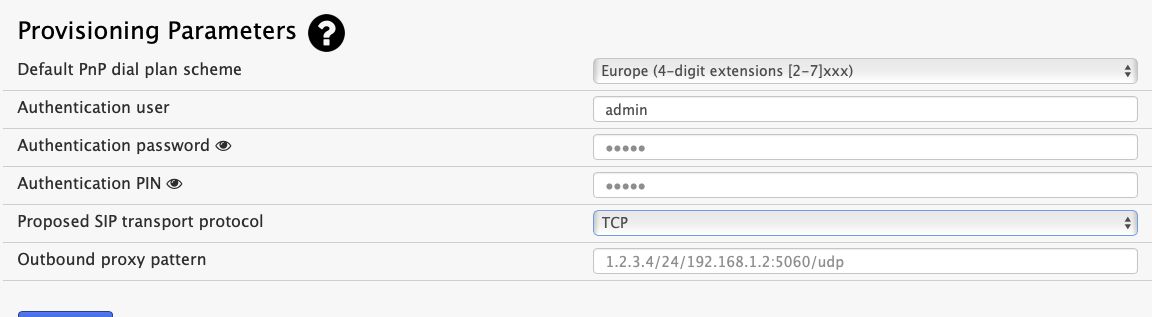
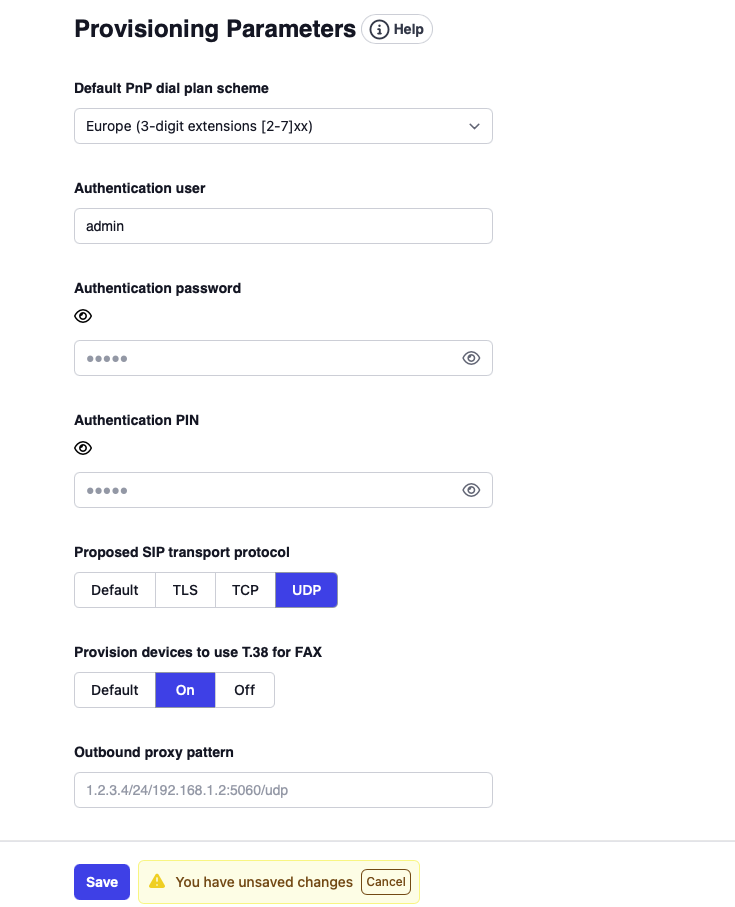
- Go to your selected tenant in the Vodia PBX web interface.
- Go to General Settings
- Choose default IVR and web languages, a time zone, and country and area codes etc.
- Scroll to the bottom of the page to Provisioning Parameters , and select a default dial plan scheme and enter the username and password for the phones.
- Dial plan has to be selected here at this point.
- The Authentication user , Authentication password and Authentication PIN settings allow administrators to provision phones and log into a phone’s web interface remotely. The password will bypass users’ passwords (the web interface passwords), so users will not be able to use their passwords; hence, this setting can be used to keep users out of the phone’s web interface and prevent them from inadvertently changing anything. The default username is admin , and the default password is <blank>.
Configuring the Tenant Button Profiles templates
Not all users will need the same button profile, so you may want to set up multiple profiles and assign them to the extensions that will be using them. There are also several default button profiles available for the different Snom phones, which can be changed by the user accordingly, and which are provisioned to the phones according to the phone types when the button profile setting on the extension level is set to “Automatic” instead of being assigned to a specific profile. It is explained in more detail under Buttons.
Configuring the Extension(s)
- To map MAC addresses to extensions, please refer to the documentation here.
- To configure buttons for extensions, please refer to the documentation here.
PnP Method Use Case Scenario How it's Used
Manual Setting up a few phones In this mode, you can permanently set the MAC address in the extension account. This will bind the registration to a specific phone. The MAC address can be used in multiple extensions, and multiple MAC addresses can be assigned to the same extension. This allows for users to have multiple phones. (Use a space to separate the MAC addresses.) Temporary Assignment (?)Setting up phones at trade shows, classrooms, etc. This mode simplifies preparation when setting up at trade shows and for classroom training sessions. When this mode is used, the system will not remember which phone had been assigned to which extension. A phone might receive a new extension number every time it boots up. (As long as no other user agent is registered to a particular extension, the extension will be available for plug and play.) This mode requires that a question mark (?) be used in MAC Address field under Device Management settings.