Voice Agents JS Example (ElevenLabs Conversational AI)
Voice Agents JS Example - ElevenLabs Conversational AI
This example demonstrates a simple Voice Agents script that integrates ElevenLabs Conversational AI with Vodia's PBX system. Unlike other AI integrations, ElevenLabs uses native SIP REFER for call transfers, making the implementation extremely straightforward - requiring only 3 lines of JavaScript code.
The audio (RTP) is established through a standard SIP call to ElevenLabs, and call transfers are handled natively through SIP REFER messages, eliminating the need for webhooks or websocket connections.
Setup:
ElevenLabs Dashboard Setup:
- Create a Conversational AI Agent:
- Log into your ElevenLabs dashboard at https://elevenlabs.io
- Navigate to the "Conversational AI" section
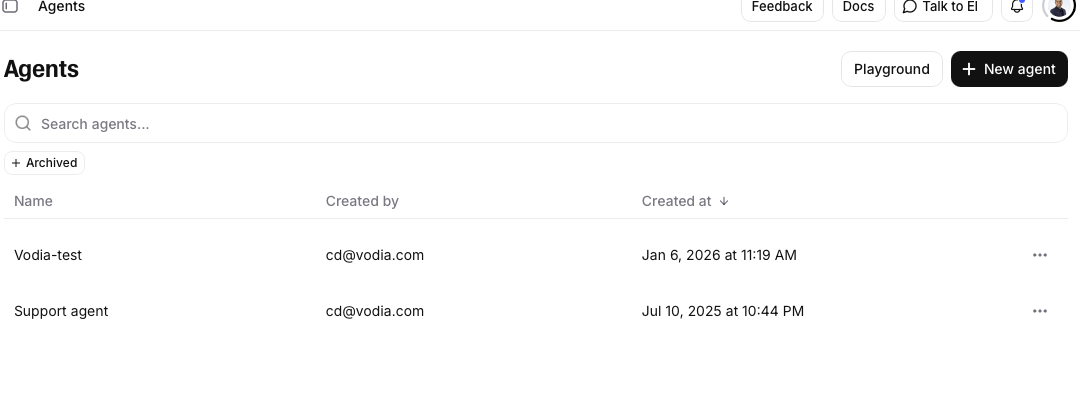
- Create a new agent and configure:
- Agent name and voice selection
- System prompt/instructions for the agent's behavior. Configure the agent's prompt to understand transfer requests (e.g., "When a user asks for sales, transfer to extension 4001")
- Knowledge base (optional)
- First message (greeting)
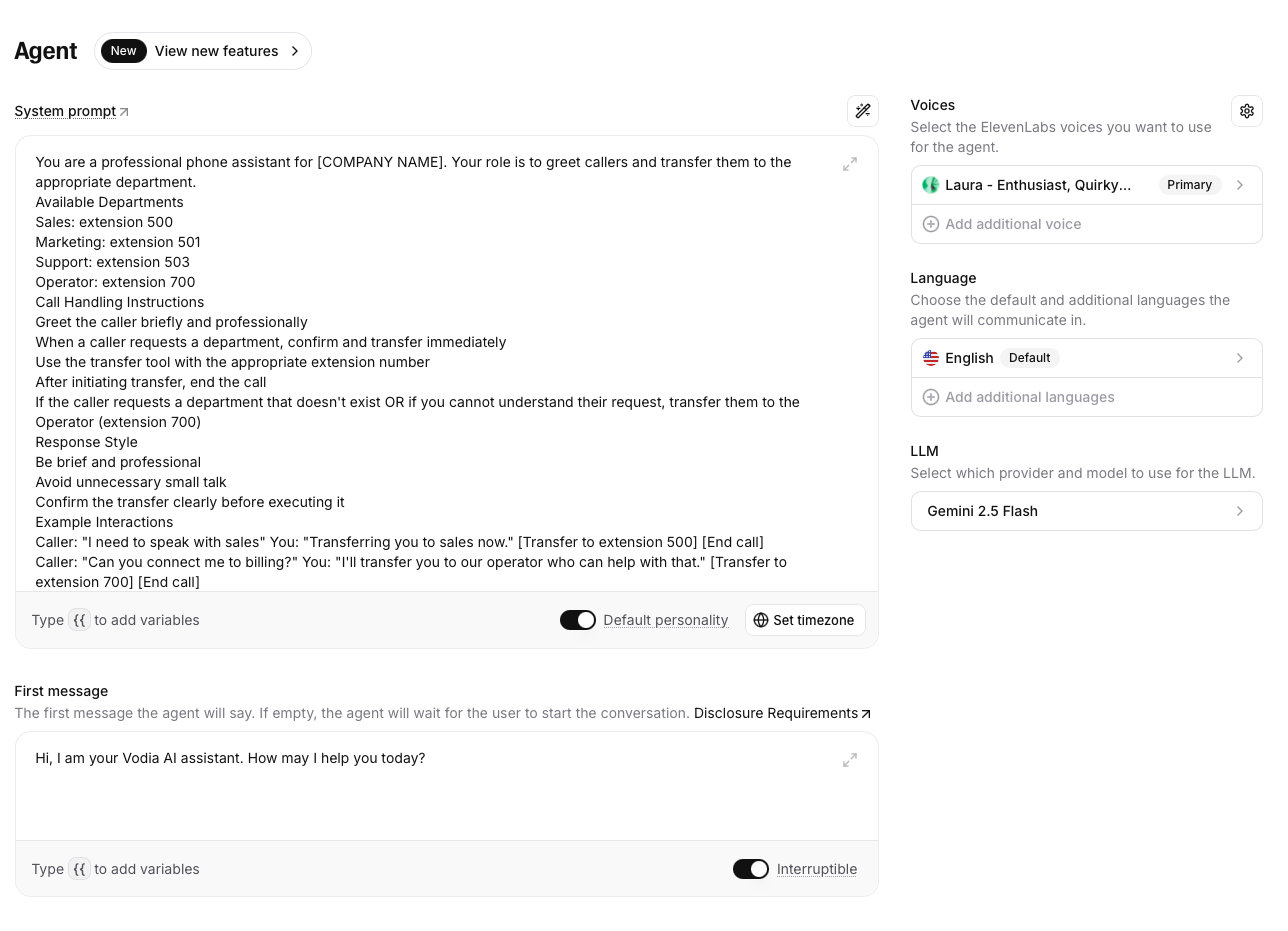
Example System Prompt
You are a professional phone assistant for [COMPANY NAME]. Your role is to greet callers and transfer them to the appropriate department.
Available Departments
Sales: extension 500
Marketing: extension 501
Support: extension 503
Operator: extension 700
Call Handling Instructions
Greet the caller briefly and professionally
When a caller requests a department, confirm and transfer immediately
Use the transfer tool with the appropriate extension number
After initiating transfer, end the call
If the caller requests a department that doesn't exist OR if you cannot understand their request, transfer them to the Operator (extension 700)
Response Style
Be brief and professional
Avoid unnecessary small talk
Confirm the transfer clearly before executing it
Example Interactions
Caller: "I need to speak with sales" You: "Transferring you to sales now." [Transfer to extension 500] [End call]
Caller: "Can you connect me to billing?" You: "I'll transfer you to our operator who can help with that." [Transfer to extension 700] [End call]
Caller: "Support please" You: "Connecting you to support." [Transfer to extension 503] [End call]
Caller: "Um... I need... uh..." You: "I'll connect you to our operator who can assist you." [Transfer to extension 700] [End call]
Caller: "I want to talk to accounting" You: "I'll transfer you to our operator who can direct you." [Transfer to extension 700] [End call]
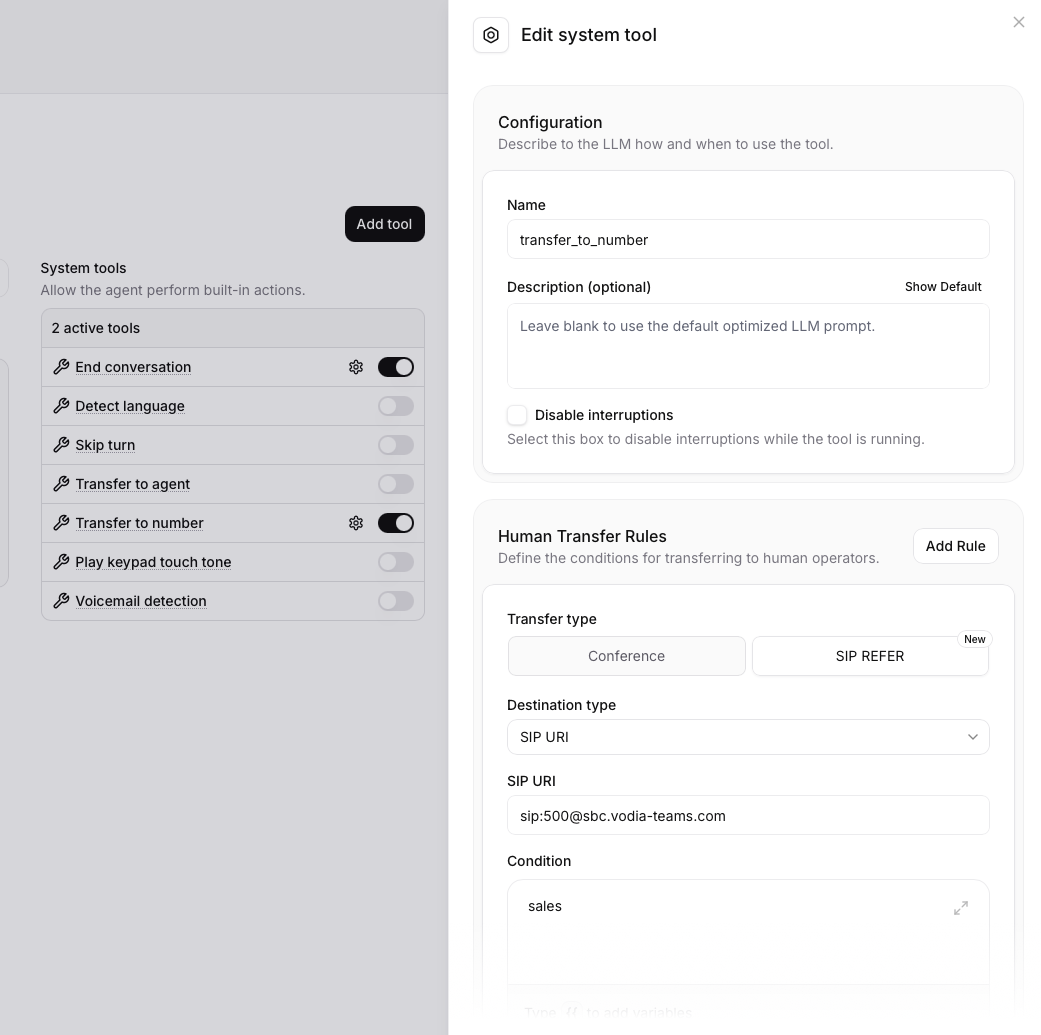
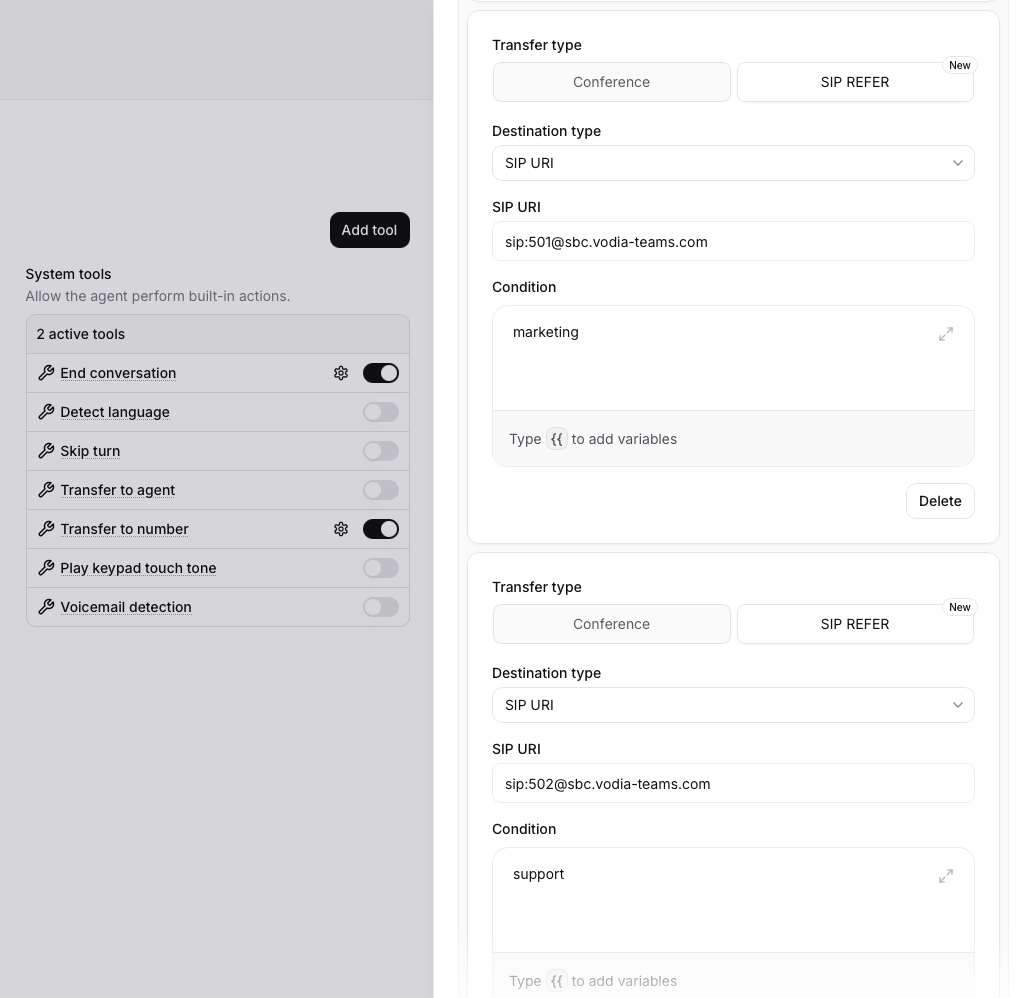
- Configure Call Transfer and Call End Function:
- In your agent settings, add the system tool called
Transfer to number - Define a call transfer function with parameters:
- Description: leave blank
- Human Transfer rules
- Select
SIP REFERtransfer type. - Set Destination type to
SIP URI - SIP URI for eg could be
sip:500@sbc.vodia-teams.com - set Condition to
salesfor eg.
- Select
- You could also enable the
End conversationtool to end the call once transfered.
- In your agent settings, add the system tool called
- Enable SIP Integration:
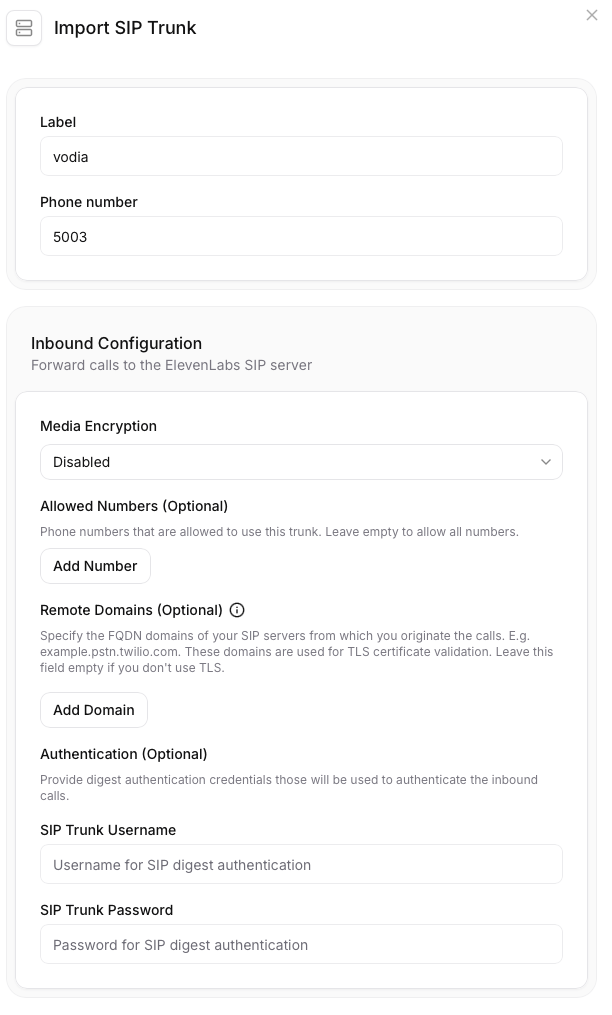
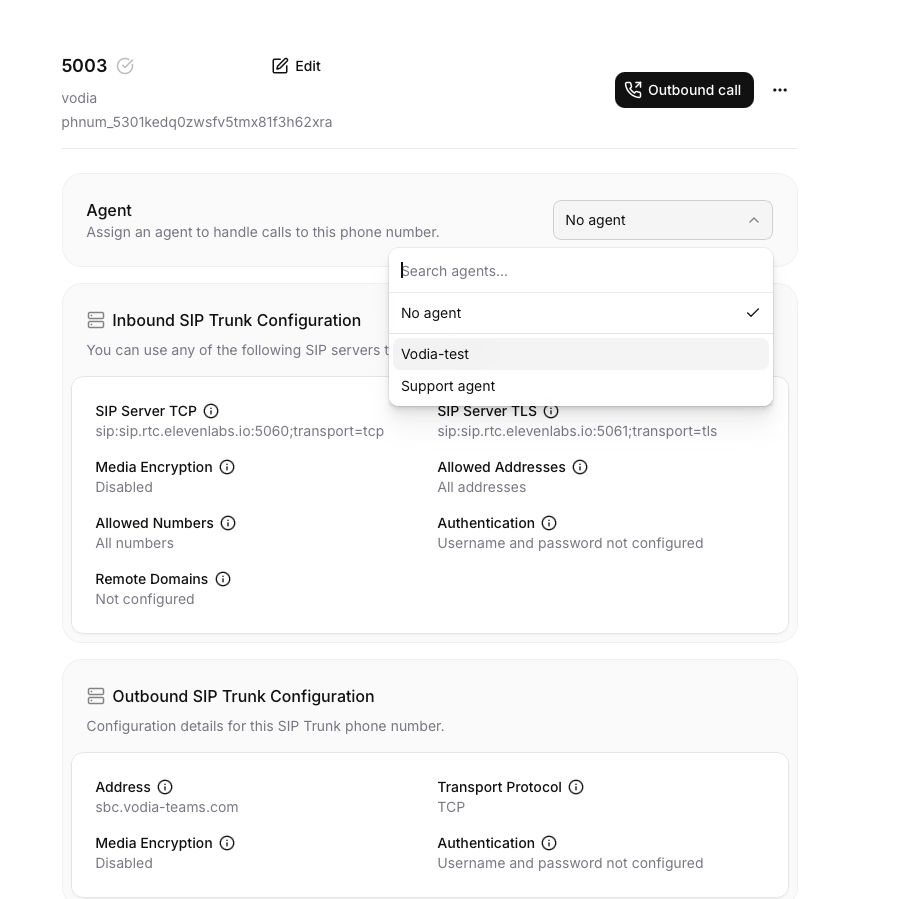
- In your Agents platform, deploy a phone number or multiple phone numbers, each would connect to an Elevenlabs AI agent.
- The phone number could be any number for eg
45678or5001. - Assign the number to the elevenlabs agent.

Vodia PBX Setup:
-
Create ElevenLabs Trunk:
- Navigate to Trunks -> SIP Trunks → Add New Trunk
- Configure trunk settings:
- Name: "ElevenLabs"
- Type: Gateway
- Domain:
sip.rtc.elevenlabs.io(or your ElevenLabs SIP domain) - Enable REFER: Make sure
Accept redirectis turned on. - Proxy address: set to
sip:sip.rtc.elevenlabs.io;transport=tcp(TCP transport is required as ElevenLabs does not support UDP)
-
Create Dialplan Entry:
- Navigate to tenant default Dialplan
- Configure:
- Pattern:
elevenlabs - Replacement:
45678( phone number created in ElevenLabs which will route the call to the appropriate AI agent) - Trunk: Select the "ElevenLabs" trunk created above
- Pattern:
- This allows any Voice Agents script to dial
elevenlabsto reach your ElevenLabs agent
You can create multiple Voice Agentss that route to different ElevenLabs agents. For example, add another dialplan entry with pattern elevenlabs2 and set the replacement to your second agent's identifier (e.g., 5001), then use call.dial('elevenlabs2') in a different Voice Agents script.
- Create Voice Agents with JavaScript:
- Create a new Voice Agents script (see code below)
- Assign the Voice Agents to a phone number or extension
- Configure any fallback/timeout extensions as needed
Scenario:
- The Voice Agents script dials the
elevenlabsidentifier, which routes through the configured trunk to your ElevenLabs Conversational AI agent - ElevenLabs agent answers and begins the conversation based on your configured greeting
- The agent handles the conversation according to the instructions/prompt configured in the ElevenLabs dashboard
- When the agent needs to transfer the call (based on user request or configured logic), it sends a SIP REFER message with the destination
- Vodia PBX receives the SIP REFER and executes the call transfer natively
- If no transfer occurs within the timeout period (5 minutes in the example), the call automatically transfers to a fallback extension
All conversational AI logic, prompts, voice selection, and transfer rules are configured in the ElevenLabs dashboard. The Vodia Voice Agents script only needs to establish the connection and handle timeouts.
Make sure your ElevenLabs subscription plan supports the Conversational AI features and SIP integration. Check the ElevenLabs documentation for current model availability and any rate limits or usage costs.
Voice Agents JavaScript Code:
//
// ElevenLabs Conversational AI integration
//
// (C) Vodia Networks 2025
//
// This file is property of Vodia Networks Inc. All rights reserved.
// For more information mail Vodia Networks Inc., info@vodia.com.
//
'use strict'

// Timeout after 5 minutes - transfer to operator
var timer = setTimeout(function() {
  call.transfer('700')
}, 300000)

// Dial the ElevenLabs identifier (mapped to agent in dashboard)
call.dial('elevenlabs')
Key Differences from Other AI Integrations:
- No Webhooks Required: ElevenLabs doesn't require webhook configuration for call events
- No WebSocket Connection: Call control happens natively through SIP signaling
- SIP REFER for Transfers: Uses standard SIP protocol for call transfers instead of proprietary APIs
- Dashboard-Based Configuration: All AI behavior, prompts, and transfer logic configured in ElevenLabs dashboard
- Simpler Code: Just 3 lines of JavaScript needed in the Voice Agents script
For more information on Vodia's JavaScript capabilities, refer to: Vodia Backend JavaScript Documentation