Contacts
Contacts
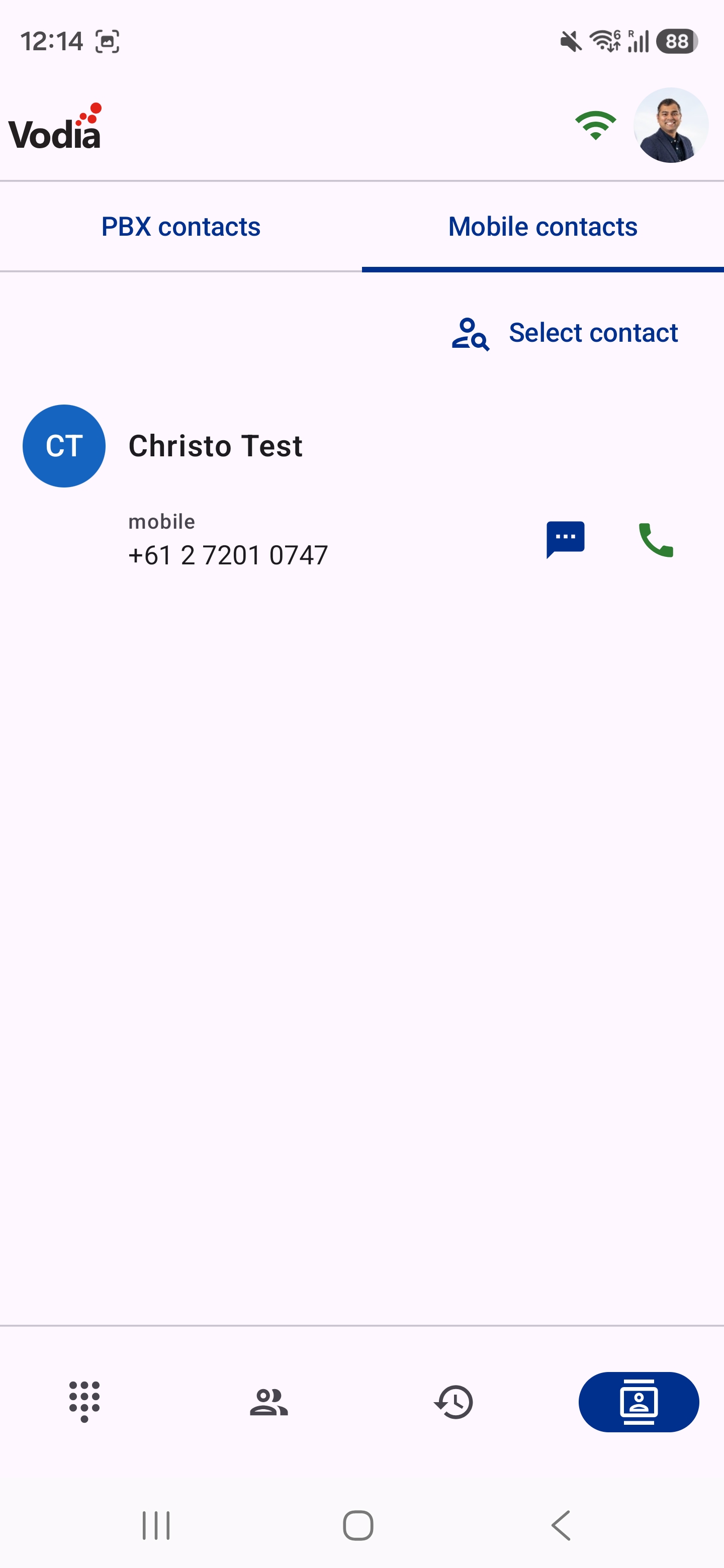
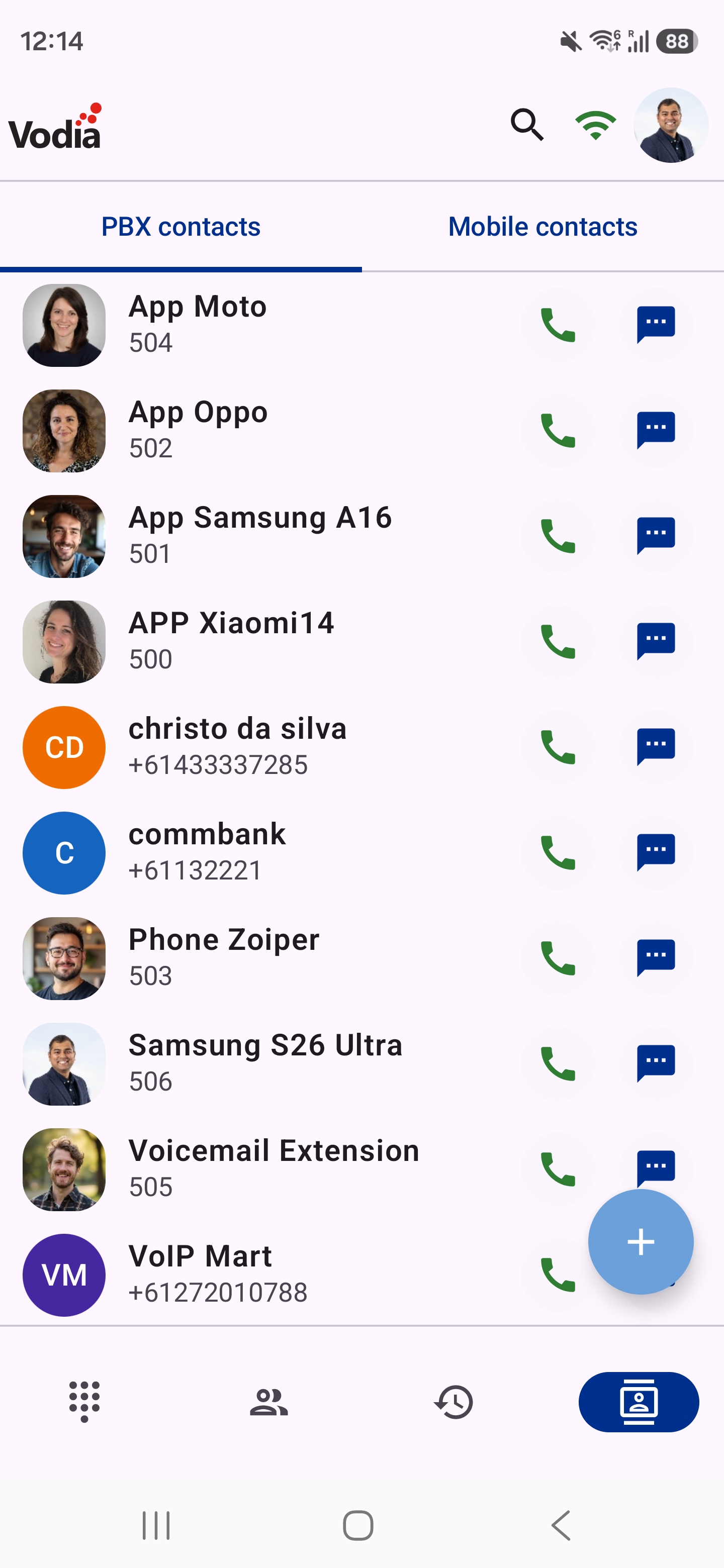
The Contacts tab has two chips and a contact button at the top:
- PBX contacts (default) — your tenant address book, downloaded from the PBX
- Extensions — the extensions on your PBX
- The contact button on the right opens the contacts stored on your phone
PBX Contacts and Extensions
- Contacts are sorted A–Z and grouped by letter.
- Tap the green button to call a contact, or the message button to send a message.
- Tap a contact to see all its numbers, such as Mobile, each with its own call button.
- Long-press a PBX contact to Edit or Delete it.
- Tap the + button to add a contact to the PBX address book.
- Tap the magnifier in the top bar to search.
- Extensions are hidden from PBX contacts, as they have their own chip and the Activity tab.
Phone Contacts (Contacts Stored on Your Phone Locally)
- Tap the contact button on the right to open your phone's contact picker and choose a contact.
- The contact's numbers are shown; tap the green button to call one.
- Tap Select contact to choose another contact.
- Your contacts also get a Vodia Phone 2 call action in your phone's own Contacts app. See Dialing & Receiving Calls