History
The History tab shows your recent calls and your voicemail. Two chips at the top switch between them:
- History — calls made and received. The chip shows how many calls you missed.
- Voicemail — your voicemail messages. The chip shows how many are new.
When you have new voicemail, the History icon in the bottom bar shows the count too, so you notice it from any tab.
Messages have their own tab. See Messages.
Calls
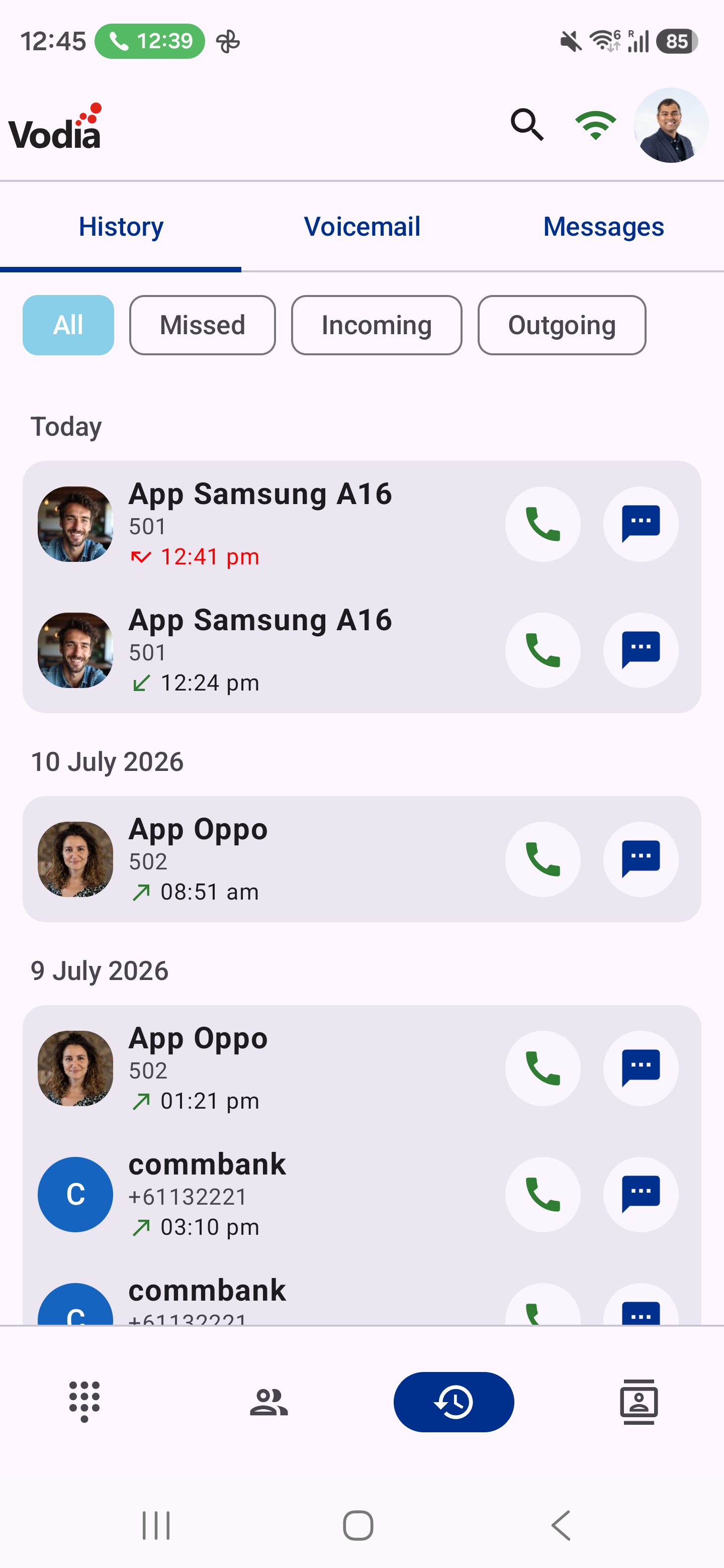
Calls are grouped by day — Today, Yesterday, then by date.
- Each row shows the name, the number, and the time with an arrow for the direction. Missed calls are shown in red.
- Tap the green button to call back, or the message button to send a message.
- Tap a row to see more: whether the call was Missed, Incoming or Outgoing, the date, and how long it lasted. If the call has a call quality report, it is linked here as well.
- Long-press a row to Delete it. For a number without a name, the menu also offers Add contact.
Filtering and Searching
- Use the filter chip on the right to show All, Missed, Incoming or Outgoing calls.
- Tap the magnifier in the top bar to search by name or number.
Names from Your Phone's Contacts
When the PBX has no name for a number, the app looks the number up in your phone's contacts (if you have allowed contacts access). A name found there has a small contact icon after it, and the expanded row says From phone contacts, so you always know where the name came from.
These names are only shown on your phone. They are never sent to the PBX.
Voicemail
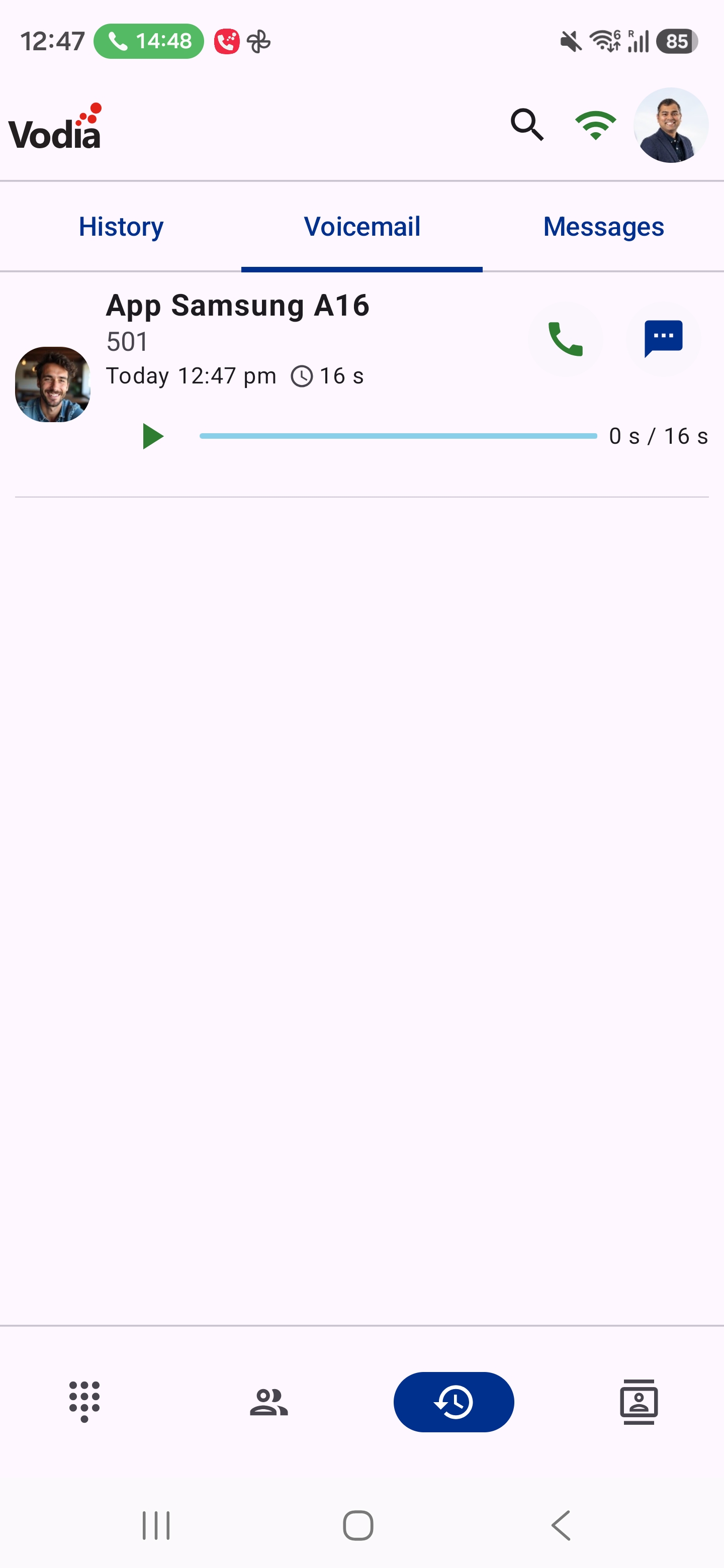
Voicemails are grouped by day, like calls. New voicemails have a green dot and a New label.
- Tap the play button on a row to listen. The row opens a player where you can pause and drag the progress bar to skip. Starting another voicemail stops the first one.
- If your PBX transcribes voicemail, the text is shown under the caller's name, and in full when the row is open.
- Once the row is open, the Call, Message and Delete buttons appear under the player. Delete asks you to confirm.
- Listening to a voicemail marks it as read, and the counts on the chip and in the bottom bar go down.
- Use the filter chip on the right to show All or only New voicemails, and the magnifier in the top bar to search.