Call Quality
Vodia Phone 2 measures the quality of every call while it happens. During a call, a simple Good / Fair / Poor indicator tells you how the call is doing. After the call, a detailed call quality report shows exactly what happened, and you can share it with your administrator or Vodia support.
Everything is measured on your phone. Nothing is sent anywhere unless you choose to share a report.
During a Call
The Quality Indicator
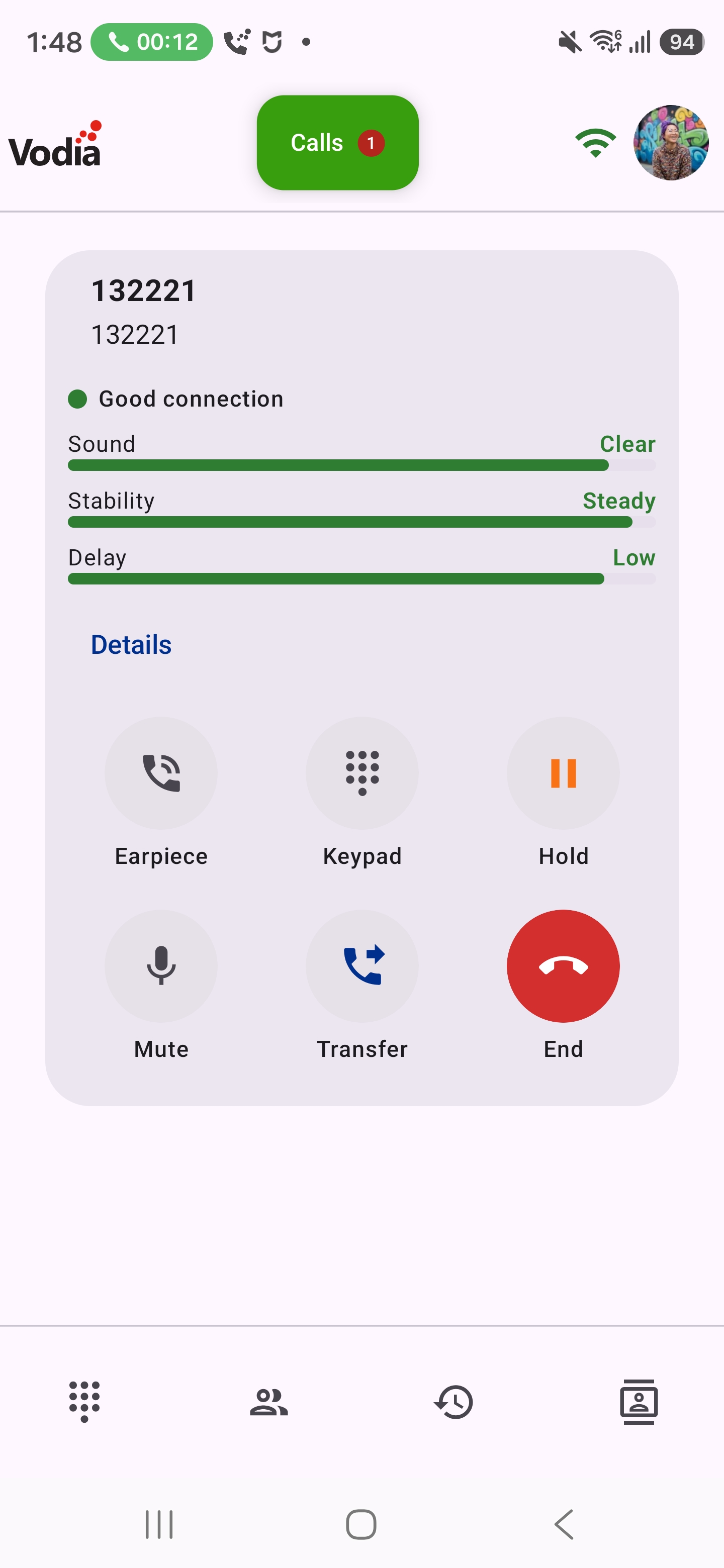
A few seconds after a call connects, a small coloured indicator appears on the call screen, just above the call buttons:
| Indicator | Meaning |
|---|---|
| 🟢 Good connection | The call is clear. |
| 🟡 Fair connection | Some audio may break up or lag now and then. |
| 🔴 Poor connection | Audio is likely to break up or arrive late. |
The indicator reacts to lasting changes, not single hiccups. It turns worse after about 5 seconds of worse conditions, and better again after about 10 seconds of better ones.
When the call becomes Poor, the ongoing call notification changes to Poor connection — audio may break up (or Poor Wi-Fi connection — audio may break up when you're on Wi-Fi). It returns to normal once the call improves.
The Three Meters
Tap the indicator to open three simple meters:
| Meter | What it measures | Good | Fair | Poor |
|---|---|---|---|---|
| Sound | Packet loss — pieces of audio that never arrived | Clear (under 2%) | Some breakup (2–5%) | Breaking up (5% or more) |
| Stability | Jitter — how unevenly the audio arrives | Stable (under 30 ms) | Unstable (30–60 ms) | Very unstable (60 ms or more) |
| Delay | Round trip — how long audio takes to go out and back | Low (under 250 ms) | Slightly high (250–400 ms) | High (400 ms or more) |
The overall indicator always shows the worst of the three. Delay appears once the app has measured it, usually within the first few seconds.
When quality is Fair or Poor, a tip appears under the meters:
- On Wi-Fi: Moving closer to your Wi-Fi router may help.
- On mobile data: Moving to a place with better signal may help.
Live Report
When call quality reports are turned on, the expanded meters also show a Details button. It opens the full report for the call in progress, updated every 2.5 seconds. It has the same sections as the report you see after the call (below).
After a Call
Finding a Report
Calls with a report show a small coloured dot on their row in History — green, amber or red for Good, Fair or Poor.
Tap the row to expand it, then tap Call quality · Good (or Fair / Poor) to open the report.
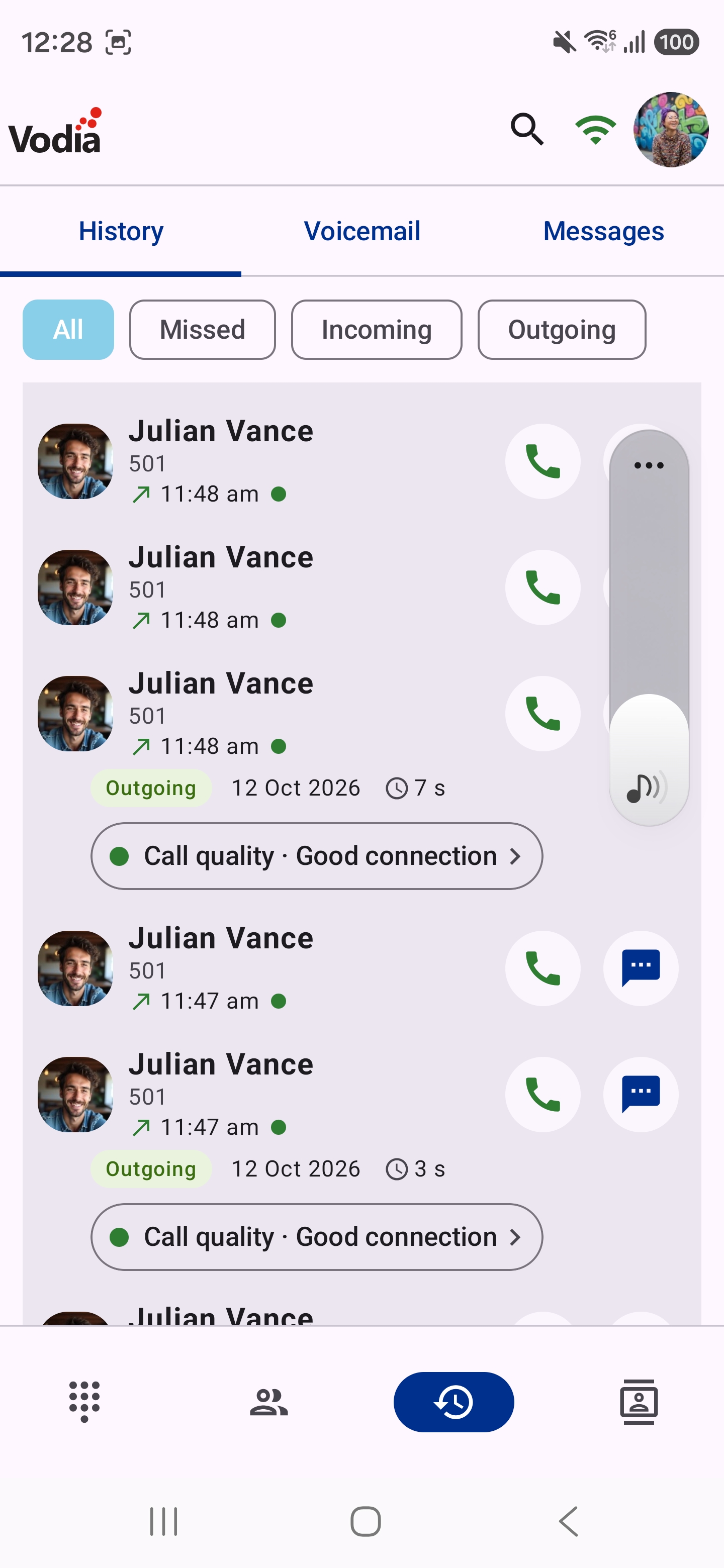
A transfer or park can create more than one History entry for the same call. Only one of those entries carries the report.
Reading the Report
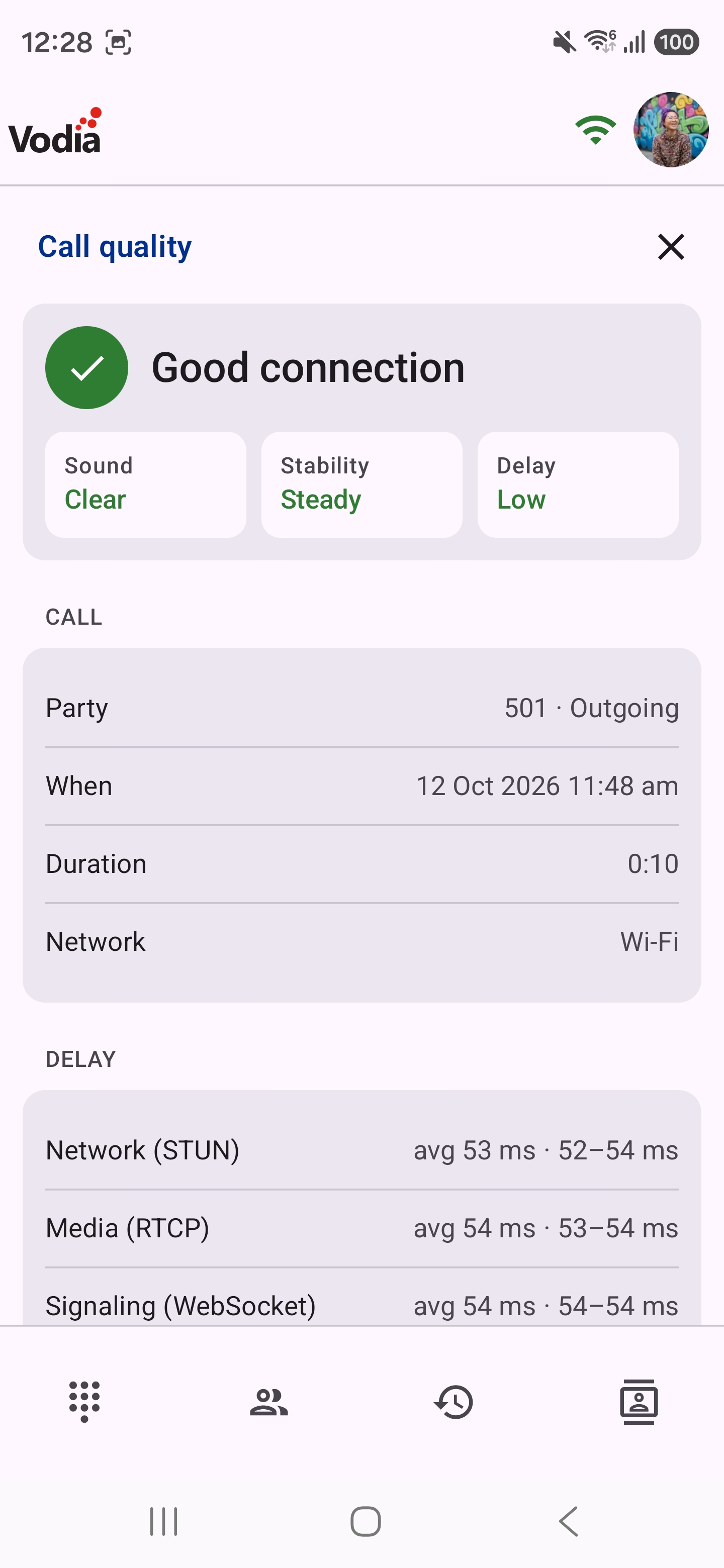
The report opens with the overall result: Good connection, Fair connection or Poor connection, with the three meters — Sound, Stability and Delay — rated for the whole call.
The overall result describes conditions that lasted (at least two measurements in a row, about 5 seconds), checked in both directions: what you received and what the PBX reported receiving from you. If the call briefly got worse without staying that way, the report adds Brief dip at m:ss, so you know when it happened.
The sections below explain everything else in the report. Most calls only need the summary at the top; the details are there for when something went wrong.
Call
| Field | Meaning |
|---|---|
| Party | Who you talked to. |
| When | Date and time the call started. |
| Duration | How long the audio ran. |
| Network | Wi-Fi, mobile data or other — and how many times it changed during the call (for example, walking out of Wi-Fi range). |
Delay
How long audio takes to travel, measured three ways. Lower is better; under 150 ms feels instant, over 400 ms causes people to talk over each other.
| Field | Meaning |
|---|---|
| Network (STUN) | Round trip between your phone and the PBX at network level. Shown as average and range. |
| Media (RTCP) | Round trip measured on the audio stream itself, from the PBX's reports. If the PBX's figures are not believable, this shows ignored (PBX report inaccurate), and the network figure is used instead. |
| Signaling (WebSocket) | Round trip of the app's control connection to the PBX. It affects how quickly calls ring and connect, not the audio. |
A chart shows the network delay over the call, with media delay as dots.
How You Heard Them
The audio coming to you.
| Field | Meaning | Healthy |
|---|---|---|
| Packet loss | Share of audio packets that never arrived, with the count (for example, 12 of 4,000). | Under 1% |
| Jitter | How unevenly packets arrived: average and maximum. The app smooths this out with a buffer, but high jitter means extra delay or breakup. | Under 30 ms |
| Gaps filled | How many times the app had to fill in missing audio, and what share of the call that was. | Close to 0% |
A chart shows jitter over the call, with a line at 30 ms where the meter turns Fair.
PBX Sender Reports
What the PBX says it sent you. Comparing this with what you received shows whether audio was lost on the way or never sent.
| Field | Meaning |
|---|---|
| Reports | How many sender reports the PBX sent during the call. |
| Sent by PBX | Audio packets and bitrate the PBX sent per second. |
| Bytes per packet | Average size of each audio packet. It depends on the codec. |
| Interval | Time between reports, shortest to longest. A few seconds apart is normal. |
This section only appears when the PBX sent sender reports.
Playout
How the received audio was played through your speaker.
| Field | Meaning |
|---|---|
| Before answer | Gaps in early audio, such as ringback, before the call was answered. Gaps here don't affect the conversation. |
| In call | Gaps in audio during the conversation itself. |
| Silence fills | Total time the app played filler because no audio arrived. |
| Late discards | Packets that arrived too late to be played and were dropped. |
| Speed-up / Slow-down | Time the app played audio slightly faster or slower to keep delay steady. Small amounts are normal. |
| Jitter buffer | Average audio held back to smooth uneven arrival. Higher means more delay. |
A chart shows gaps per second over the call, so you can see when breakups happened.
How They Heard You
The audio going from you, based on reports the PBX sends back.
| Field | Meaning | Healthy |
|---|---|---|
| Delivered | Lowest share of your audio that reached the PBX at any point, and how many packets were lost. | Close to 100% |
| Jitter at PBX | How unevenly your audio arrived at the PBX: average and maximum. | Under 30 ms |
A bar chart shows delivery over the call. If the PBX sent no reports, the shared report says They heard you: no RTCP reports from PBX.
Levels
How loud the audio was, in dBFS. 0 dBFS is the loudest possible; normal speech is well below that.
| Field | Meaning |
|---|---|
| Your mic | Average level of your microphone. |
| Peak | Loudest moment from your microphone. |
| Clipped | How many times your microphone hit maximum level, which can sound distorted. A few are normal. |
| Silent | Share of the call your microphone picked up nothing at all, and the longest silent stretch. |
| Their voice | Average level of the audio you received. |
Charts show both levels over the call.
If Your mic sits at about −100 dBFS or Silent is close to 100%, your microphone sent no sound. The other person most likely could not hear you. Check the app's microphone permission, and include the report when you contact support.
Traffic
Charts of the audio data received and sent, in kbit/s and in packets per second. When the PBX sent sender reports, its sending rate appears as dots for comparison. Flat, steady lines are normal; drops to zero mean audio stopped flowing in that direction.
Events
A timeline of what happened during the call, by minute and second:
| Event | Meaning |
|---|---|
| Answered | The call was answered. |
| Audio: Speaker / Earpiece / Bluetooth / Wired headset / … | You switched where the audio plays. Bluetooth shows the device name. |
| Network: Wi-Fi / Mobile data / Other | Your phone switched networks. |
| Media path changed | The route the audio takes between your phone and the PBX changed, usually after a network switch. |
| No incoming audio (n s) | No audio arrived for that long. |
| PBX sent less audio (n s) | The PBX itself sent less audio than expected for that long — the problem was on the PBX side or before it, not your connection. |
Technical
| Field | Meaning |
|---|---|
| Codec | Audio format used, for example Opus or PCMA. |
| Encryption | Encryption protecting the audio (SRTP cipher). |
| PBX reports received | How many quality reports the PBX sent back. Shown here only when the PBX Sender Reports section isn't present. |
| Streams | How many audio streams the call used, and how many times they were reset. |
| Account | Your extension and domain. |
| Call ID | The call's unique ID. Support uses it to find the call on the PBX. |
| Raw JSON | All measured data for the call, for technical support. |
Putting a call on hold and resuming it starts a new section of measurements, so a call with several holds is reported as one call with several parts.
Sharing a Report
Tap Share report at the bottom of the report to send it by email, chat or any other app. The share contains:
- A short summary in English, in the message text — always English, so support can read it whatever language your phone uses.
- The full report as a JSON file, attached.
The summary looks like this:
Vodia call quality report
Alex Smith (504) · incoming · Oct 12, 2026 10:40 · 3:12 · Wi-Fi
Overall: Fair; brief dip at 1:05 (sound Good, stability Fair, delay Good)

You heard them: loss 0.40% (16 of 4012), jitter avg 22 ms / max 71 ms, 9 gaps filled (0.25% of audio)
They heard you: delivered min 99.6%, 3 lost, jitter avg 4.1 ms / max 18 ms
Delay: network avg 54 ms (48–96), media avg 55 ms (49–101)
Levels: mic avg -38.2 dBFS, their voice avg -31.5 dBFS
Events: 0:00 answered; 1:04 network mobile data
codec opus · SRTP AES_CM_128_HMAC_SHA1_80 · streams 1 (resets: 0) · PBX reports 38

Account 500@example.com · Call ID 6urhe5b@pbx
Vodia Phone 2 <version> · Google Pixel 9 · Android 16
Full data attached.
When reporting a call problem, share the report for that call. It gives support everything they need to find the cause.
Turning Reports On or Off
Open the account drawer and tap Call quality report.
- Call quality report switch — when on, the app records a report for every call and adds the Details button to the in-call meters. When off, no reports are recorded. The in-call indicator, meters and tips work either way.
- Stored reports — how many reports are on the phone and how much space they use.
- Delete all reports — removes every stored report after you confirm. This can't be undone.
Turning reports off keeps the reports you already have; use Delete all reports to remove them.
Privacy and Storage
- Reports contain call measurements only: timings, network figures and audio levels. They contain no recording of what was said.
- Reports are stored privately on your phone, are not included in phone backups, and are never sent anywhere unless you share one.
- The app keeps your newest 100 reports and removes older ones automatically.
Troubleshooting with the Report
| What the report shows | Likely cause | What to try |
|---|---|---|
| High packet loss or gaps on Wi-Fi | Weak or busy Wi-Fi | Move closer to the router, or switch to mobile data. |
| High packet loss on mobile data | Weak signal | Move to a spot with better coverage. |
| High jitter | A congested network (someone downloading or streaming) | Pause other heavy traffic; try another network. |
| High delay on all three measures | A long or slow network path to the PBX | Try another network; if it persists, share the report with support. |
| Network changed during the call, with gaps around that time | You moved between Wi-Fi and mobile data | Expected; stay on one network for important calls. |
| Your mic at about −100 dBFS or Silent near 100% | The microphone sent no sound | Check the microphone permission and share the report with support. |
| They heard you: no RTCP reports from PBX | The PBX did not send quality reports back | Not a fault on your phone; share with your administrator. |
| PBX sent less audio events | The audio stopped before it left the PBX | The problem is on the other caller's side or the PBX; share with your administrator. |
| No incoming audio with a normal Sent by PBX rate | Audio was lost between the PBX and your phone | Check your network; share the report with support. |