Activity
The Activity tab is the second icon in the bottom bar. It shows your colleagues and what is happening on the PBX right now. Two chips at the top switch between the views:
-
Extensions (default) — every extension, with its live status
-
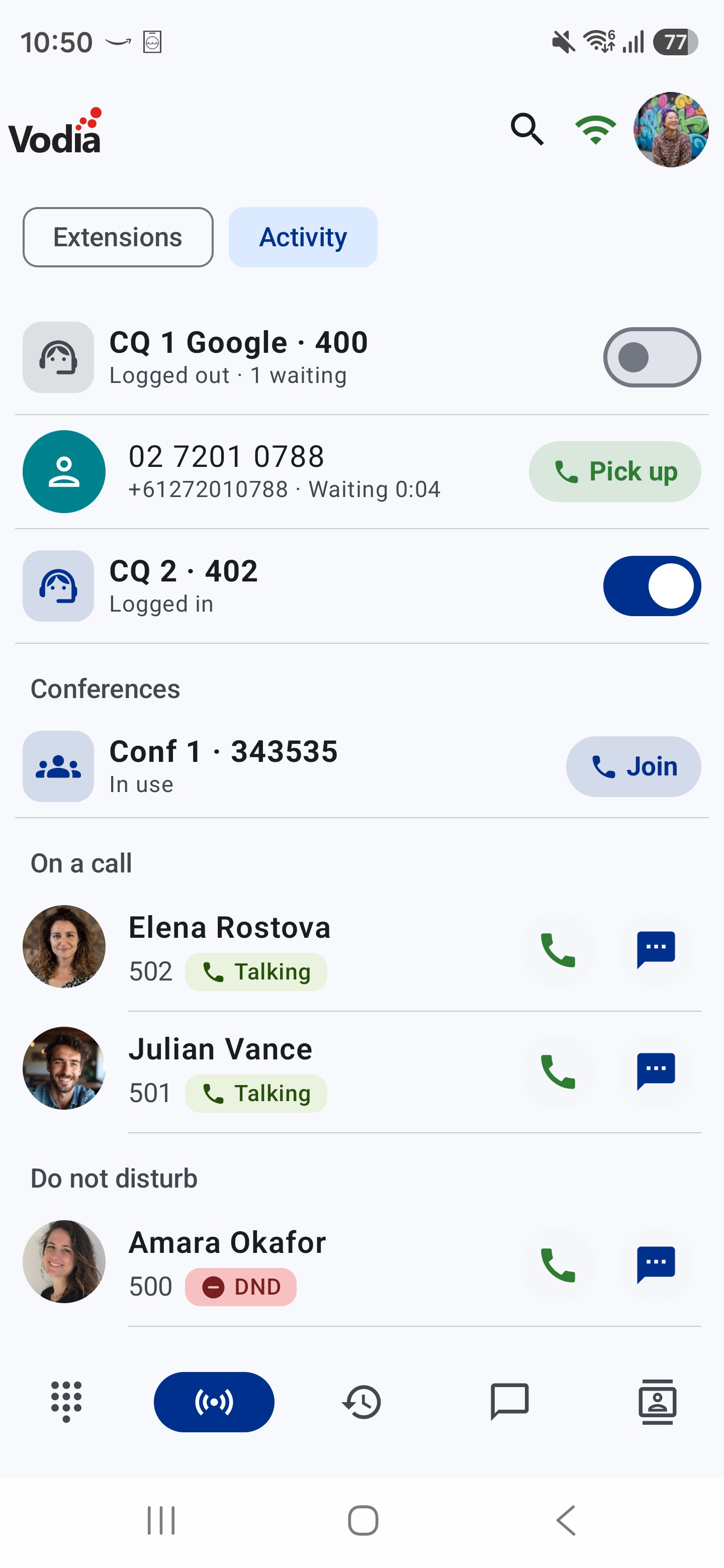
Activity — only what is happening right now: parked calls, callers waiting in queues, conference rooms in use, and extensions on a call or on Do not disturb
Extensions
- Every extension is listed with its status: Do not disturb (with the reason), Talking or Ringing. Extensions on a call or on DND move to the top of the list.
- Tap the green button to call an extension, or the message button to chat.
- Tap the magnifier in the top bar to search by name or number.
- Parked calls are pinned at the top of the list, where you can pick them up. See Parking a Call.
- During a call, each row also shows a Transfer here button. See Blind Transfer.
- We do not show presence (i.e., online/offline), as nowadays users may not have a physical phone and may not be logged into the app, relying on push notifications instead.
Activity
The Activity chip shows only sections where something is happening. When nothing is going on, the list is empty.
| Section | What it shows | What you can do |
|---|---|---|
| Parked calls | Calls on a park orbit: the orbit, the caller and who parked it | Pick up |
| Queues | Queues where callers are waiting or where you are an agent | Log in or out · Pick up a waiting caller |
| Conferences | Conference rooms in use | Join |
| On a call | Extensions that are talking or ringing | Call · Message · Transfer here |
| Do not disturb | Extensions on DND, with the reason | Call · Message · Transfer here |
Everything updates live while the Activity chip is open.
Queues
Each queue shows its name and number, your agent status (Logged in or Logged out) and how many callers are waiting. Below it, each waiting caller is listed with their number and how long they have been waiting.
- Log in or out — queues where you are an agent have a switch. Turn it on to log in to the queue, off to log out. Changes made elsewhere, for example from a desk phone or the web portal, also show here.
- Pick up a waiting caller — tap Pick up on the caller's row. The caller is taken out of the queue and connected to you, and the row disappears.
Pick up uses the PBX queue pickup star code *601. If your PBX administrator has changed this code, picking up from the app will not work — contact your administrator.
Conferences
Rooms in use are listed with an In use label. Tap Join to call into the room.
To move a caller into a conference room, see Moving a Call into a Conference Room.
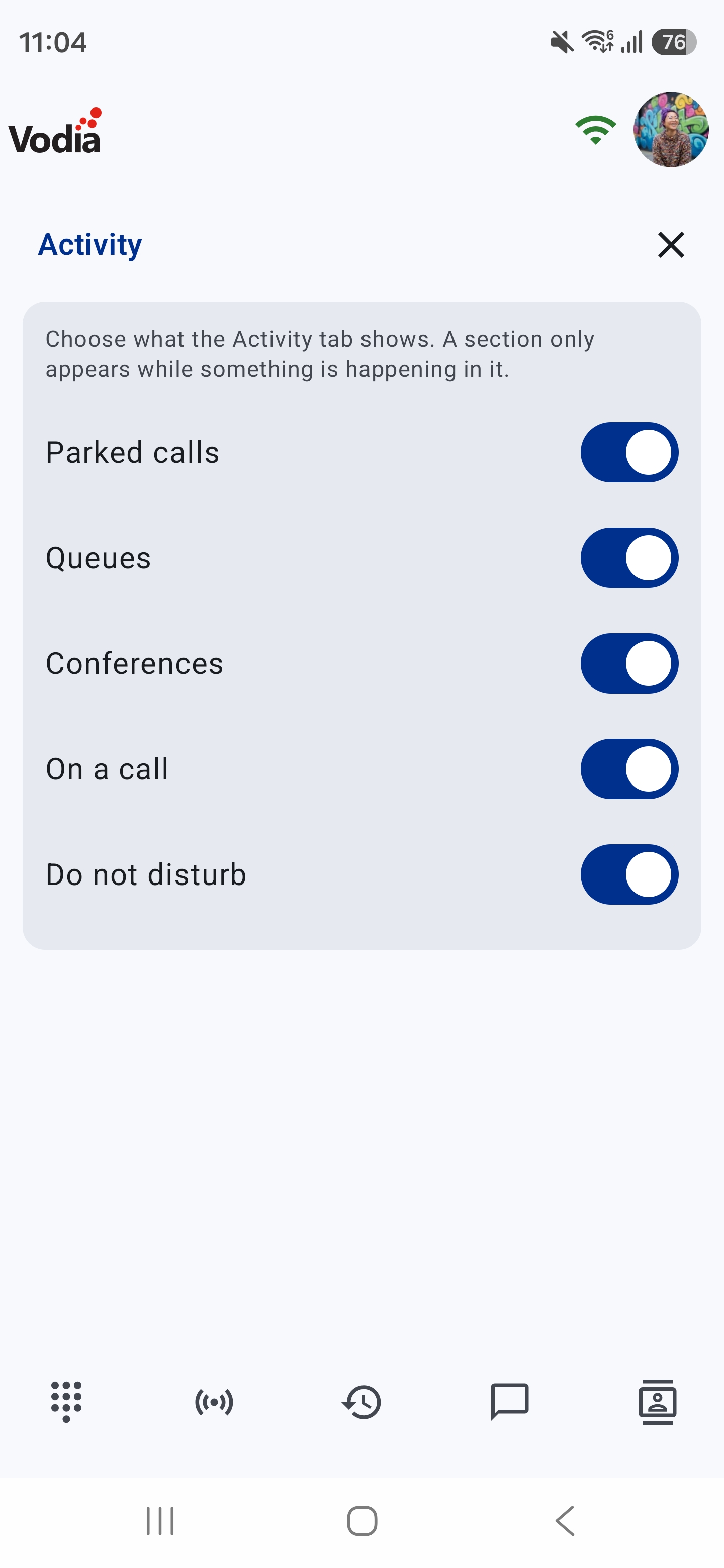
Choosing What Activity Shows
Open the account drawer and tap Activity. Turn each section on or off:
- Parked calls
- Queues
- Conferences
- On a call
- Do not disturb
All sections are on by default. If you turn them all off, the Activity chip is hidden and the tab shows only the extension list.
On PBXs with more than 500 extensions, the On a call and Do not disturb sections are not shown. Use the Extensions chip to see each extension's status.