Installation & Login
Vodia Phone 2 requires version 68 or higher.
QR Code Prerequisites
- Group permissions — Under Group Permissions, make sure permissions are enabled for both the app and the web frontend for the user's group.
- HTTPS redirect — Under System → Network Settings, confirm Redirect to HTTPS is turned on.
- Pairing codes — Under System → Security Settings, confirm Pairing codes are turned on.
- SSL certificate — Ensure the tenant's domain name has a valid SSL certificate. An expired, self-signed, or mismatched certificate will cause the app to fail to connect.
Installation
You can install the app from the Google Play Store: Vodia Phone 2.
The app works on phones and tablets, including tablets without a SIM card.
Permissions
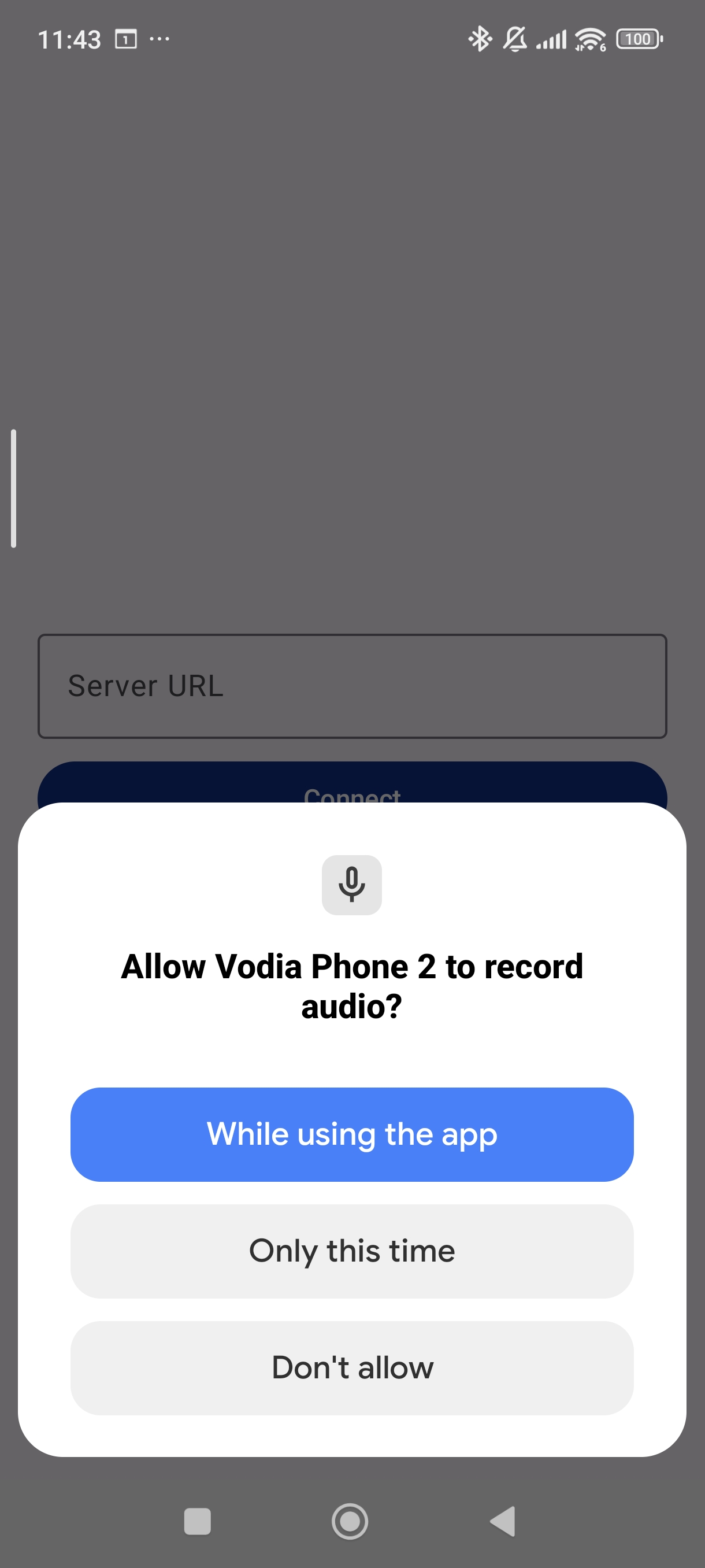
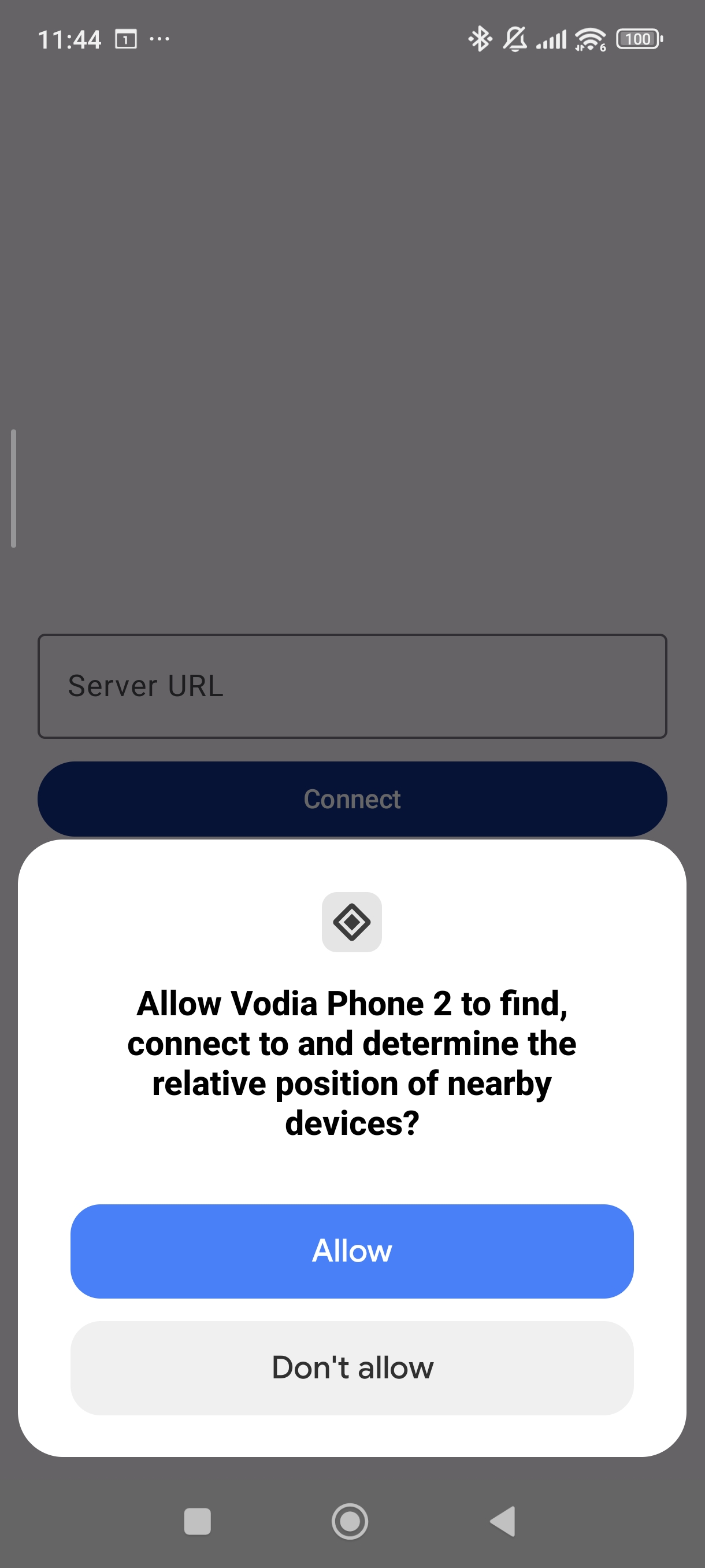
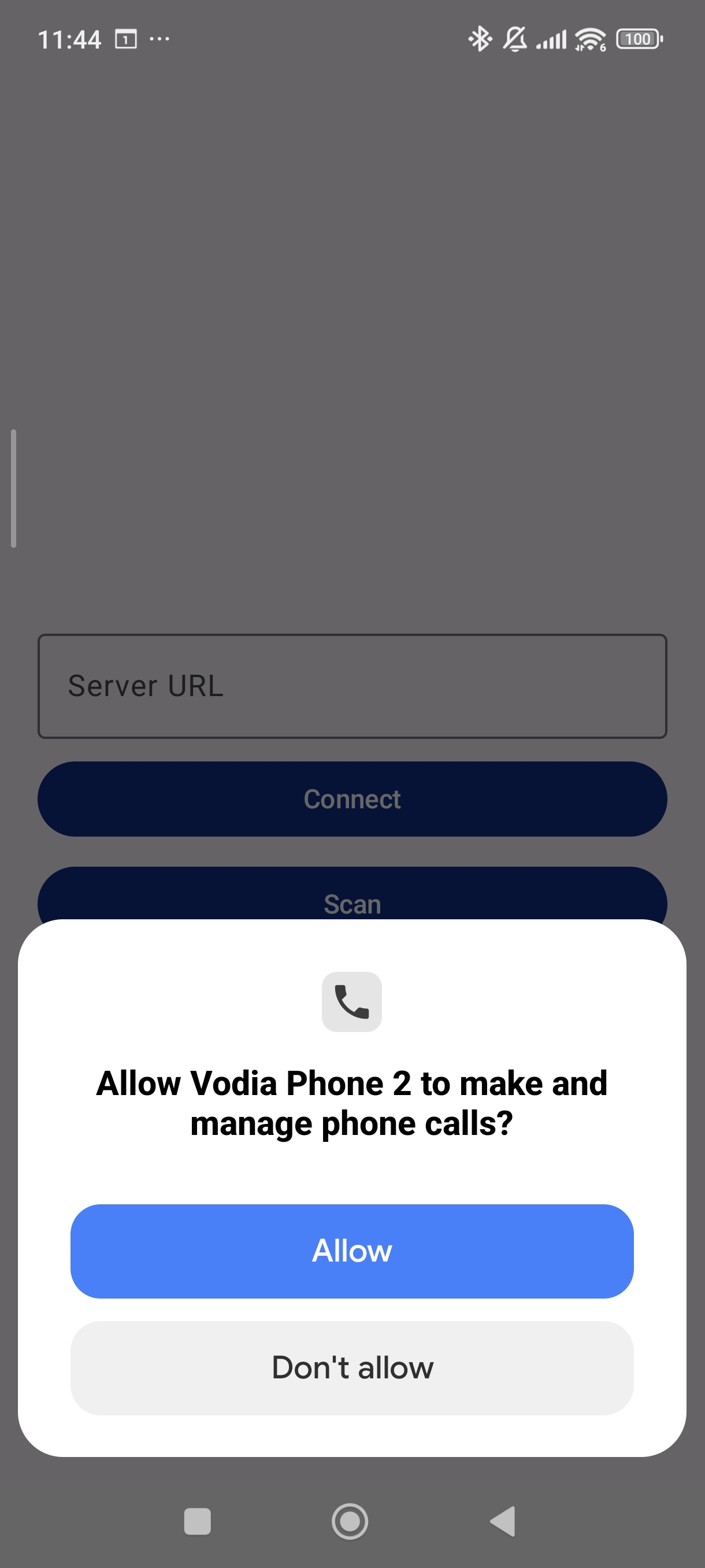
When you first open the app, it will ask you to set up the required permissions. It is very important that you turn on all the necessary permissions for the app to function properly.
Required Permissions
You will be guided through turning on the following permissions:
- Allow Vodia Phone 2 to record audio
- Allow Vodia Phone 2 to make and manage phone calls
- Allow Vodia Phone 2 to find, connect to, and determine the relative position of nearby devices — needed for Bluetooth headsets and cars
- Allow Vodia Phone 2 to send you notifications
Display Over Other Apps
The app then asks you to allow Display over other apps. Tap Open settings and turn it on for Vodia Phone 2. Without it, the microphone may not work when you answer a call from a headset, car or watch while the app is in the background.
You can also open this setting later from the account drawer: Display over other apps.


Full-Screen Notifications
On Android 14 and later, the app also asks for Full-screen notifications. Tap Open settings and turn it on for Vodia Phone 2. This lets incoming calls open full screen on the lock screen, so you can answer without unlocking.
Contacts
The app asks for access to your contacts when you first open the Phone contacts tab. Allowing it lets you see and call your phone contacts in the app, and adds a Vodia Phone 2 call action to your phone's Contacts app. See Dialing & Receiving Calls.
The Calling accounts step from earlier versions is no longer needed. From version 2.0, Vodia Phone 2 handles calls in its own screens and does not use the phone's built-in dialer.
Logging In
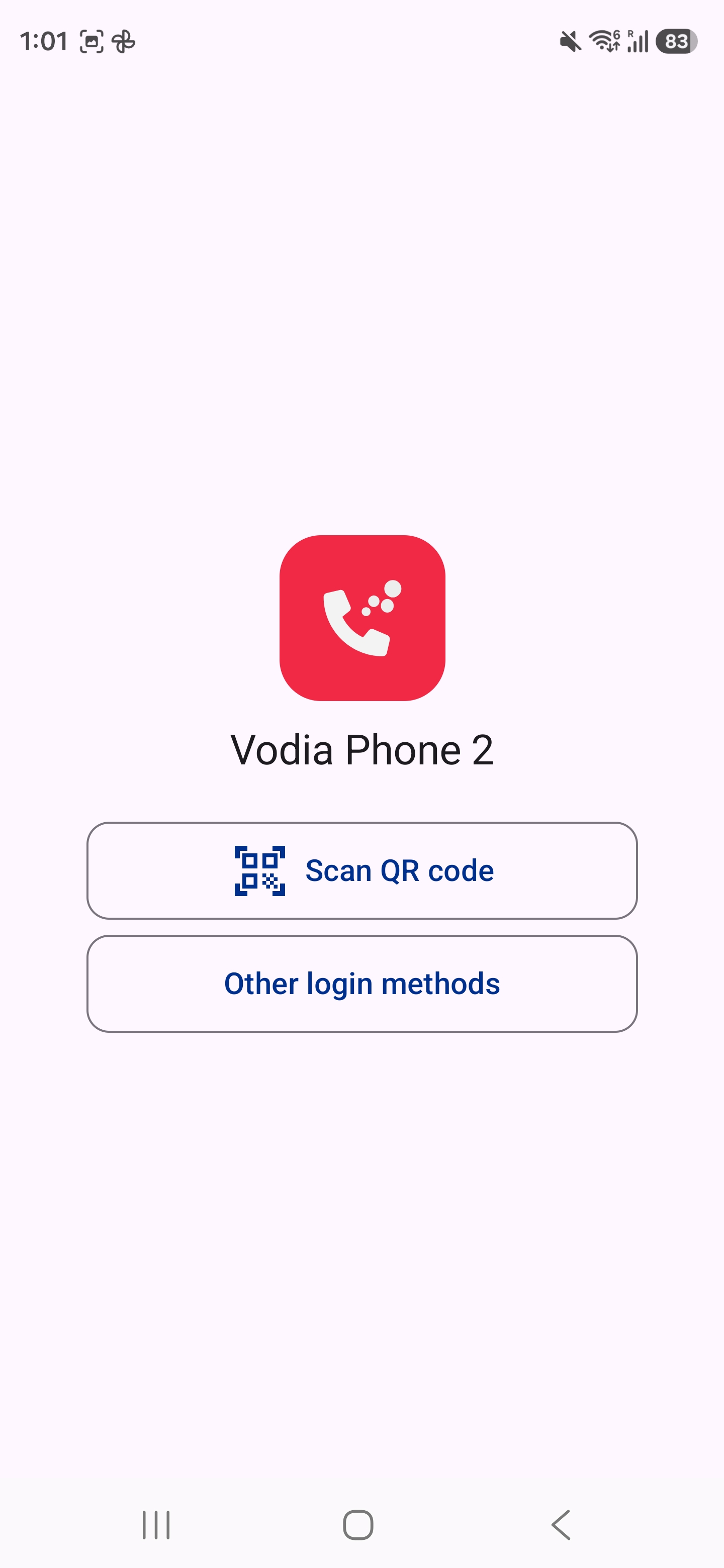
In order to use the app, the user needs a 2D barcode that contains the username, domain, address of the PBX, and a token which is linked to the user's password for the account. The barcode can be obtained in several ways:
QR Code
Admin Portal
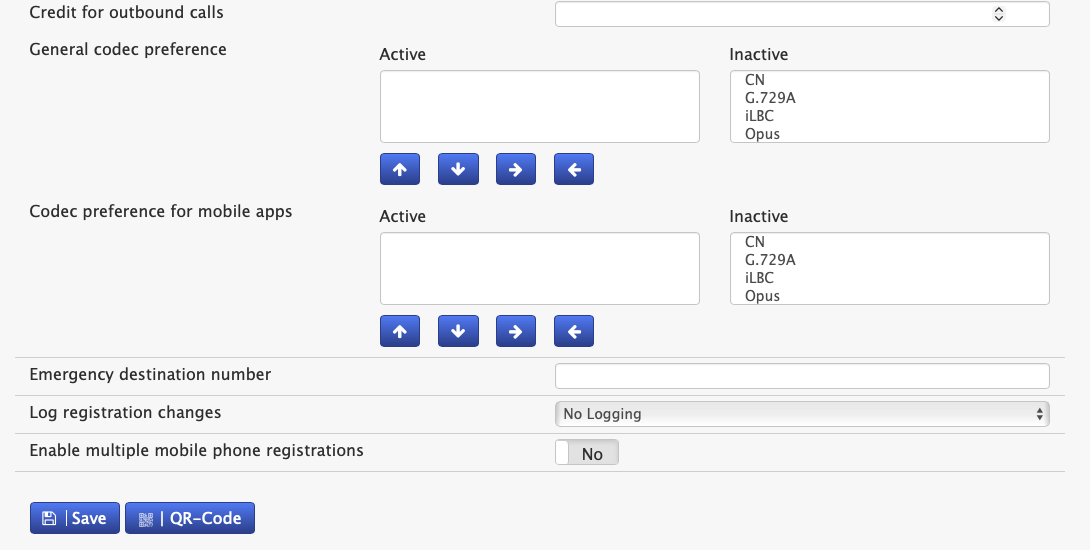
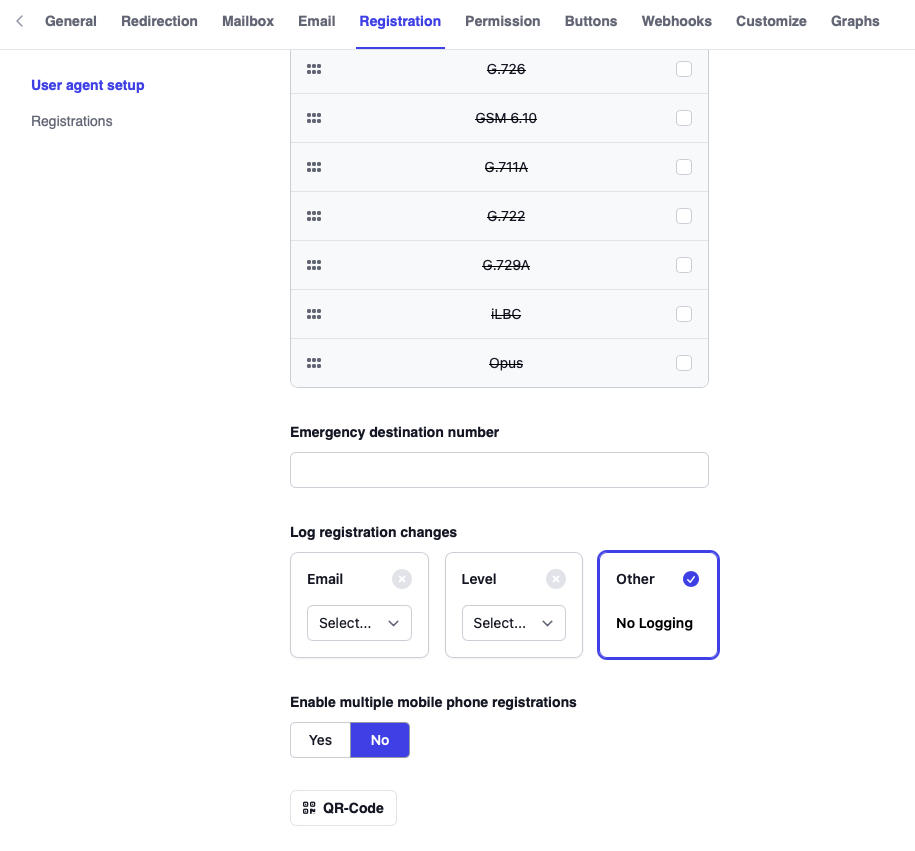
In the domain view in the administrator web interface, under the Provisioning tab, there is a button called "QR-Code" which creates a pop-up with the code. If the user is in front of the screen, the camera can take a photo of the screen for pairing.
- Version 69
- Version 70
End User Portal
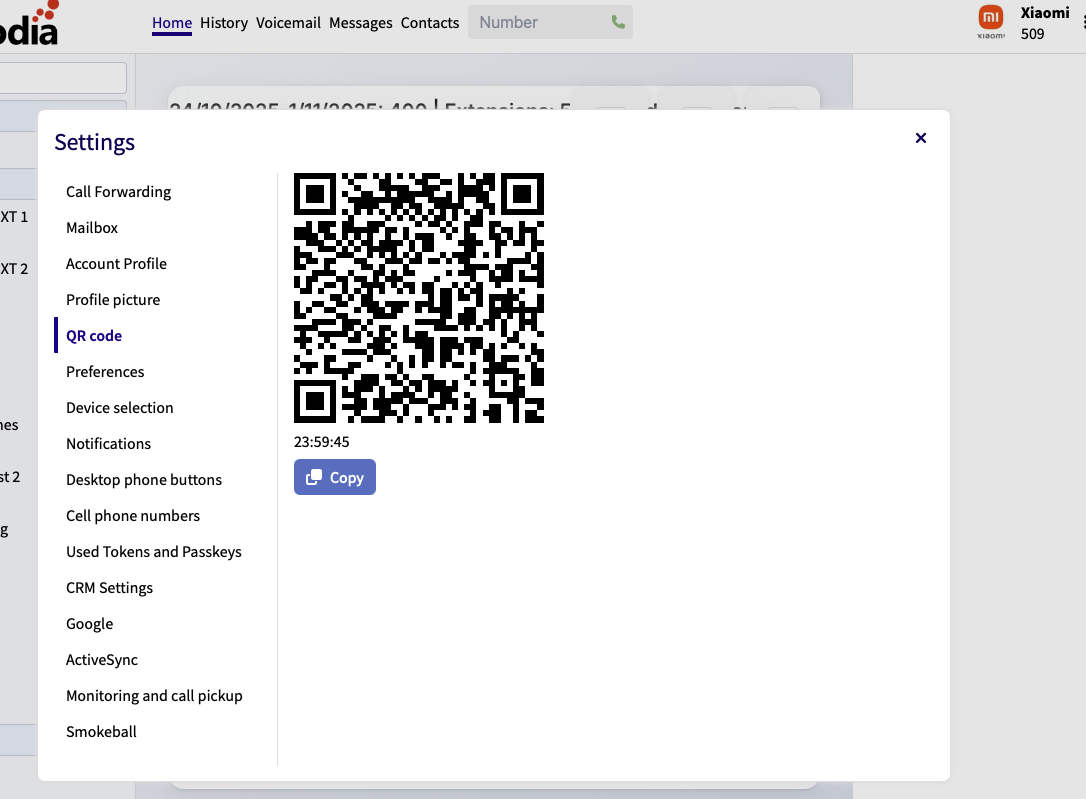
The same is possible from the user portal. The code is available from the user menu, which will show up after clicking on the user icon on the top right corner of the interface.
Bulk QR Code Generation
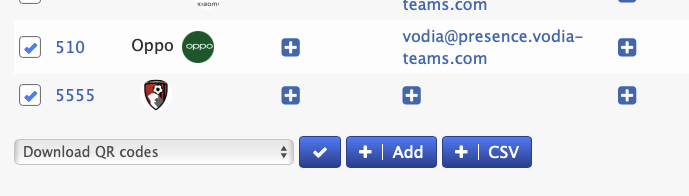
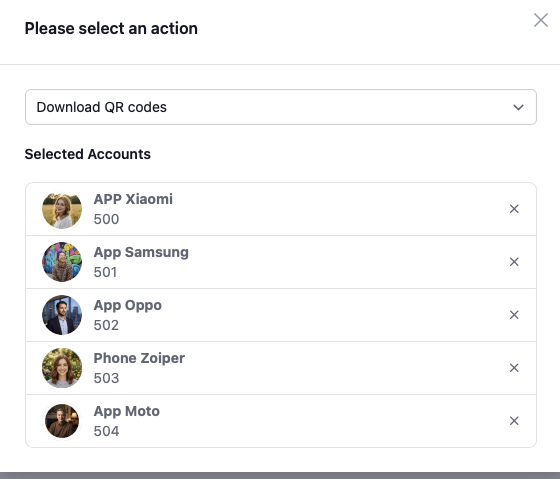
The administrator can generate a page that contains the codes for multiple domains. To do this:
- Switch into the domain administrator view
- Select "Download QR codes" in the list of extensions
This page is intended for print out, so that the paper can be given to the user.
- Version 69
- Version 70
QR Code via Email
The PBX can also send an email with the code to the user. However, this method must be enabled first in the system security settings:
- Navigate to Settings → Security → General
- Enable the setting "Include extension password and PIN in user welcome email"
This will include the QR code in the welcome email. You can also manually trigger welcome emails by:
- Going to the domain list of extensions
- Selecting the item "Send welcome email to selected accounts"
- Version 69
- Version 70


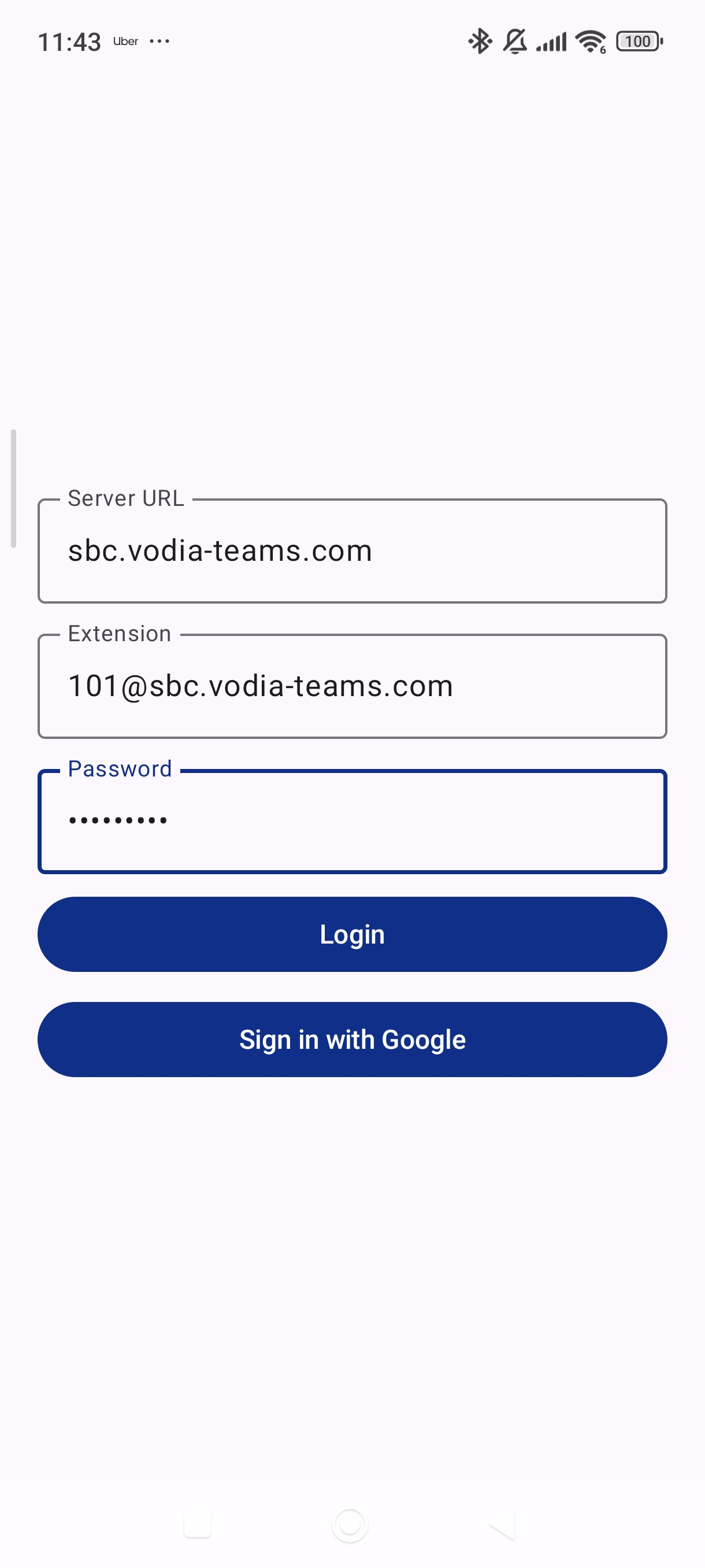
Manual Login (Not Recommended)
If QR code login is not available, you can manually log in:
- On the login screen, tap Other login methods
- Enter the server name (e.g.,
sbc.vodia-teams.com) and tap Connect - On the next screen, enter the extension or email and SIP Password
- For extension just enter the extension number for eg 500
- For email , use your full email address for the extension, for eg test@vodia.com