SAML Integration with Microsoft Entra ID
Vodia PBX supports SAML-based single sign-on (SSO) using Microsoft Entra ID (formerly Azure AD) as the identity provider. This guide walks through configuring both Entra ID and the Vodia PBX to enable SAML login.
Microsoft Entra ID Configuration
In the Azure Portal, navigate to Microsoft Entra ID → Enterprise Applications → New application → Create your own application.
Name your application (e.g., Vodia PBX) and select "Integrate any other application you don't find in the gallery (Non-gallery)".
Once created, go to Single sign-on and select SAML.
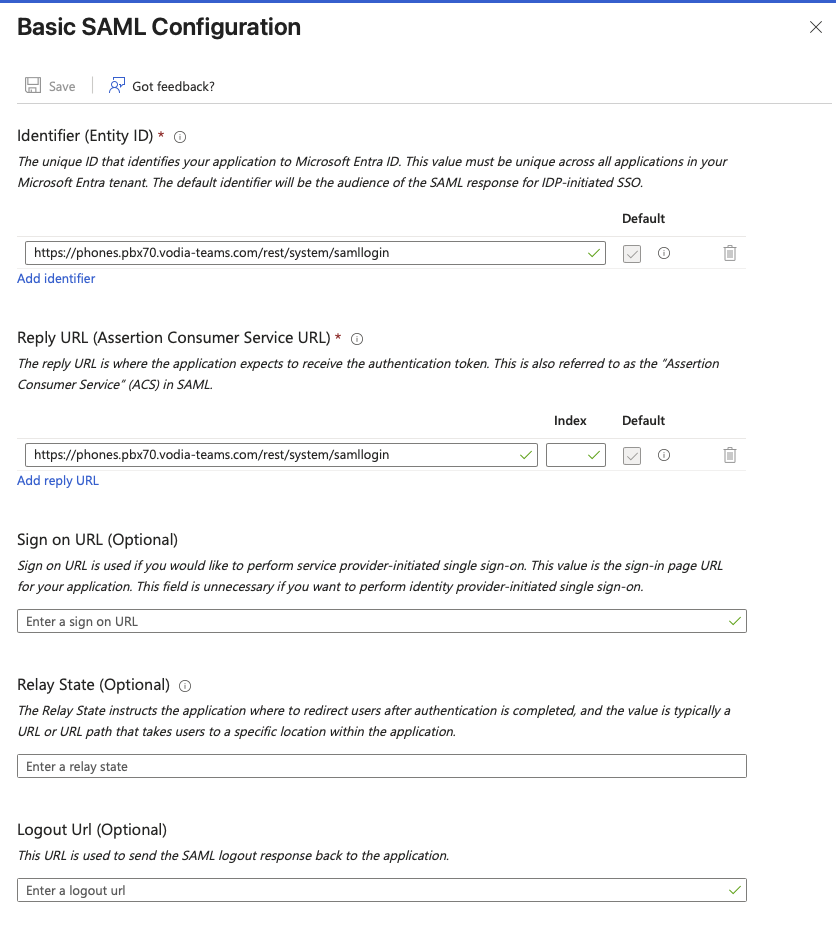
Basic SAML Configuration
Click Edit and set the following:
| Field | Value |
|---|---|
| Identifier (Entity ID) | https://tenant.com/rest/system/samllogin |
| Reply URL (ACS URL) | https://tenant.com/rest/system/samllogin |
Replace tenant.com with your Vodia PBX tenant URL. Leave Sign on URL, Relay State, and Logout URL blank unless required.
Attributes & Claims
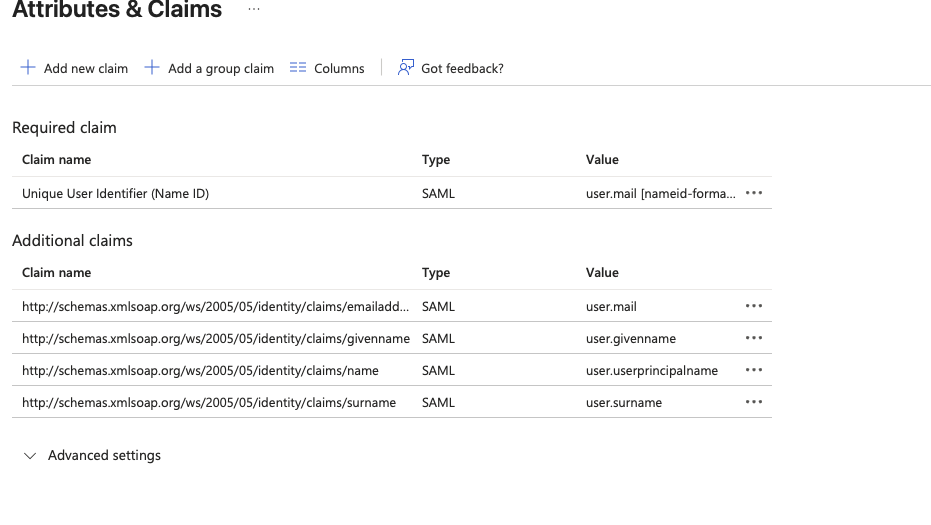
Click Edit and configure the claims as follows:
| Claim name | Value |
|---|---|
| Unique User Identifier (Name ID) | user.mail |
Setting the Unique User Identifier to user.mail is important — Vodia uses the nameId from the SAML assertion to look up the matching extension by email address.
SAML Certificate
Under SAML Certificates, download the Certificate (Base64). Open the downloaded file in a text editor — you will need the certificate content for the Vodia PBX configuration.
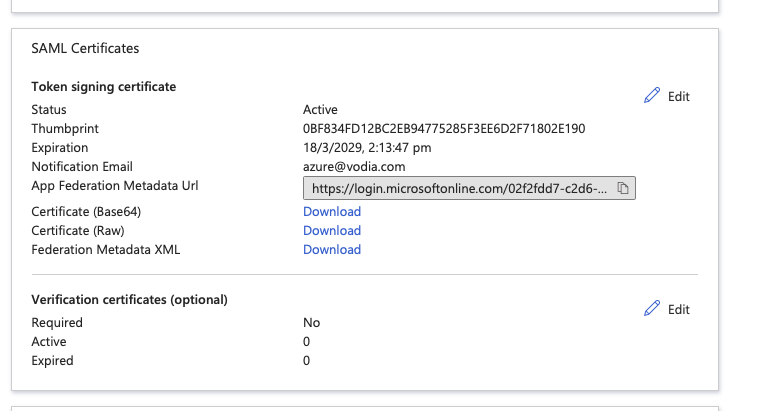
Also take note of the Login URL from the Set up [App Name] section further down the page.
Assign Users
Go to Users and groups and assign the users or groups that should be able to log in via SAML. Their email address in Entra ID must match the email address configured on their Vodia extension.
Vodia PBX Configuration
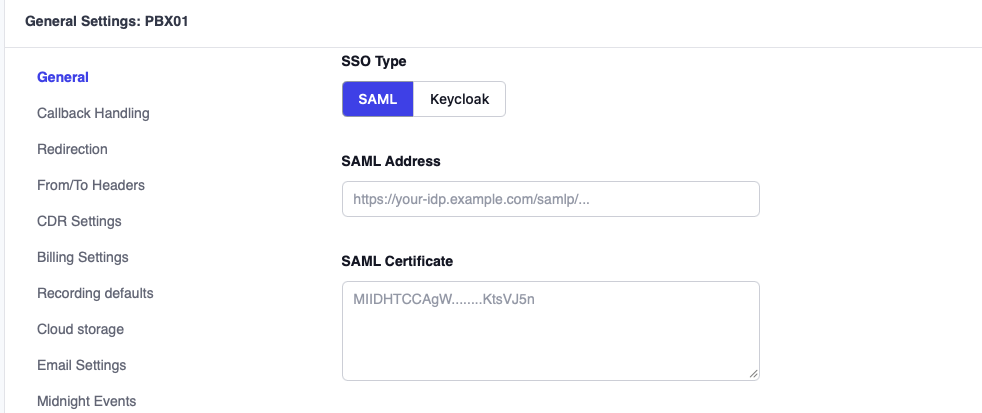
On your Vodia PBX:
- Go to Tenant admin settings
- Add the SAML settings
- Set the Identity Provider Login URL to the Login URL from Entra ID
- Paste the certificate string — open the Base64 certificate file and copy the content, excluding the
-----BEGIN CERTIFICATE-----and-----END CERTIFICATE-----lines
Extension Setup
For each user that will log in via SAML, ensure their Vodia extension has the Email field set to the same address as their Microsoft Entra ID account (e.g., user@yourdomain.com). Vodia uses this to match the incoming SAML assertion to the correct extension.
Result
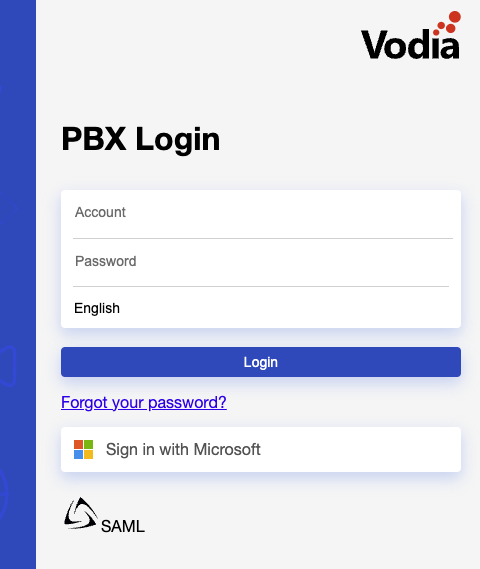
You will see a SAML login option when navigating to the tenant web page.