In-Call Actions
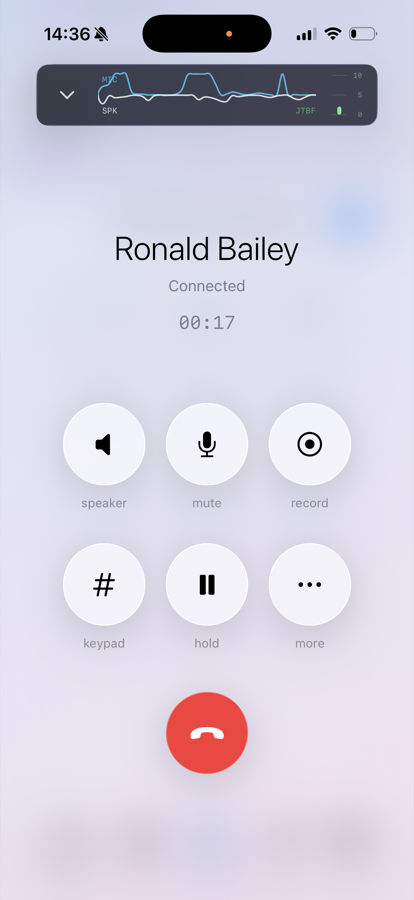
While you are on a call, the app shows a call screen with the following controls:
- Audio — switches where you hear the call. If a Bluetooth headset, wired headset or car system is connected, this opens a picker with all available devices; otherwise it simply toggles between the earpiece and the speaker.
- Mute — turns your microphone off and on, for example in conference calls.
- Keypad — opens a dial pad for entering digits (0-9, * and #) during the call, for example to navigate an auto attendant or check a mailbox.
- Hold — puts the call on hold. Tap again to resume it.
- More (…) — offers Transfer Call and Park Call.
- The red button hangs up.
Putting a Call on Hold
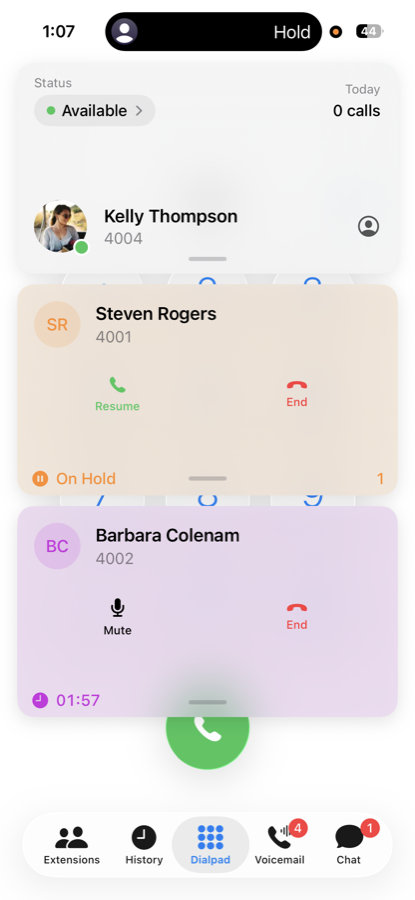
Tap Hold to put the current call on hold; the caller hears music on hold if the PBX is configured for it. Every call appears as a card in the app — a held call shows Resume and End buttons right on its card, so you can pick it back up from anywhere in the app. Holding a call also frees you up to place a second call — for example to consult a colleague before transferring.
Transferring a Call
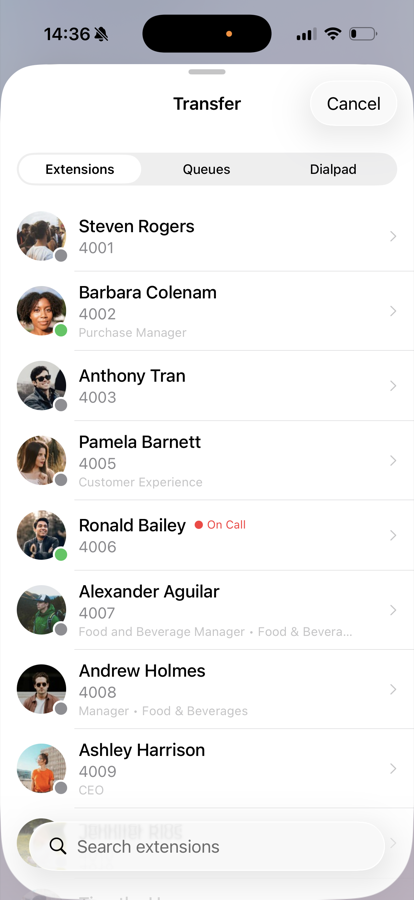
Tap More (…) → Transfer Call. The transfer screen has three tabs — Extensions, Queues and a Dialpad — each with a search field, so you can hand the call to a colleague, a queue, or any external number.
Blind Transfer
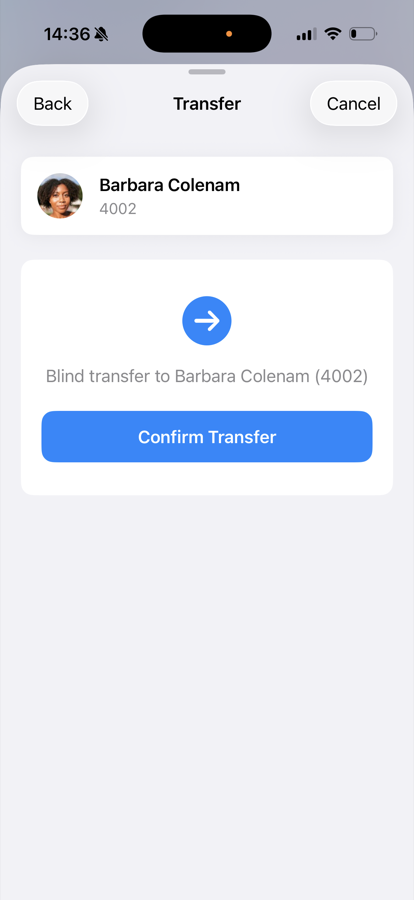
A blind transfer sends the call straight to the target without talking to them first:
- During the call, tap More (…) → Transfer Call
- Pick an extension or queue from the list, or type a number on the Dialpad tab
- Confirm the transfer
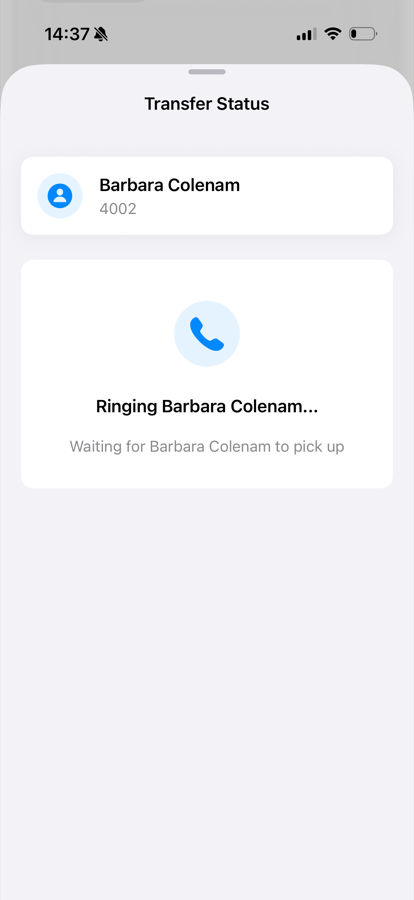
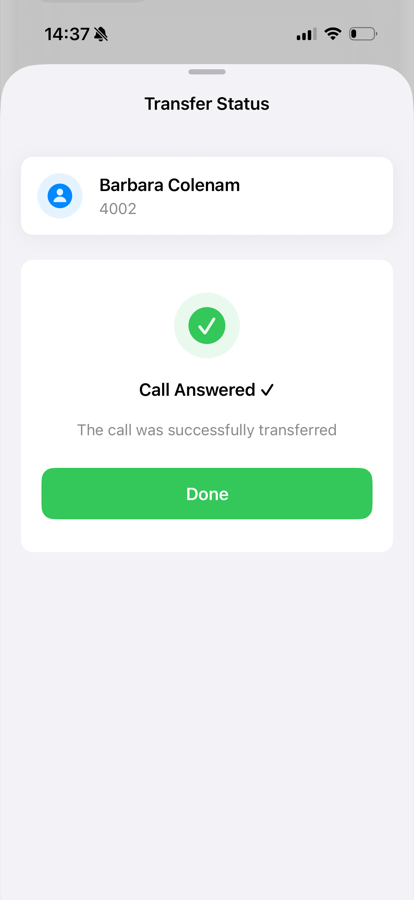
The call leaves your phone immediately. The app shows the transfer status — ringing, and then whether the target answered.
Attended Transfer
An attended transfer lets you announce the caller first:
- Put the current call on Hold
- Call the person you want to transfer to and announce the call
- Tap More (…) → Transfer Call — the held call appears at the top of the transfer screen under Held Calls
- Select the held call to connect the two parties
Parking a Call
Tap More (…) → Park Call to place the call into a park orbit, where a colleague can pick it up from any phone. If you enable Display Park Orbits in the app settings, parked calls are shown on your card on the Extensions tab, and you can retrieve them from there.