History & Voicemail
Call History
The History tab lists your calls, newest first. The tab icon shows a badge with the number of missed calls you have not yet seen.
- Missed calls are shown in bold red until you mark them as read.
- Arrows next to each entry indicate the direction of the call (inbound or outbound).
- Tap an entry to call the number back — the app asks for confirmation first.
- Swipe left on an entry to delete it, or to mark a missed call as read. Deleting removes the entry from your personal history only, not from the domain's call records.
- Long-press an entry for more options: call back, mark as read, copy the number, or delete.
- Pull down to refresh; pull a little further to reveal a search field. Older calls can be loaded with the Load more button at the bottom.
Voicemail
The Voicemail tab lists your voicemail messages; the badge on the tab shows how many are new. You can play a message directly from the list with the play button next to it.
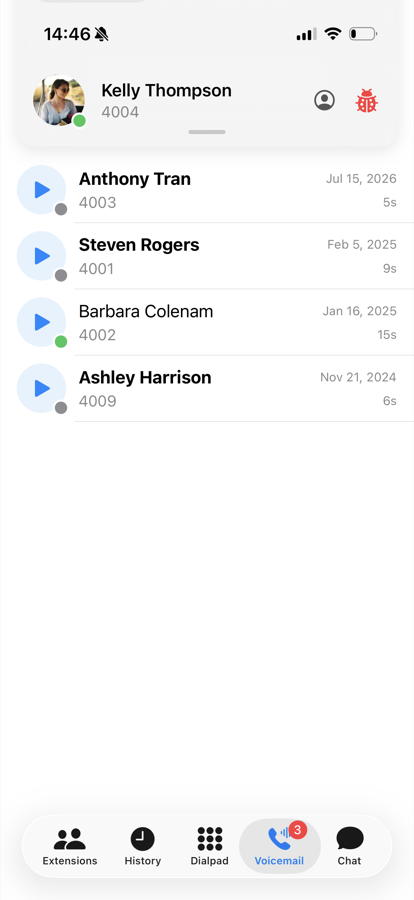
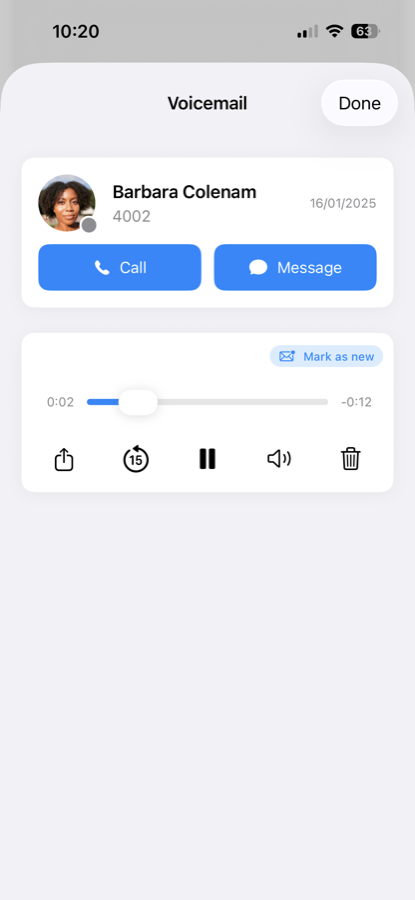
Tap a message to open it. The detail view offers:
- A play/pause button and a scrubber to jump around in the recording, plus a skip-back button to replay the last 15 seconds
- A transcript of the message, when the PBX has transcription enabled — tap it to expand
- Call to phone the person back, and Message to text them (if messaging is enabled)
- Mark as new if you want the message to show up as unread again
- Delete to remove the message
In the list, you can also swipe left on a message to delete it without opening it. Deleting and calling back always ask for confirmation.
tip
You can still call your own mailbox by dialing your own extension number — useful for recording greetings or changing your PIN.