Chat & Messaging
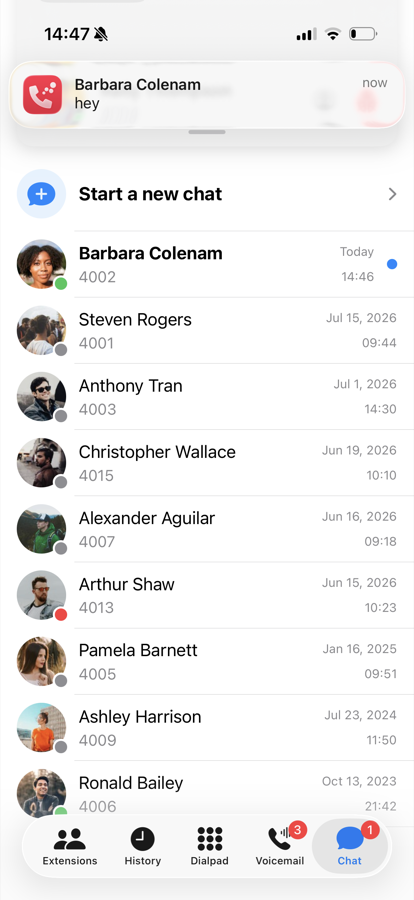
The Chat tab holds your conversations — with colleagues on other extensions and, if your system has SMS enabled, with external phone numbers. The badge on the tab shows the number of unread messages, and new messages arrive as notifications like any other messaging app.
Sending Messages
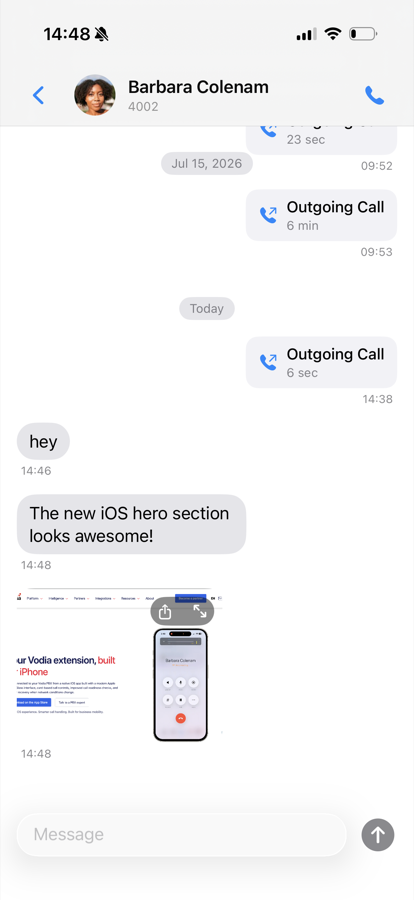
Open a conversation, type your message in the field at the bottom and tap send. New messages from the other side appear in real time while the conversation is open.
Pictures
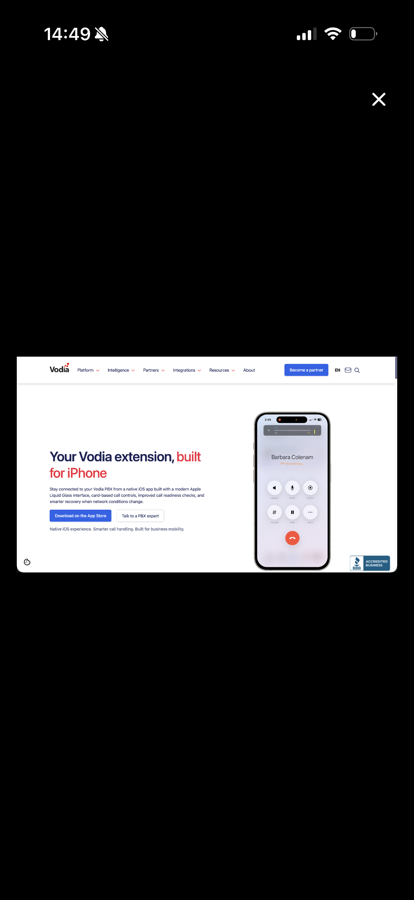
When someone sends you a picture, it appears directly in the conversation:
- Tap the picture to view it full screen — pinch or double-tap to zoom
- Use the share button to save it or pass it on to another app
Starting a New Conversation
If SMS is enabled on your system, tap Start a new chat and either:
- pick a colleague from the extension list, or
- type an external phone number to send an SMS
If you don't see the option to start a new chat, SMS has not been enabled for your system — ask your administrator.
Deleting a Conversation
Swipe left on a conversation in the list and confirm to delete it.