Your Status & Extensions
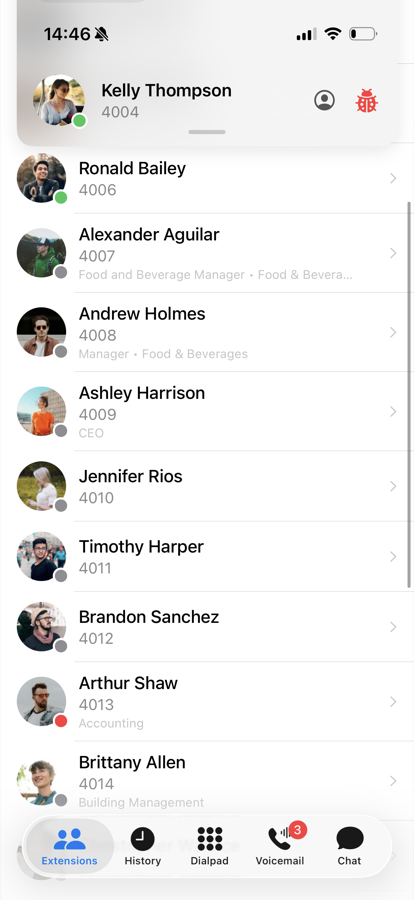
The Extensions tab shows your own status card at the top and the list of the other extensions in your domain below it.
Your Card
The card at the top shows your picture, name and current status. It is also where you reach the app's Settings and the Address Book.
Do Not Disturb
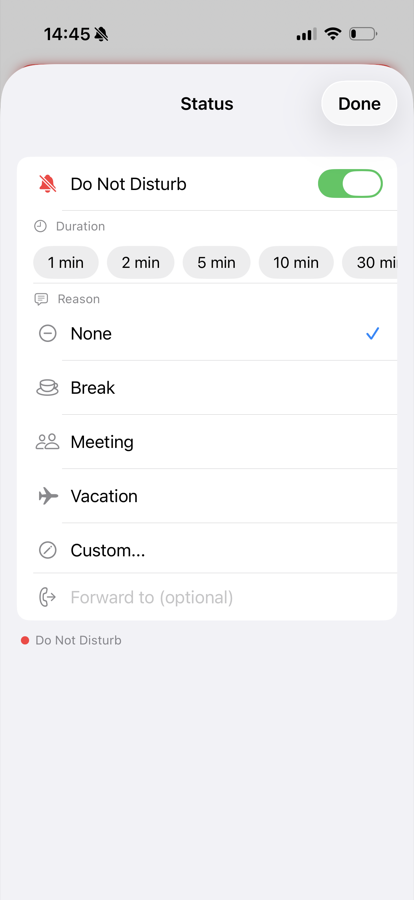
Tap your status on the card to open the status sheet. There you can:
- Toggle Do Not Disturb on or off
- Pick how long the status should last
- Set a status message or a forwarding destination
While DND is active, your card is outlined in red, your status dot turns red, and other app users see you as red in their extensions list.
Park Orbits
If Display Park Orbits is enabled in the settings, parked calls are shown on your card, and you can pick a parked call up directly from there.
Extensions List
Each extension shows the person's picture, name and number. The colored dot tells you their status:
- Green — available
- Red — on Do Not Disturb
- Gray — offline
If a colleague is currently talking, the entry additionally shows a red On Call marker.
Tap an extension to Call it, or — if your system has messaging enabled — to send a Text. The app asks for confirmation before dialing.
Pull the list down to refresh it; pull a little further to reveal a search field that filters by name or number. Whether the list is sorted by name or by number can be changed in the settings.
On iPad
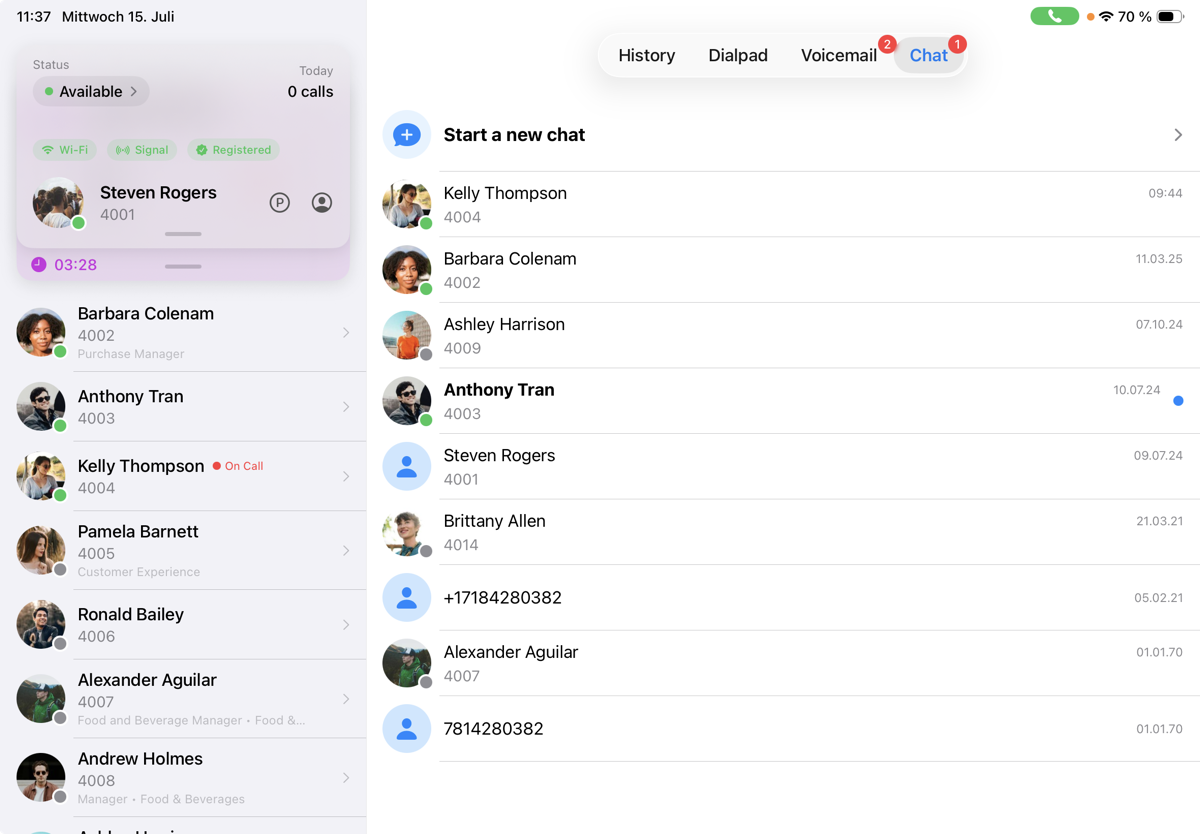
On iPad the app uses a two-column layout: your card and the extensions list are always visible in the left column, while History, Dialpad, Voicemail and Chat occupy the right column. Everything works the same way as on iPhone.