Admin Panel
The Admin panel provides management interfaces for PBX servers, settings, and users. It is accessible to Super Admin users.
PBX Servers
Add and manage the Vodia PBX instances that Vodia Monitor polls. See PBX Servers for full configuration details.
Settings
The Settings panel has four tabs: Notifications, Alert Rules, Passkeys, and Audit Log.
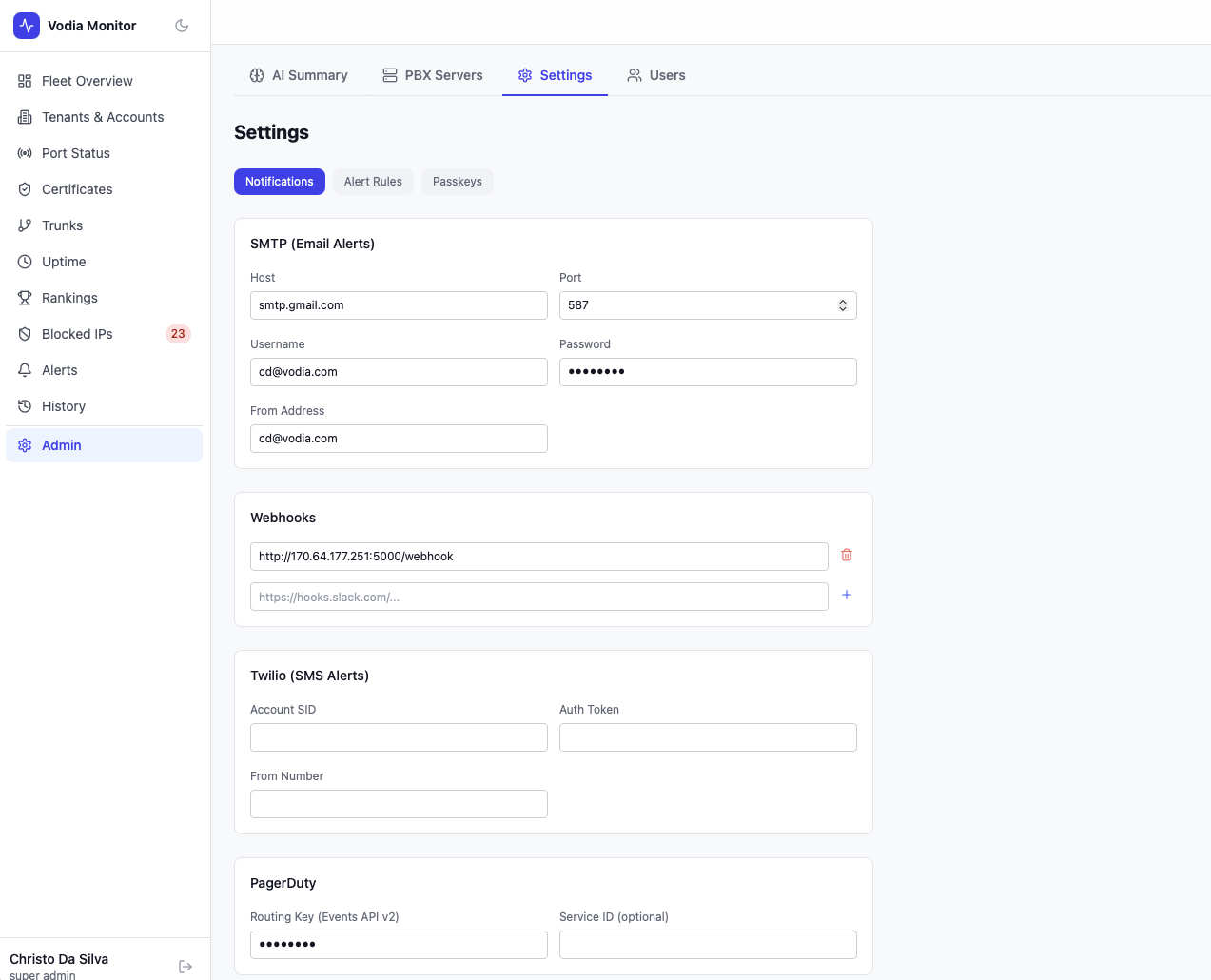
Notifications
Configure outbound notification channels. Each channel has a Test button that sends a sample notification to verify delivery is working.
SMTP (Email Alerts)
| Field | Description |
|---|---|
| Host | SMTP server hostname |
| Port | Typically 587 (STARTTLS) or 465 (SSL) |
| Username / Password | SMTP credentials (password encrypted at rest with AES-256-GCM) |
| From Address | Sender email address |
Click Test Email to send a test message to your account email address.
Webhooks
Add one or more webhook URLs (Slack, Teams, custom endpoints). Click Test Webhook to POST a sample payload to all configured URLs.
Twilio (SMS Alerts)
| Field | Description |
|---|---|
| Account SID | Twilio account identifier |
| Auth Token | Twilio authentication token (encrypted at rest) |
| From Number | The SMS sender number |
PagerDuty
| Field | Description |
|---|---|
| Routing Key | Events API v2 integration key (encrypted at rest) |
| Service ID | Optional — scopes events to a specific PagerDuty service |
Click Test PagerDuty to trigger a test event in your PagerDuty account.
Alert Rules
Configure which conditions generate alerts and tune the thresholds, consecutive check requirements, and rolling poll windows for each rule. Each rule can be edited independently.
| Rule | Severity | Default Threshold | Consecutive Checks | Poll Window |
|---|---|---|---|---|
| Certificate Expiring (7 days) | Critical | 7 days | 2 | 10 |
| Certificate Expiring (30 days) | Warning | 30 days | 2 | 10 |
| CPU Usage High | Warning | 80% | 3 | 10 |
| Device Offline Ratio | Critical | 50% | 2 | — |
| Disk Usage High | Warning | 85% | 2 | 10 |
| Freezes/Faults Detected | Warning | 0 (any non-zero) | 2 | 10 |
| License Expiring | Warning | 30 days | 2 | 10 |
| Memory Usage High | Warning | 90% | 3 | 10 |
| Call Quality Degraded | Warning | MOS 3.5 | 2 | 10 |
| PBX Port Unreachable | Critical | — | 2 | 10 |
| Registration Drop | Critical | 50% drop from rolling avg | 2 | 10 |
| Trunk Registration Failed | Critical | — | 2 | 10 |
Consecutive checks — how many consecutive failing polls must occur before the alert fires. This prevents transient blips from generating noise.
Rolling window (polls) — the number of recent polls used to calculate rolling averages (e.g. for registration drop detection).
Device Offline Ratio — fires when the percentage of provisioned devices with zero registrations meets or exceeds the threshold on a given PBX. The default threshold is 50%. Evaluated after each device poll cycle.
Click Edit on any rule to adjust its threshold, consecutive check count, or poll window.
Passkeys
Register and manage WebAuthn passkeys (fingerprint, face, or security key) for passwordless login. Multiple passkeys can be registered for different devices.
Audit Log
A chronological record of system events for accountability and troubleshooting.
| Event Type | Description |
|---|---|
| Login | Successful authentication via passkey or TOTP |
| PBX Added | A new PBX server was added |
| PBX Removed | A PBX server was deleted |
| PBX Updated | A PBX server's configuration was changed |
| Setting Changed | Notification settings or alert rule thresholds were modified |
| User Created | A new user account was created via invite |
| User Deleted | A user account was removed |
Each entry shows the action, user email, details (contextual information about what changed), IP address, and timestamp.
Use the filter dropdown to scope the log to a specific event type. The log displays the 100 most recent entries.
AI Health Summary
The AI panel at the top of Admin allows you to generate a fleet health summary using an AI provider of your choice.
Supported providers:
- OpenAI — requires an API key
- Anthropic Claude — requires an API key
- Google Gemini — requires an API key
Configure API keys by clicking Configure Keys. Once configured, click Generate with [Provider] to produce a summary. The summary analyses current fleet data — certificate errors, trunk issues, system performance, and active alerts — and returns a structured health report with key observations and recommended actions.
Generated summaries show the timestamp and which provider was used.
Users
Manage user accounts for Vodia Monitor.
Each user has:
- Email — used as the login identifier
- Role —
Super Admin(currently the only role; additional roles may be added in future releases)
Users can be invited via the Invite User button. User management shows each user's email, role, and last activity.
Security Notes
- All credentials (SMTP passwords, Twilio tokens, PagerDuty keys, AI API keys) are encrypted at rest using AES-256-GCM
- Passkey and TOTP authentication are available for passwordless login
- PBX admin credentials stored for polling are also encrypted at rest
- All sensitive actions are recorded in the Audit Log