Call Detail Modal
Clicking any call in the Calls list opens a detail modal with full call information. A recording player sits pinned at the top of the modal, and the information below it is organized into three tabs: Call Detail, Transcript, and AI Analysis.
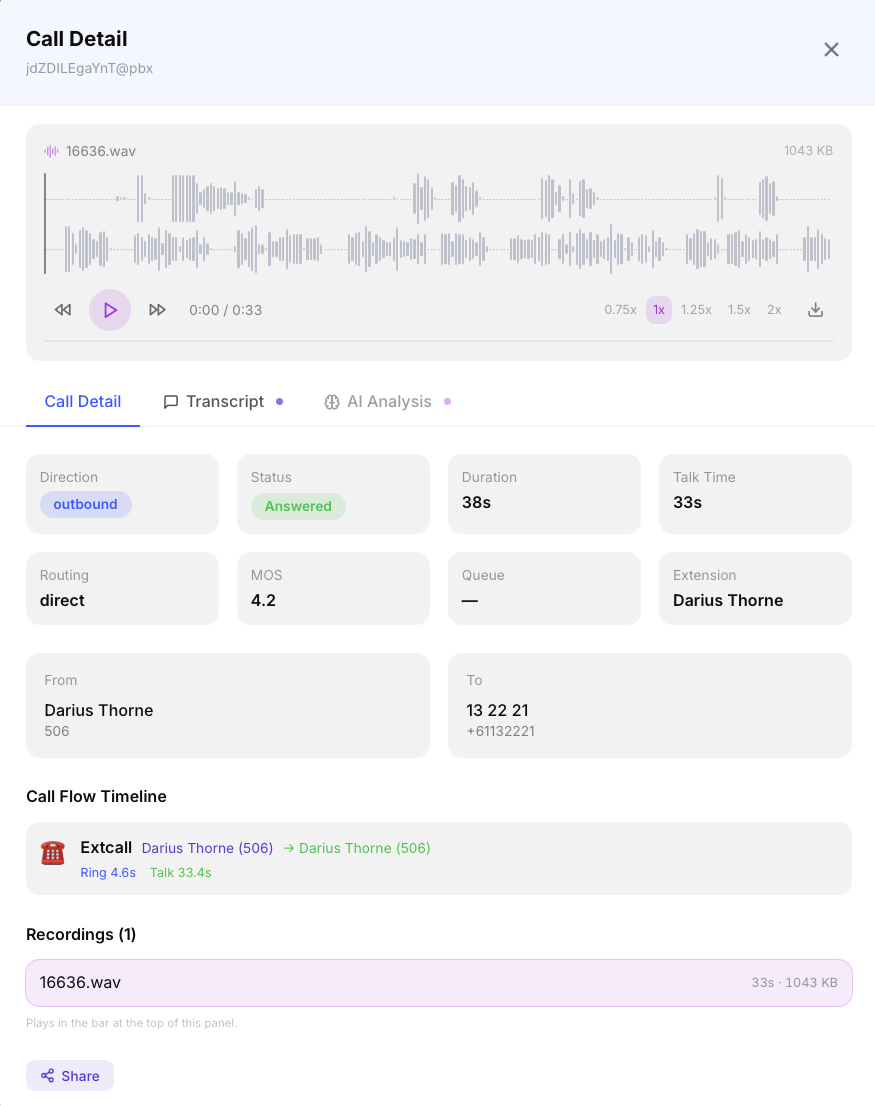
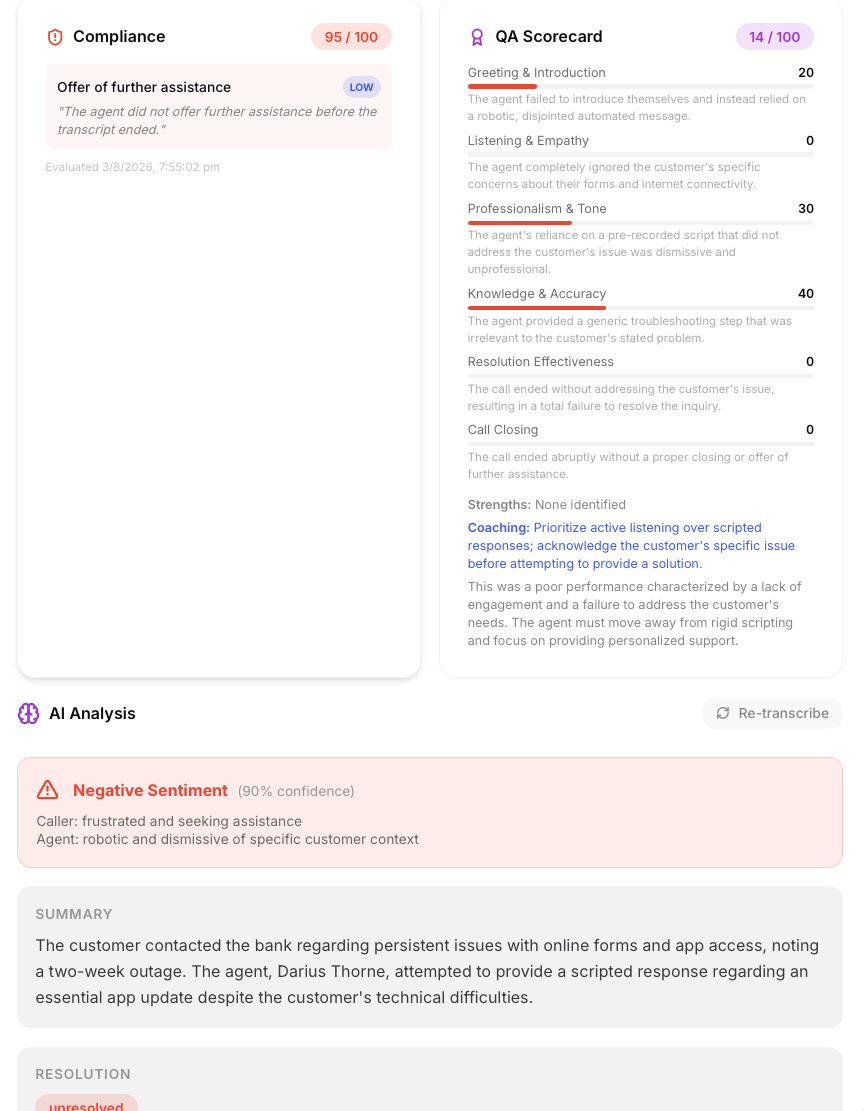
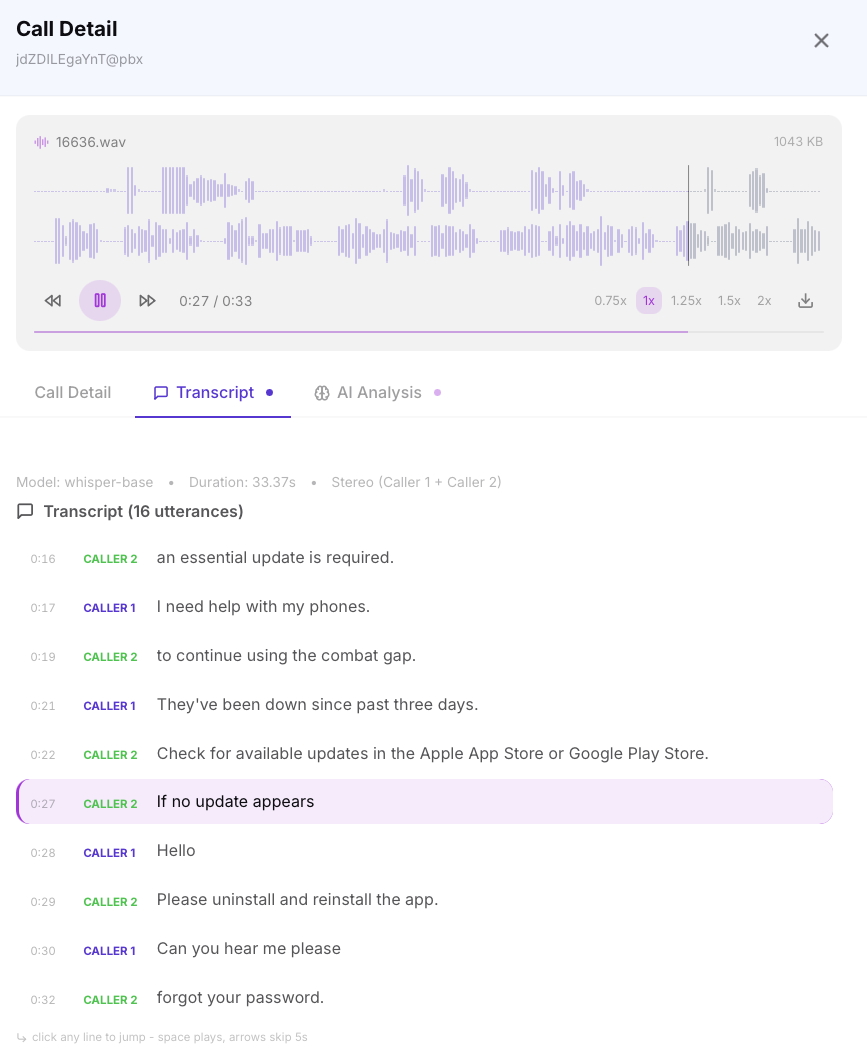
The call detail modal showing the waveform player, synchronized transcript, and AI analysis.
Recording Player
If the call has a recording, a waveform player appears between the modal header and the tab strip. It stays in place as you move between tabs, so playback is never interrupted by switching views.
The waveform is drawn from peak data generated during transcription, so it appears instantly rather than waiting for the audio file to download. Stereo recordings are drawn as two stacked lanes — one per channel — making it easy to see who was speaking when, and where the silences fall.
Controls
| Control | Description |
|---|---|
| Play / Pause | Starts and stops playback |
| Skip back / forward | Jumps 5 seconds in either direction |
| Click the waveform | Seeks to that position |
| Speed | 0.75×, 1×, 1.25×, 1.5×, 2× — useful for skimming long calls |
| Download | Saves the original WAV file |
Keyboard shortcuts work whenever the modal is open and no text field is focused:
- Space — play / pause
- Left arrow / Right arrow — skip back / forward 5 seconds
Red markers on the waveform indicate compliance violations. Clicking one jumps straight to the moment the violation occurred. See Compliance & QA Panel below.
Multiple Recordings
Some calls produce more than one recording — transfers, calls captured on both the trunk and extension leg, or calls recorded in several parts. When this happens, numbered pills appear above the waveform showing each recording and its duration. Selecting a pill loads that recording into the player.
Each recording has its own timeline and its own transcript. Switching pills swaps both, so the transcript you see always belongs to the audio you are hearing.
The Call Detail tab also lists every recording with its filename, duration, size, and originating extension. Clicking one selects it in the player above.
Recordings that uploaded with zero bytes are hidden from the player and the recordings list. They cannot be played or transcribed, and showing them would only produce errors.
Recording playback is protected by a short-lived signed token generated when the modal loads. A recording URL cannot be shared, bookmarked, or accessed outside an authenticated session — the token expires after a few hours. To share a call with someone outside the platform, use the Share button instead.
Transcript Tab
The Transcript tab shows the conversation as a list of timestamped lines, synchronized with the player above it.
As the recording plays, the line currently being spoken is highlighted and the list scrolls to keep it in view. Clicking any line seeks the player to that moment and starts playing, which makes it easy to jump back to something you missed or skip ahead to the part of the call you care about.
Each line shows its start time, the speaker, and the text:
- Stereo calls — lines are labelled Caller 1 and Caller 2, color-coded by channel
- Mono calls — all lines are labelled Speaker, since the two parties cannot be separated
Segmentation Quality
How precisely the transcript follows the audio depends on how the recording was segmented during transcription.
Recordings transcribed with voice-activity detection are split at natural pauses, producing one line per utterance — typically a few seconds each. Highlighting follows the conversation closely, sentence by sentence.
Older recordings were split into fixed 28-second blocks regardless of who was speaking. These are marked with a coarse timings badge. They remain fully readable and clickable, but the highlight advances only every 28 seconds, and a short call may appear as a single line. Re-transcribing such a call from the AI Analysis tab regenerates it with utterance-level timings.
If PII/PCI redaction is enabled for the tenant, sensitive data such as credit card numbers and email addresses is replaced with tokens like [CARD REDACTED] or [EMAIL REDACTED] before the transcript is stored. Redaction is destructive by design — the original text is never kept.
Transcription happens automatically via the local Whisper model when recordings are received. No audio is sent to external services.
Call Detail Tab
The Call Detail tab displays:
- Call metadata — direction, start/end time, total duration, talk time, ring time, hold time
- Parties — caller number, callee number, answering extension, answering queue
- Quality — MOS score with color indicator
- Routing path — each state the call passed through (auto-attendant → queue → extension, etc.)
- Recordings — every recording on the call with filename, duration, size, and extension
Compliance & QA Panel
If the call has been evaluated against compliance rules or scored by AI QA, two cards appear at the top of the AI Analysis tab:
- Compliance — the compliance score (0–100) with a pass/fail indicator. Failing calls list each violated rule with its severity badge and an evidence quote from the transcript (for prohibited phrases) or an explanation of what was missing (for required phrases). If any AI-mode rules could not be evaluated (e.g. the AI provider was unavailable), a warning is shown.
- QA Scorecard — the overall AI QA score (0–100) with a per-category breakdown. Each rubric category shows its score as a color-coded progress bar (green ≥ 80, yellow ≥ 60, red below) with the AI's one-line comment. Below the categories, the card lists the agent's identified strengths and a specific, actionable coaching tip.
Prohibited-phrase violations carry a timestamp chip next to the evidence quote. Clicking it plays the recording from the moment the phrase was spoken, so you can hear it in context rather than judging it from a text excerpt alone.
Required-phrase violations describe something that did not happen — a missing greeting, a call recording disclosure that was never given. There is no point in the audio to jump to, so no timestamp is shown. Timestamps are also hidden on calls with multiple recordings, where a single position on the call timeline is ambiguous.
Calls are evaluated automatically after transcription. Historical calls can be scored via Re-evaluate Range on the Compliance page, and individual calls can be QA-scored on demand from the Compliance Overview.
AI Analysis Tab
If AI analysis has been generated (either via auto-summarize or on-demand), this tab shows:
- Summary — a concise paragraph describing what happened on the call
- Sentiment — overall sentiment (positive / neutral / negative) with confidence score, caller mood, and agent performance assessment
- Topics — key topics discussed (e.g. "billing inquiry", "service cancellation")
- Resolution — whether the call was resolved, unresolved, or requires follow-up
- Action Items — specific follow-up actions identified from the conversation
- Key Phrases — notable phrases extracted from the transcript
The tab header also carries the Summarize and Re-transcribe actions.
If auto-summarize is disabled, you can trigger AI analysis for any individual call by clicking the "Analyze" button in the modal. This sends the transcript to the configured AI provider and returns results in a few seconds.
Share Button
A Share button in the modal header generates a one-time secure link. Shared calls include the same waveform player and synchronized transcript, so an external recipient sees the call the way you do. See Sharing Transcriptions for details.