Alerts
Overview
The Alerts feature allows administrators to configure emergency and notification alerts that can be triggered by users. When activated, alerts can send notifications through multiple channels (desktop phones, mobile apps, SMS, email) and automatically initiate calls to designated numbers.
Enable Alert Access
To make alerts available in the user profile settings, navigate to Tenant Settings > Groups, locate the relevant user group, and enable the Manage Alerts permission. Without this permission enabled, alerts will not appear in the user's profile settings.
Accessing Alerts
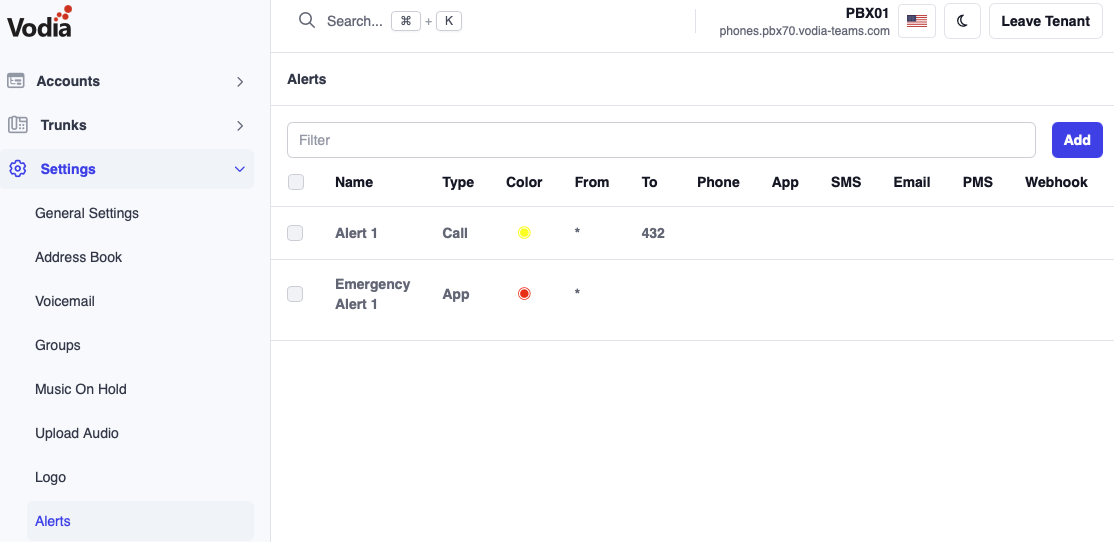
- Navigate to Tenant Settings
- Select Alerts from the menu
- Click Add Alert to create a new alert
Alert Configuration
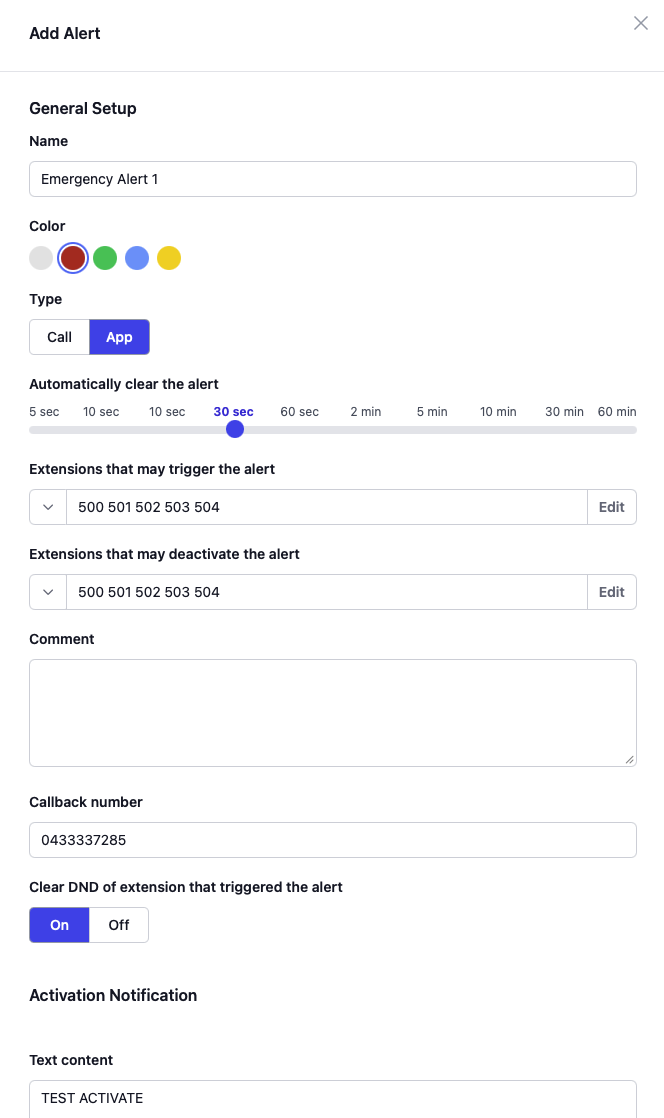
General Setup
Name
A descriptive name for the alert that will be displayed to users (e.g., "Emergency Alert 1", "Security Incident", "Medical Emergency").
Color
Select a color to visually identify the alert type. This helps users quickly recognize different alert categories in the interface.
Type
Define the type of the alert.
- Call
- App
Automatically clear the alert
Sets how long the alert remains active before being automatically cleared. Available options:
- 5 seconds
- 10 seconds
- 30 seconds
- 60 seconds
- 2 minutes
- 5 minutes
- 10 minutes
- 30 minutes
- 60 minutes
Choose an appropriate timeout based on your alert type. Emergency alerts may require longer durations, while routine notifications can use shorter timeouts.
Extensions that may trigger the alert
Specify which extensions have permission to activate this alert. Click Edit to manage the authorized extension list. This ensures only designated personnel can trigger specific alert types.
You can enter * for all extensions.
Extensions that may deactivate the alert
Specify which extensions have permission to clear or deactivate this alert. Click Edit to manage the list. This is particularly important for emergency alerts where only supervisors or security personnel should be able to clear the alert.
Comment
Add notes or additional information about the alert's purpose, usage guidelines, or special instructions.
Callback number
The phone number that will be automatically called when the alert is triggered.
Clear DND of extension that triggered the alert
When enabled (On), this will override Do Not Disturb settings for the extension that triggered the alert, ensuring they can be reached for follow-up. When disabled (Off), the extension's DND settings remain unchanged.
Activation Notification
These settings control what happens when an alert is triggered.
Text content
Plain text message sent with the alert notification. This should clearly state:
- The type of alert
- Location (if applicable)
- Required action
- Example: "Emergency alert triggered by Extension 200 - 3rd Floor Conference Room"
HTML content
HTML-formatted message for richer notification content in supported channels. Use this for:
- Formatted text with bold/colors
- Links to emergency procedures
- Embedded location maps
Notify desktop phones for accounts
Select which accounts will receive the alert notification on their desk phones. Click to choose specific extensions or groups.
App
Enable (On) to send push notifications to the mobile app for all selected accounts.
SMS
Enable (On) to send SMS text messages to the mobile numbers associated with selected accounts.
Email
Enable (On) to send email notifications to the email addresses associated with selected accounts.
PMS
Enable (On) for Property Management System integration, typically used in hospitality environments to notify front desk or management systems.
Webhook
Enable (On) to send alert data to a configured webhook URL
Trigger page
Select which paging group to notify. This will broadcast an announcement over the selected paging account
File to be played
Select an audio file to play when the page is triggered. Choose "None" if no audio announcement is needed.
Deactivation Notification
These settings control what happens when an alert is cleared or deactivated.
Text content
Plain text message sent when the alert is cleared.
Example: "Emergency alert cleared - All clear on 3rd Floor"
HTML content
HTML-formatted message for the deactivation notification in supported channels.
Notify desktop phones for accounts
Select which accounts will receive the deactivation notification on their desk phones.
App
Enable (On) to send deactivation notification to the mobile app.
SMS
Enable (On) to send SMS notification when the alert is cleared.
Email
Enable (On) to send email notification when the alert is deactivated.
PMS
Enable (On) to send PMS notification for alert deactivation.
Webhook
Enable (On) to send webhook notification when the alert is cleared
Trigger page
Select paging group to announce the alert deactivation.
Triggering Alerts
Triggering Alerts from User Portal
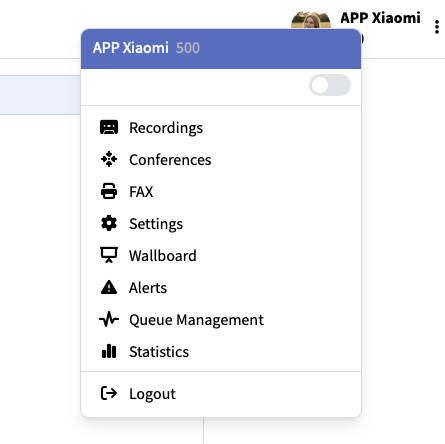
- Users log into the User Web Portal
- Navigate to Profile Settings
- Click on Alerts
- Click on the Add/plus button to trigger an Alert
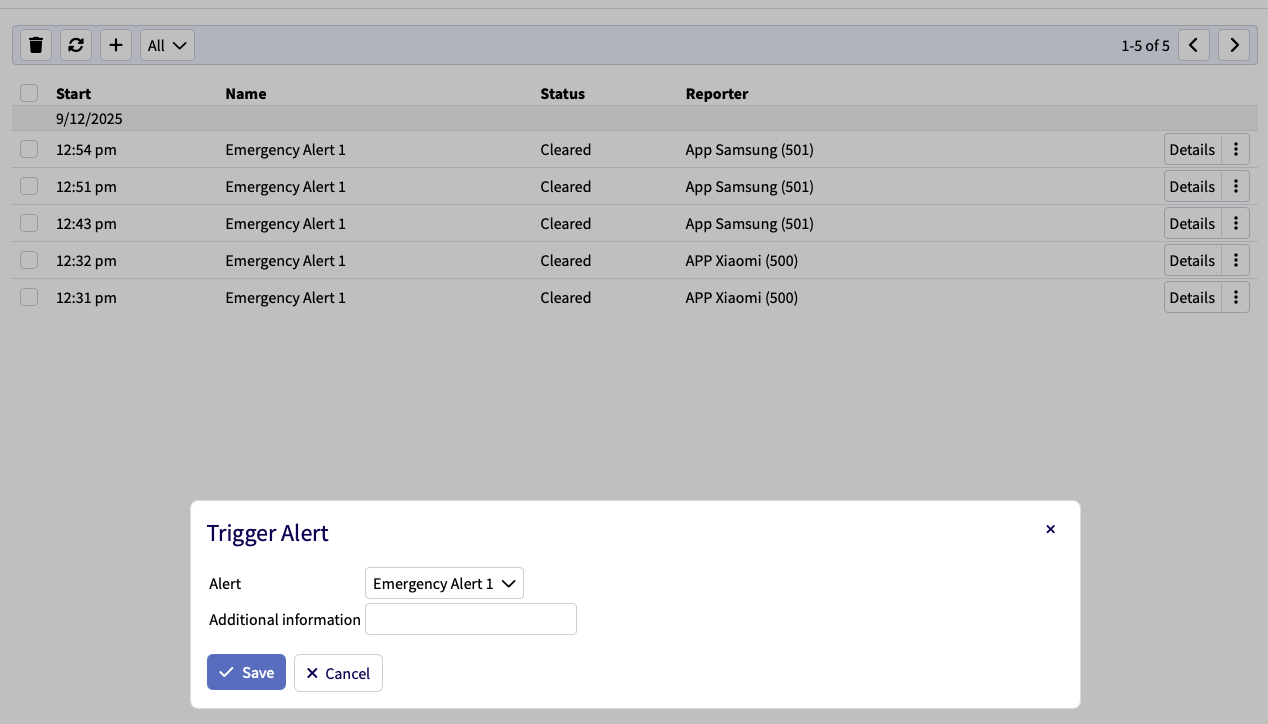
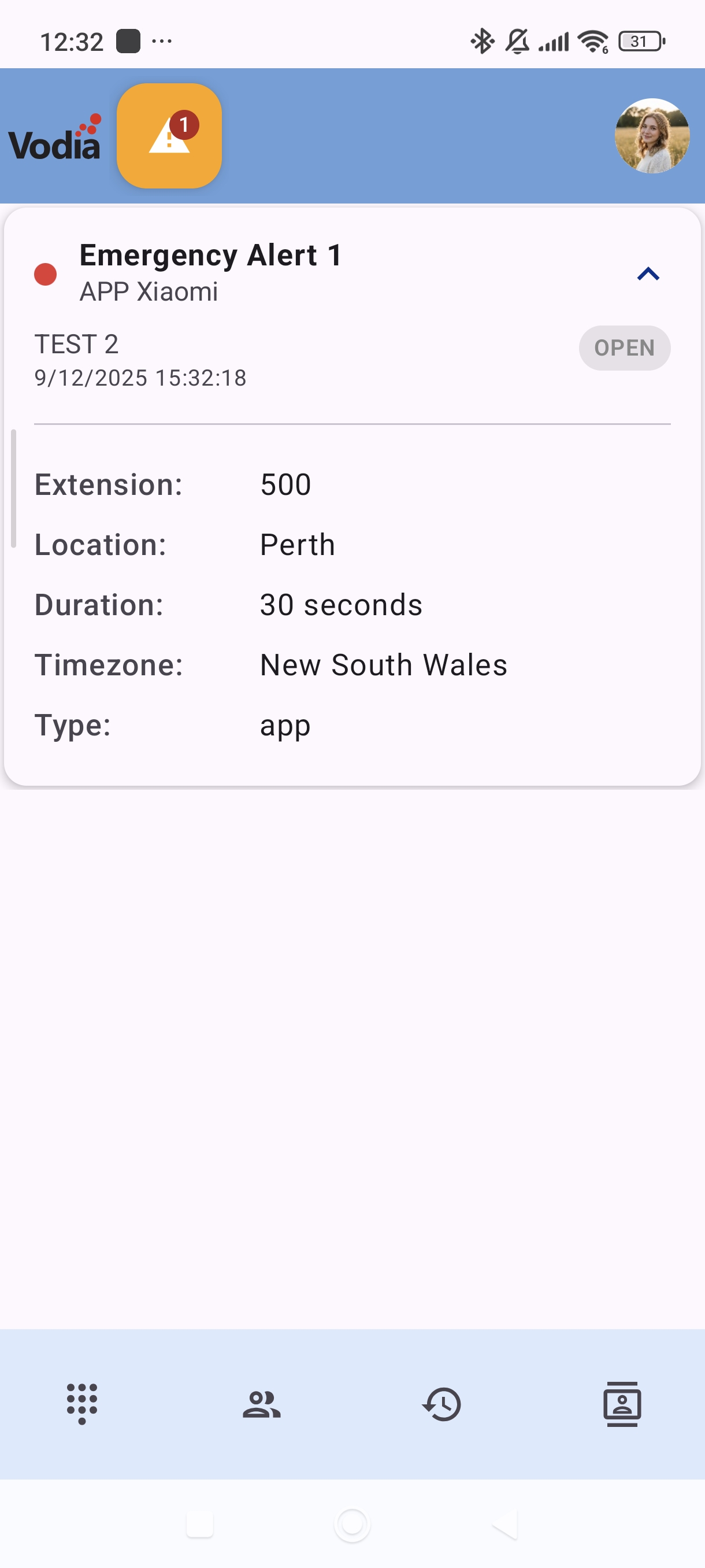
Alert Behavior
When an alert is triggered:
- Immediate callback: The system automatically offers the option to call the configured callback number
- Multi-channel notifications: Alerts are sent through all enabled channels:
- Desktop phone
- Mobile app push notifications
- SMS messages
- Email notifications
- Paging announcements
- External integrations: Webhooks and PMS systems receive alert data
- Auto-clear: The alert remains active until manually cleared by an authorized extension or automatically cleared based on the timeout setting
Clearing Alerts
Alerts can be cleared by:
- Extensions designated in "Extensions that may deactivate the alert"
- Automatic timeout based on the configured duration
- When cleared, deactivation notifications are sent through configured channels
Exercise caution when configuring callback numbers to external emergency services (911, etc.). Consider routing to internal security or dispatch first to validate the emergency before external escalation.
Common Use Cases
Emergency Alerts
- Medical emergencies
- Active threat situations
- Fire alarms
Facility Alerts
- Equipment failures
- Environmental issues
- Maintenance requests
Healthcare Alerts
- Code blue/rapid response
- Staff assistance requests