Display Mode
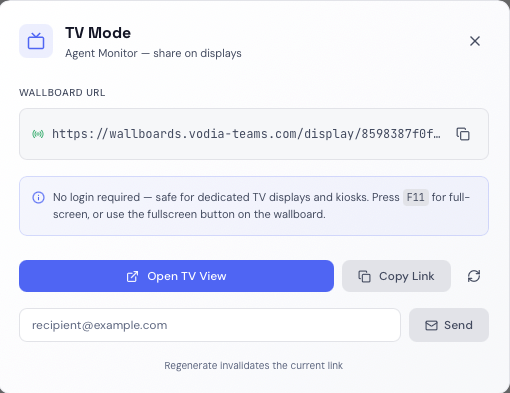
Display Mode is Vodia Wallboards' TV and kiosk presentation layer. Any wallboard can be published as a token-based URL that requires no login — safe for dedicated display screens, kiosks, and meeting room TVs.
Publishing a Wallboard
Open the wallboard you want to display and click the TV button in the builder toolbar. This opens the TV Mode panel which generates a unique display URL for that wallboard.
From the TV Mode panel you can:
- Copy the URL to the clipboard
- Open the display URL directly in a new tab
- Email the link to a recipient (requires SMTP to be configured)
- Regenerate the token — creates a new URL and immediately invalidates the old one
The Display URL
The URL takes the form https://your-domain.com/display/{token}. Anyone with this link can view the wallboard with no login required. The token does not expire — the link works indefinitely unless you unpublish the wallboard or regenerate the token.
Using Display Mode
When opened, the display URL shows the full wallboard in a clean presentation view with the branded header at the top. All widgets are live and update in real time via WebSocket, identical to the builder view.
Press F11 (or use the fullscreen button on the wallboard) to enter full-screen mode for TV displays.
The viewer session refreshes its authentication token automatically every 7 days, so the display stays live indefinitely without any manual intervention.
Managing TV Links
Navigate to Settings → TV Links to see all published wallboards and their display URLs in one place. From this tab you can:
- Open any display URL directly
- Copy any display URL to the clipboard
- Unpublish a wallboard — this immediately disables the TV link and stops the display from loading
Unpublishing a wallboard disables its TV link immediately. The wallboard itself is not deleted — you can re-publish it at any time to generate a new link.