Licensing
Obtaining a License
A license is required to create accounts and make calls on the PBX. The easiest way to get one is through a Vodia partner — contact Vodia if you need help finding a partner in your area.
To get a license directly, or to request a free trial, create an account at https://portal.vodia.com.
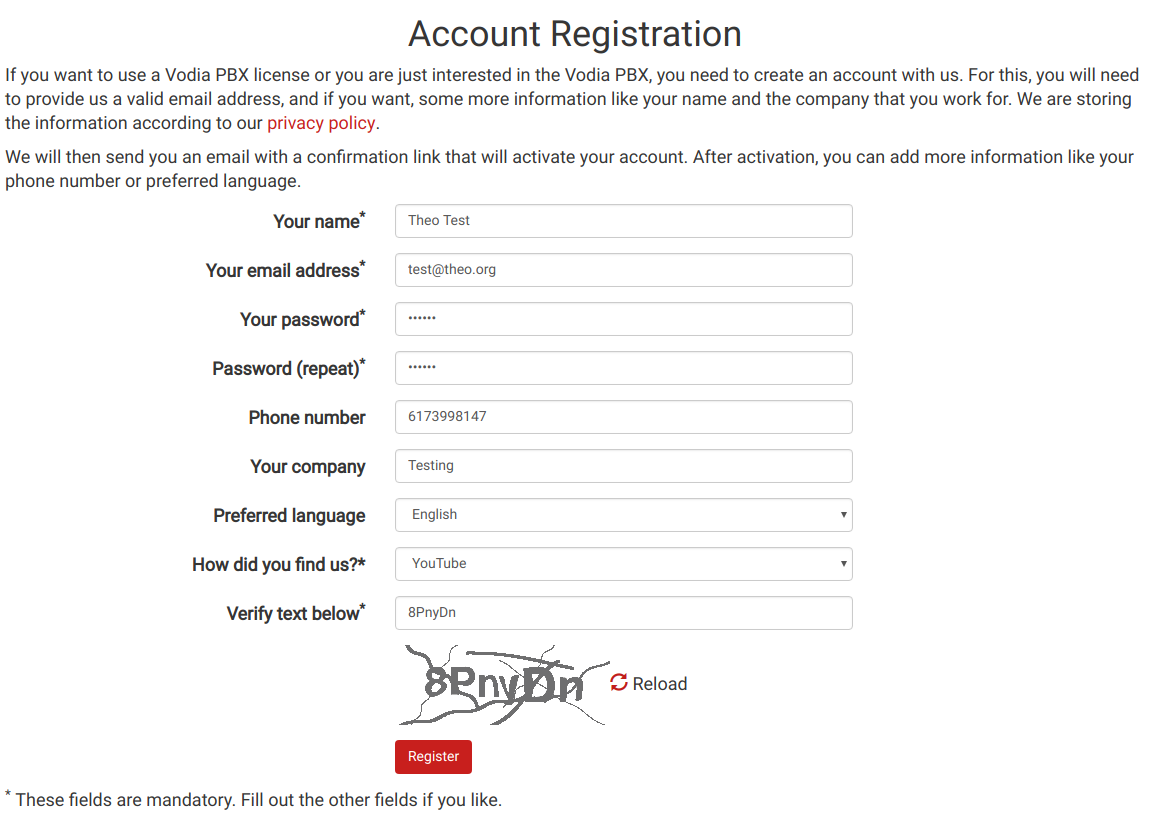
After registering, you'll receive a confirmation email. Once confirmed, email sales@vodia.com to request a trial license, or purchase a license directly through the portal. If you pay by credit card, your license is issued immediately. For invoice-based purchases, the sales team will follow up by email.
Activating Your License
- Log in to your PBX.
- If prompted, accept the license agreement — the interface will take you directly to the license page.
- Paste your license key and click Save.
The PBX will contact the Vodia license server and retrieve your license. After a few seconds, the license status will appear on screen.
The Maintenance date shows how long you can receive software updates. This date may extend automatically if you're on a subscription plan.

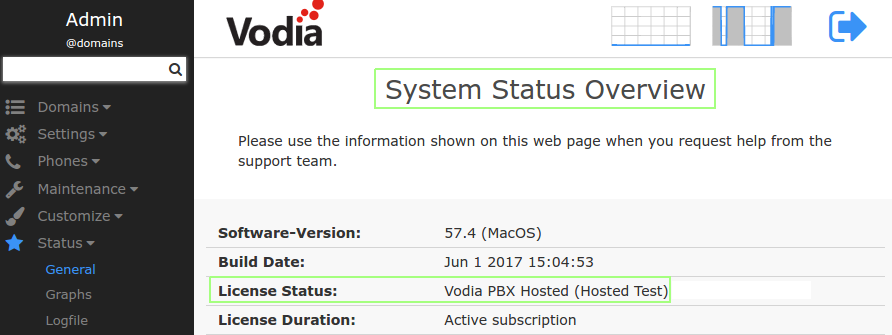
To confirm the license is active, go to Status → General. You'll see the full license details there. If any items show an expiration date, it means those specific items will expire — not necessarily the license as a whole.
Troubleshooting License Activation
If activation fails, work through the following checks:
-
Verify your license code. A valid code follows the format
5XX-XXX-XXX-XXX. You can confirm this in the Vodia Portal under your licenses. -
Check connectivity to the license server. The PBX must be able to reach
https://license.vodia.com.- Open the DNS Cache page and confirm that
license.vodia.comresolves to a valid IPv4 address. If it doesn't, check your DNS server settings. - If you're using Vodia IO on a LAN, make sure the Vodia IO subnet and your LAN subnet are different (both within
192.168.0.0/16). - Check that your firewall allows outbound traffic to
license.vodia.com. Note that this domain's X.509 certificate is issued by the Vodia Root CA — some firewalls block sites using a custom root CA.
- Open the DNS Cache page and confirm that
-
Check for server binding conflicts. A license key can only be used on one server at a time. If you need to move a license to a new server, ensure the old server is no longer using it, then wait 24 hours before activating on the new one.
-
Check the PBX log. The log may contain specific error messages. To see communication with the license server, raise the log level for the web client. If you suspect a TLS issue, raise the TLS log level as well. Remember to lower log levels again once troubleshooting is complete.
Moving Your License to Another Server
If you need to move your license — for example, because a server has failed — the process depends on your license type.
Concurrent call licenses: Turn off the old server and wait 24 hours before activating the license on the new one.
Extension-based licenses: You can reset the license yourself in the Vodia Portal at any time — no need to contact support. Navigate to your licenses and click Reset. Note that by default, a license can only be reset once. If you need to move it again, you'll need to purchase a new license, as the license is tied to specific hardware.