Transfer/Hold/Conference
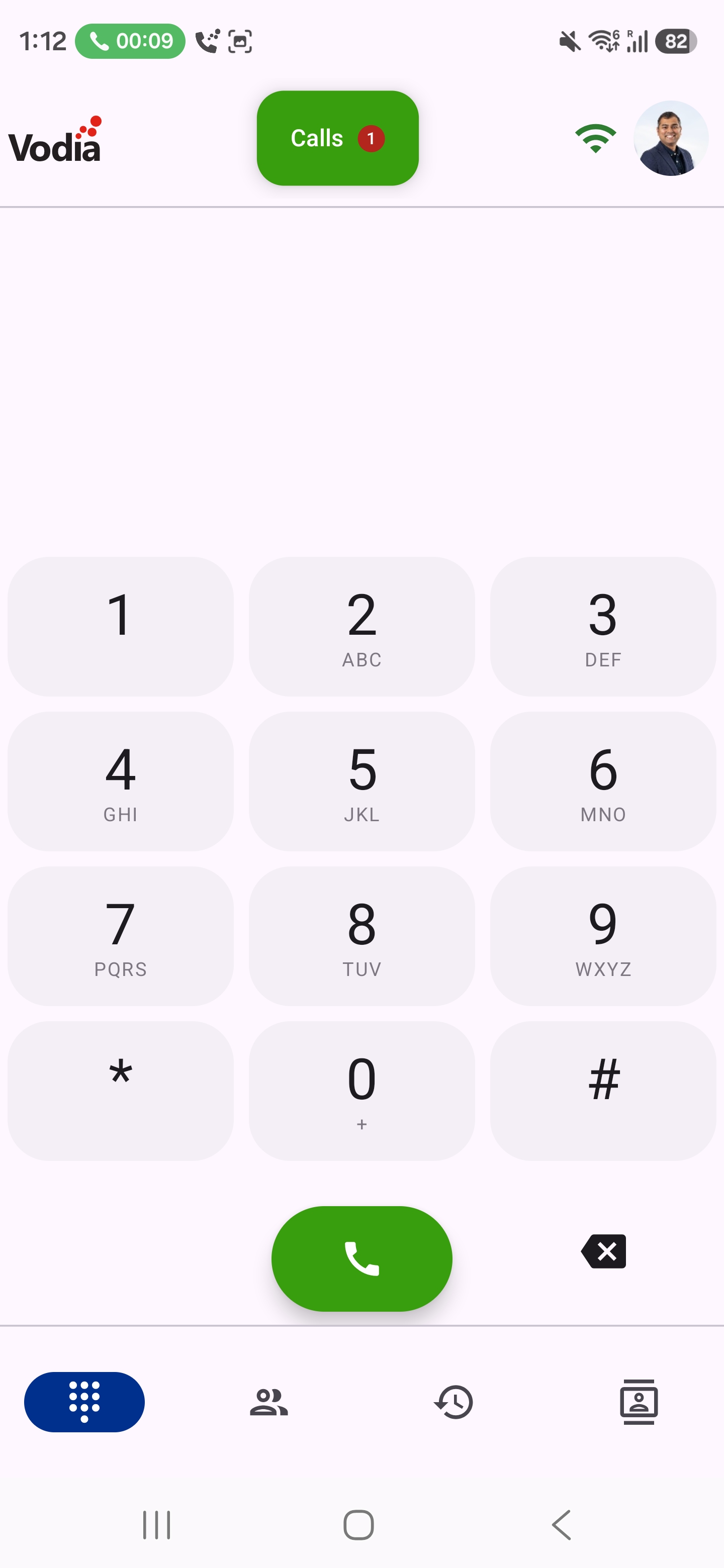
All call actions happen on the app's call screen. It opens automatically for every call. If you have left it during a call, tap the green Calls button at the top of the app (it shows the number of calls) to return.
When the phone is locked, the call screen shows over the lock screen, and hold, transfer, conference and park all work without unlocking.
Putting a Call on Hold
- Tap Hold on the call screen.
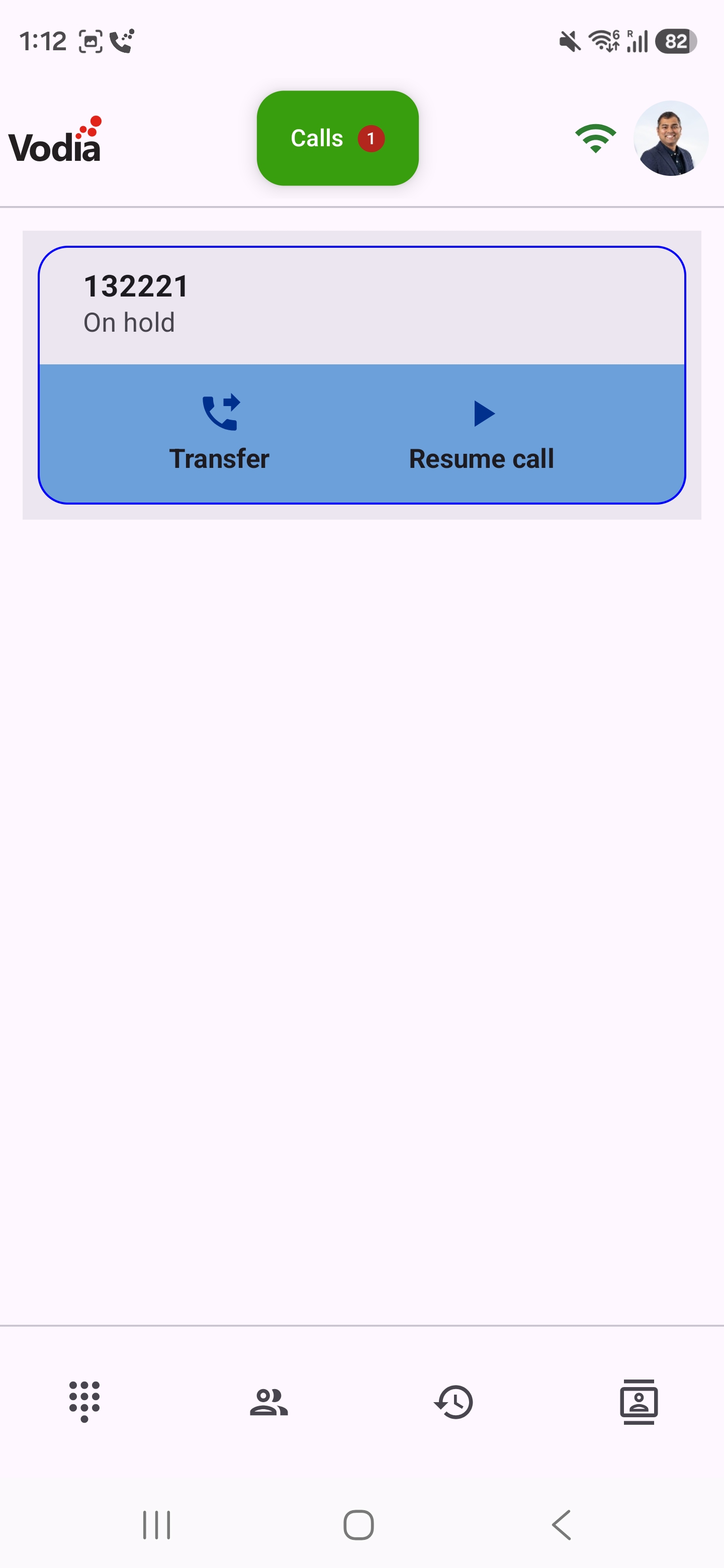
- The held call is shown on its own card with an On hold status, where you can Resume the call or start a transfer.
Transferring a Call
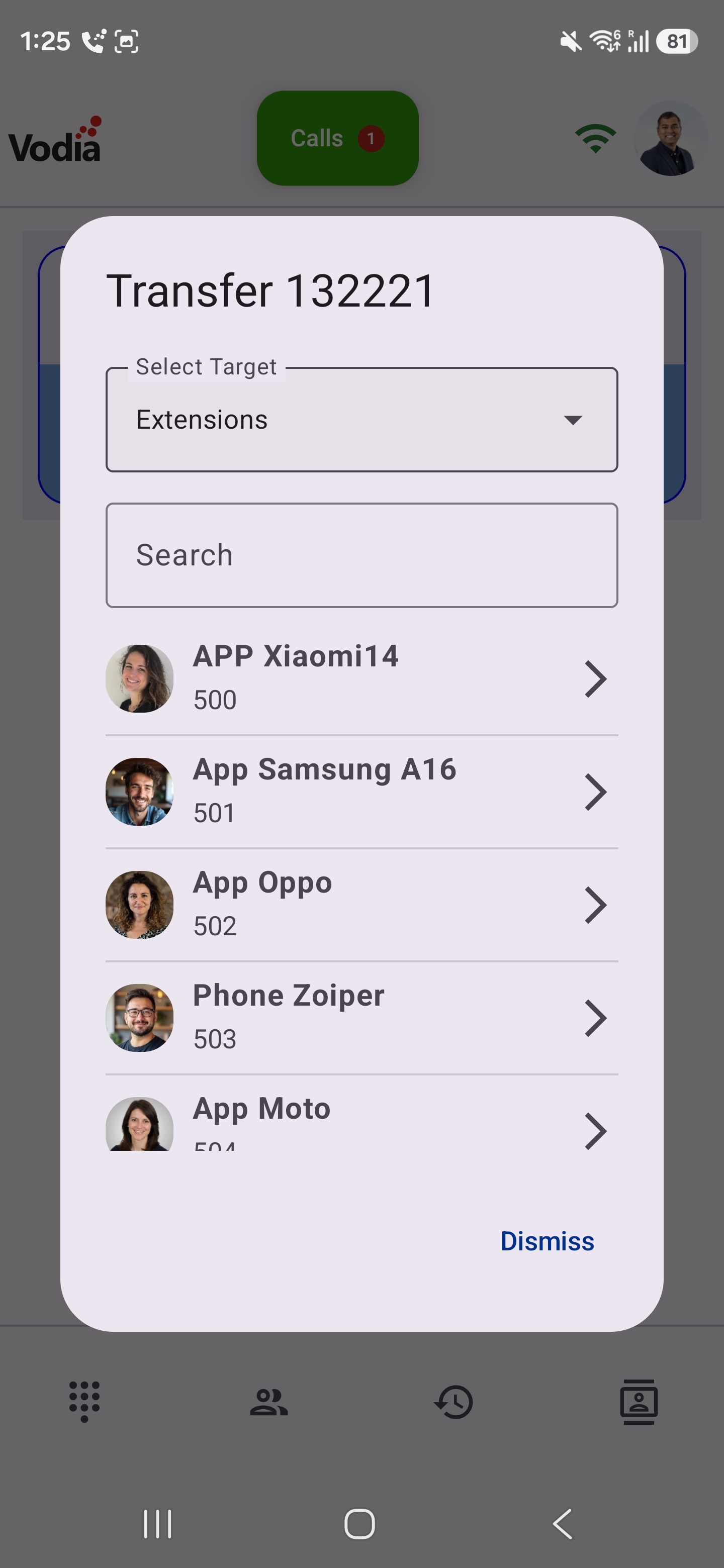
All transfers start from the call screen. Tap Transfer on the call screen, or on the held call card. This opens the transfer dialog where you first choose how to transfer:
- Transfer now — blind transfer
- Attended transfer — announce the call first
- Conference — bring in a third person so all three of you can talk (see Conference below)
- Park call — put the call on a park orbit for anyone to pick up (shown only if your PBX has park orbits)
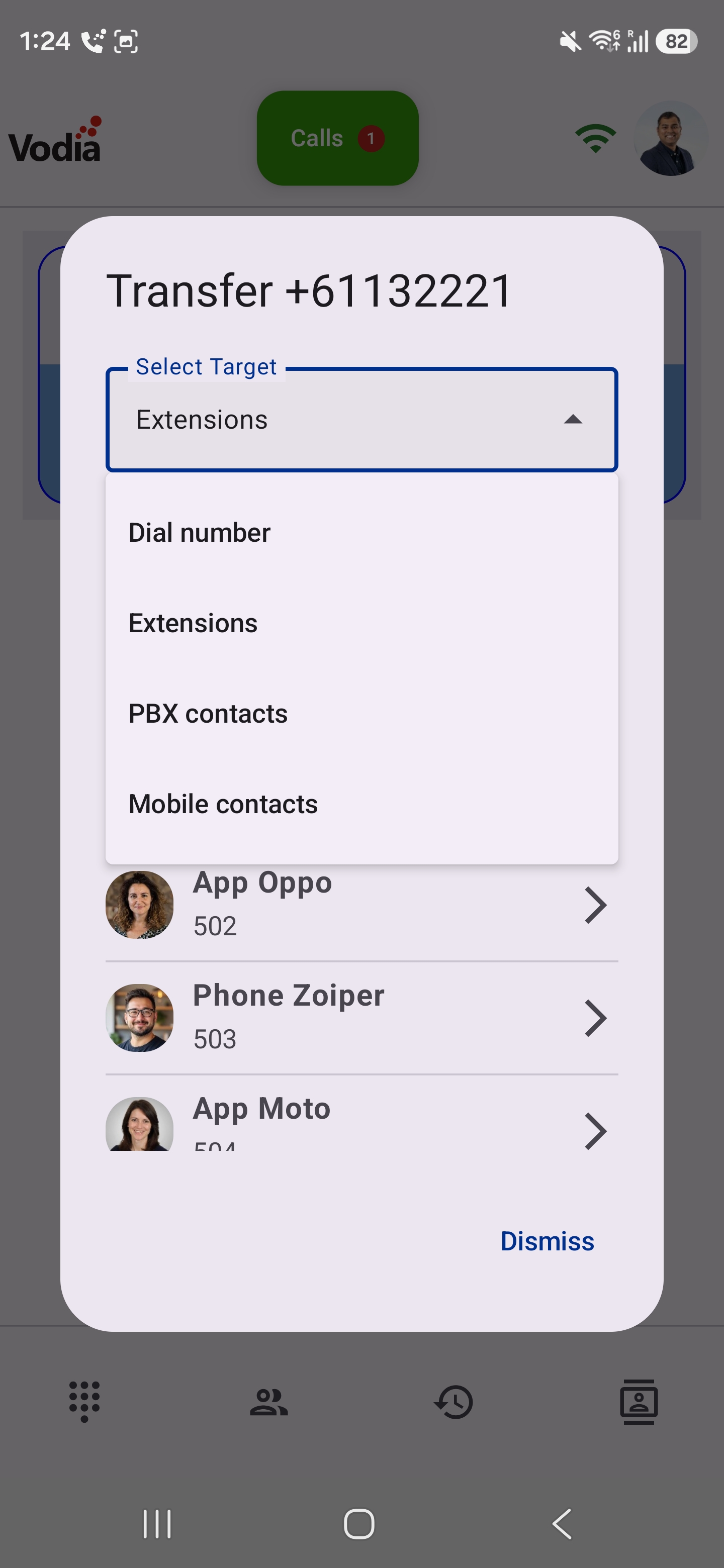
For Transfer now, Attended transfer and Conference, you then choose the destination from one of four sources:
- Dial a number — enter the digits manually
- Extensions — pick another extension on the PBX
- PBX contacts — pick a contact from the company directory
- Phone contacts — pick a contact from your phone's address book
A search field lets you filter the lists. Contacts with more than one number expand so you can pick the exact number.
Blind Transfer
- On the call screen, tap Transfer, choose Transfer now, pick the destination. The call is passed to the destination immediately.
Shortcut: Transfer here
- While a call is in progress, tap the down arrow at the top of the call screen to go back to the app. The rows on the Activity and Contacts tabs show a Transfer here button. One tap blind-transfers the current call to that extension or contact.
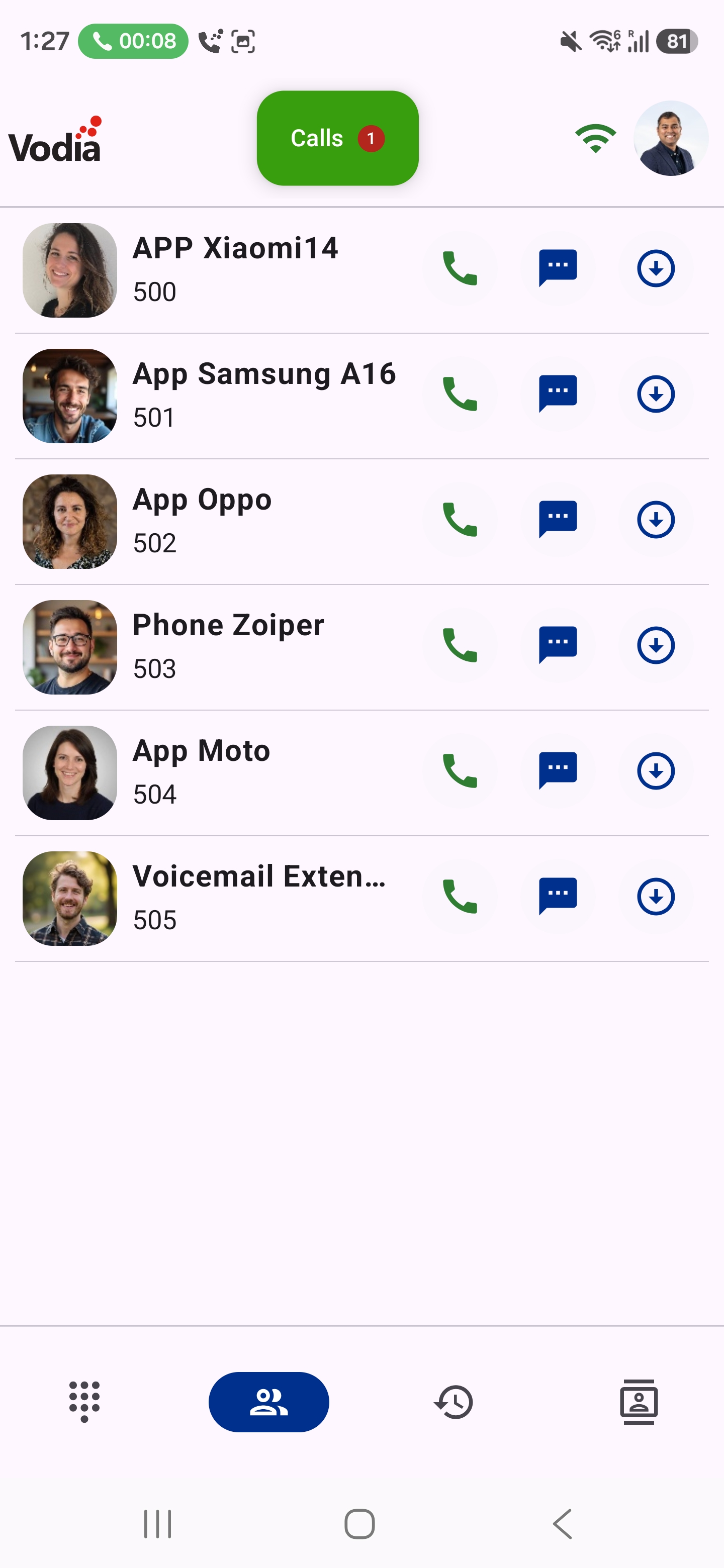
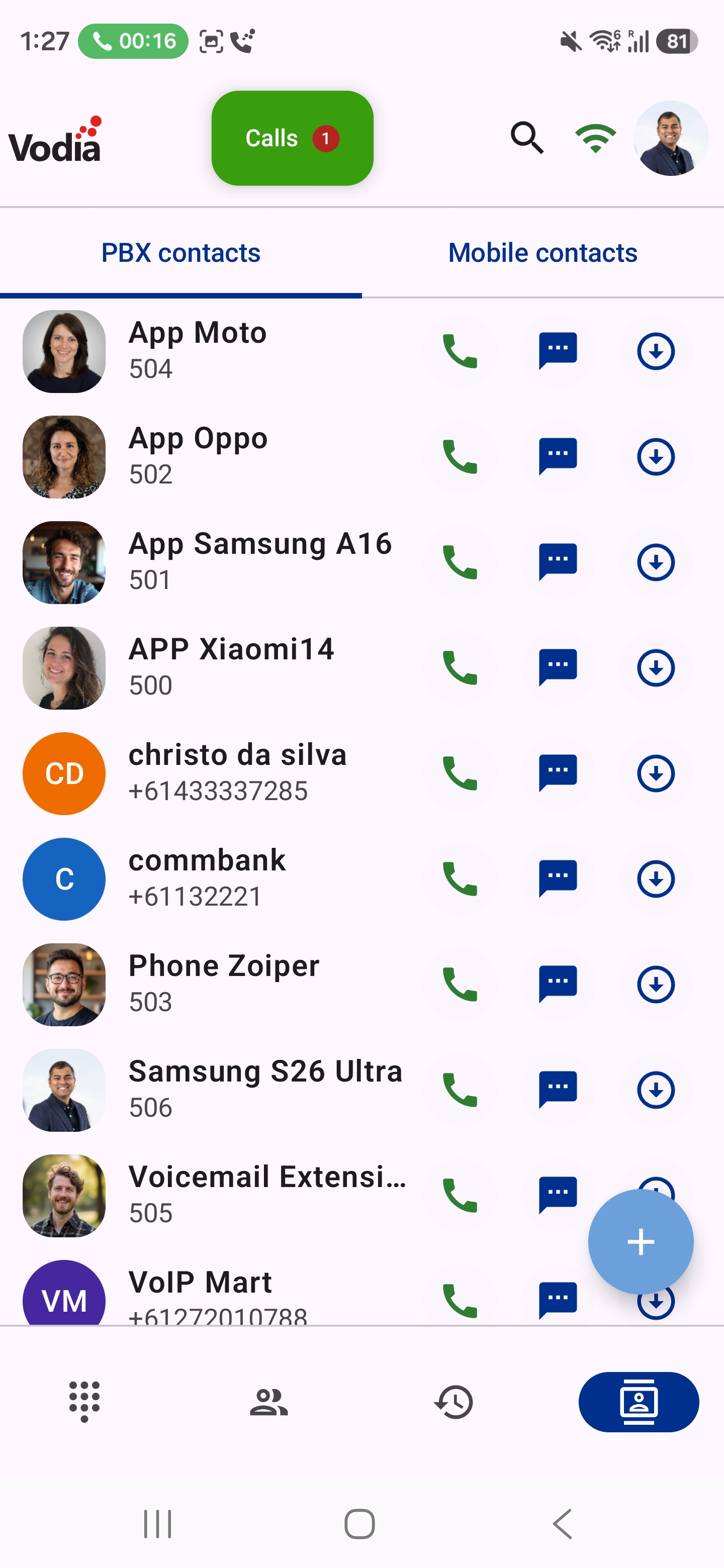
Attended Transfer
There are two ways to do an attended transfer:
From the transfer dialog
- On the call screen, tap Transfer, choose Attended transfer, then pick the destination.
- The current call is put on hold and the app calls the destination for you. Once the destination answers, the transfer completes automatically and the two parties are connected.
Manually, with announcement
Use this method when you want to speak to the destination before handing over the call:
- Tap Hold on the call screen.
- Tap the down arrow at the top of the call screen and make a second call to the destination — from the dial pad, the Activity tab, or the Contacts tab. The call screen opens again for the new call. (When the phone is locked, unlock it first.)
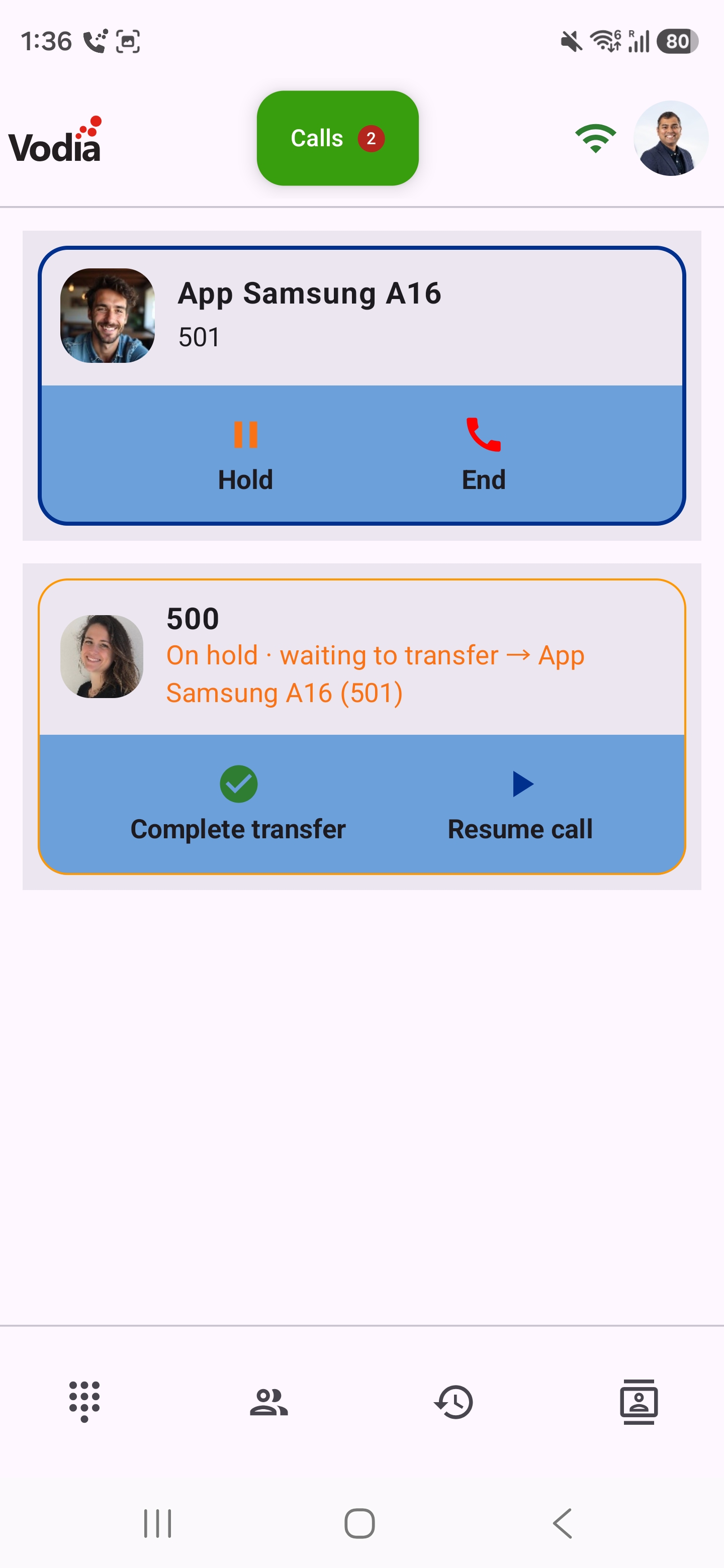
- Both calls now appear on the call screen: the new call on top, and the held call below with the status On hold · waiting for transfer, showing the transfer target.
- When the destination answers, announce the call.
- To hand over the call, tap Complete transfer on the held call card. The two parties are connected and you are dropped from both calls.
- To abort instead, tap Resume on the held call card to take the original call back.
The held call card in a manual attended transfer also shows Conference, in case you decide to bring everyone together instead. See Conference below.
Screenshots below are for an attended transfer to another extension on the PBX:
Conference
A conference joins three people in one call: you, the caller you are already talking to, and a third person you call. Everyone can hear and talk to everyone else.
The app sets up the conference through the PBX. When you tap Conference, the app places a short call to the PBX conference code *53, and the PBX joins the held caller, the person you called and you into one call.
Starting a Conference from the Transfer Dialog
- On the call screen, tap Transfer and choose Conference. If your PBX has conference rooms, choose Add someone (3-way).
- Pick the person to add — dial a number, or choose from Extensions, PBX contacts or Phone contacts.
- Your current call is put on hold and the app calls that person for you. You stay on the call screen.
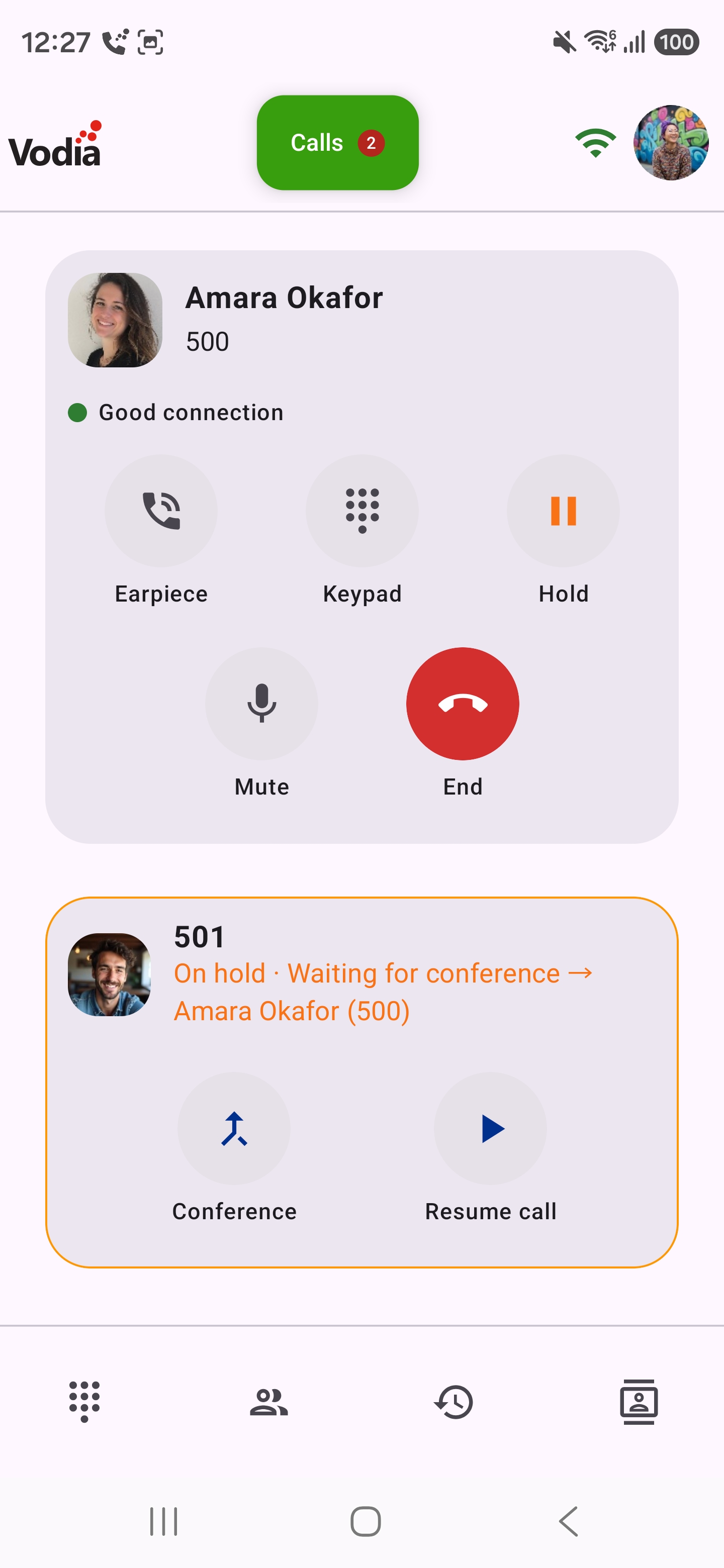
- The held call card shows On hold · Waiting for conference, with the name of the person you are calling. Its buttons are Conference and Resume.
- When the person answers, you can talk to them privately first — the caller on hold can't hear you.
- Tap Conference on the held call card. All three of you are now in the same call.
Screenshots below are for a 3 way conference.
Moving a Call into a Conference Room
If your PBX has conference rooms, you can send the caller into a room and join them there. Others can then join the room too.
- On the call screen, tap Transfer, choose Conference, then Move to conference room.
- Pick a room. Each room shows whether it is In use or Empty.
- The caller is transferred into the room, and the app then calls the room so you join them.
Rooms in use are also shown on the Activity tab, where anyone can tap Join. See Activity.
Starting a Conference Manually
You can also turn any two calls into a conference:
- Tap Hold on the call screen.
- Tap the down arrow and call the second person from the dial pad, the Activity tab or the Contacts tab — or answer a second incoming call.
- The held call card shows Complete transfer, Conference and Resume.
- Tap Conference to join all three.
Which Buttons the Held Call Card Shows
The held call card only offers the action you started with, so it's always clear what will happen:
| How you started | Status on the held card | Buttons |
|---|---|---|
| Attended transfer from the transfer dialog | On hold · waiting for transfer | Complete transfer · Resume |
| Conference from the transfer dialog | On hold · Waiting for conference | Conference · Resume |
| Manually (hold, then a second call) | On hold · waiting for transfer | Complete transfer · Conference · Resume |
While the conference is being set up, the held call cards show only Resume.
Changing Your Mind
- Before tapping Conference, tap Resume on the held call card to go back to the original caller. The second call is put on hold.
- If the person you call doesn't answer or hangs up, the original caller stays on hold. Tap Resume to continue talking to them.
The Conference button uses the PBX conference star code *53. If your PBX administrator has changed this code, conferencing from the app will not work — contact your administrator.
Parking a Call
Parking puts a call on a shared park orbit — a numbered slot that anyone on the PBX can pick up from their own phone. Use it to hand a call to a colleague without knowing which phone they will answer, or to hold a call somewhere both of you can reach it.
Park is available only if your PBX has park orbits set up. When it does, the option appears in the transfer dialog alongside blind and attended transfer.
Parking
- On the call screen, tap Transfer.
- Choose Park call. If every orbit is already in use, this option is shown as All parks in use and can't be selected.
- Pick a free orbit from the list. A search field lets you filter by orbit name or number.
The call is parked on that orbit and you are dropped from it. The parked call now shows on the Activity tab for everyone to see and pick up.
Picking Up a Parked Call
Parked calls appear pinned at the top of the extension list on the Activity tab, highlighted in green, and in the Parked calls section of the Activity chip. Each parked call shows the orbit, the caller, the caller's number, and who parked it (Parked by …).
To retrieve a parked call, tap the Pick up button on its row. The app calls you back and connects you to the parked party. The list updates live, so a call someone else picks up disappears on its own.