Dialing & Receiving Calls
From version 2.0, Vodia Phone 2 has its own call screens. Calls are no longer handed over to the phone's built-in dialer: you make, answer and manage them inside the app.
Making an Outbound Call
From the App
- Type the number on the dial pad and tap the green call button. The call screen opens straight away.
- When the number you type is an extension, its name and current status (Do not disturb with the reason, Talking or Ringing) appear under the number, so you know before you call.
- Tap the call button with an empty dial pad to bring back the last number you dialed, then tap it again to call.
- You can also call from the Extensions, Contacts and History tabs.
From Your Phone's Contacts App
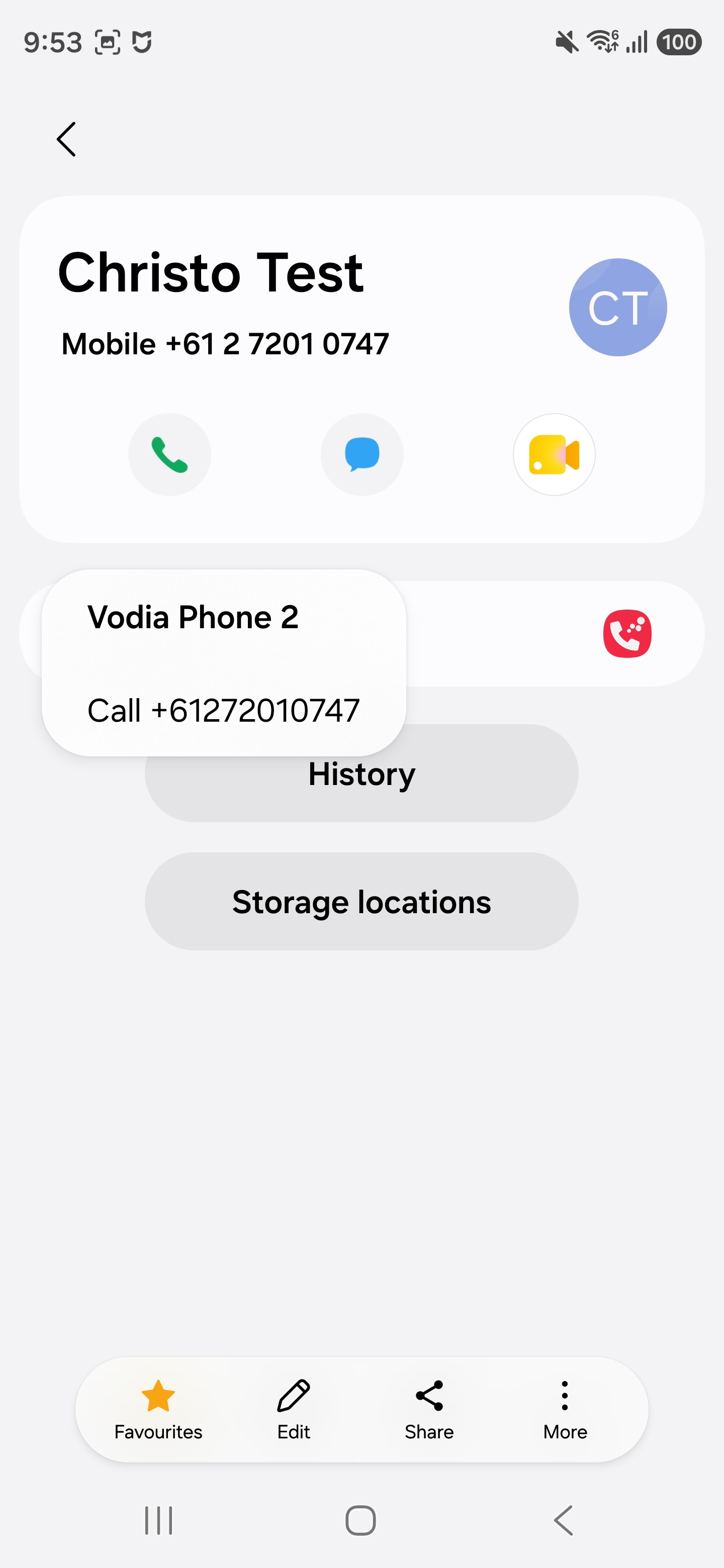
Once you allow Vodia Phone 2 to access your contacts, contacts with a phone number get a Vodia Phone 2 call action in your phone's own Contacts app, the same way WhatsApp does. Tap it to call that number through Vodia.
If the app can't connect within a few seconds, or you're already on a call, the number is placed on the dial pad instead so you can call when ready.
From Links in Websites and Emails
Tap a phone number link in a browser, email or other app and choose Vodia Phone 2. The app opens with the number on the dial pad; tap the call button to call.
Vodia Phone 2 no longer appears as a calling account in the phone's built-in dialer. Use the app, your Contacts app or a phone number link to call.
The Call Screen
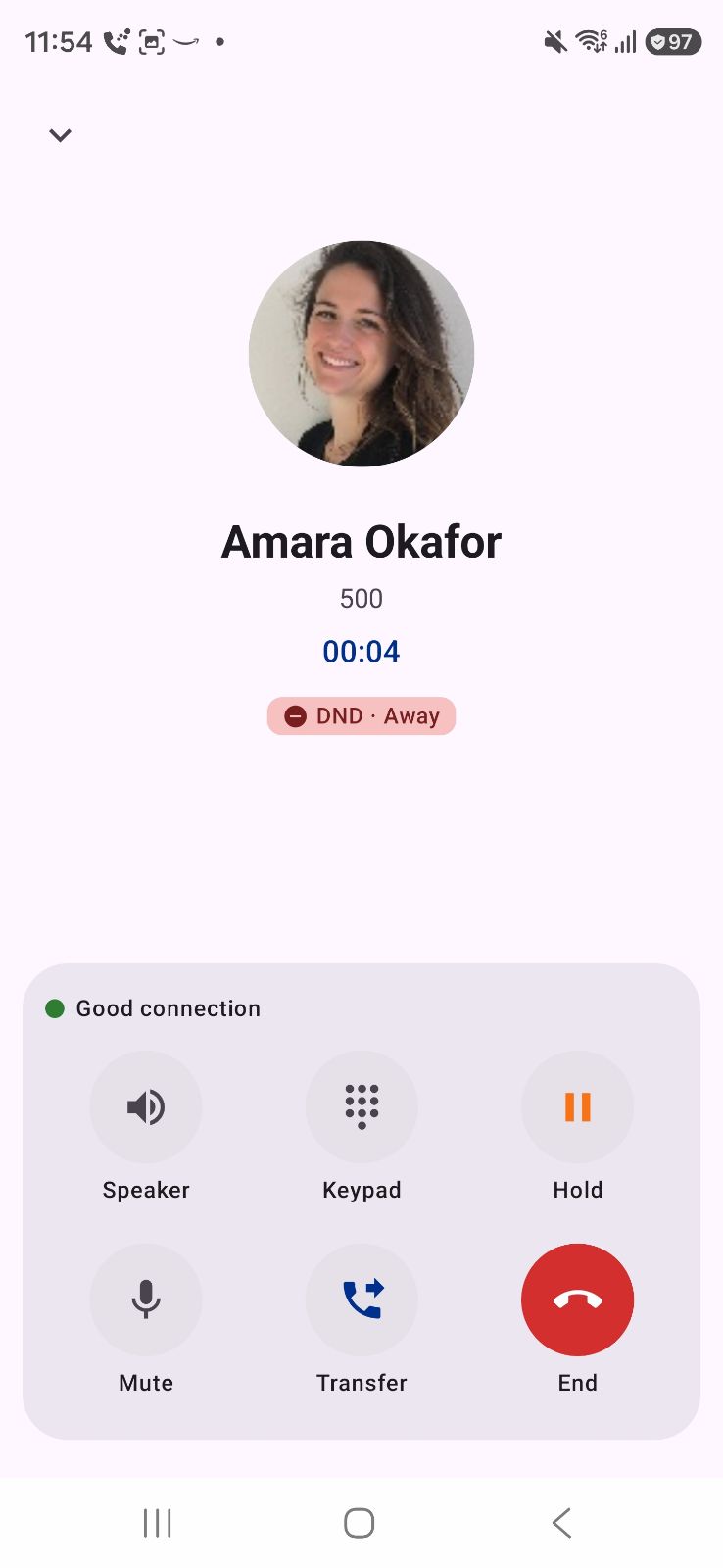
When a call starts — outgoing or answered — the full-screen call screen opens. It follows the app's light or dark theme.
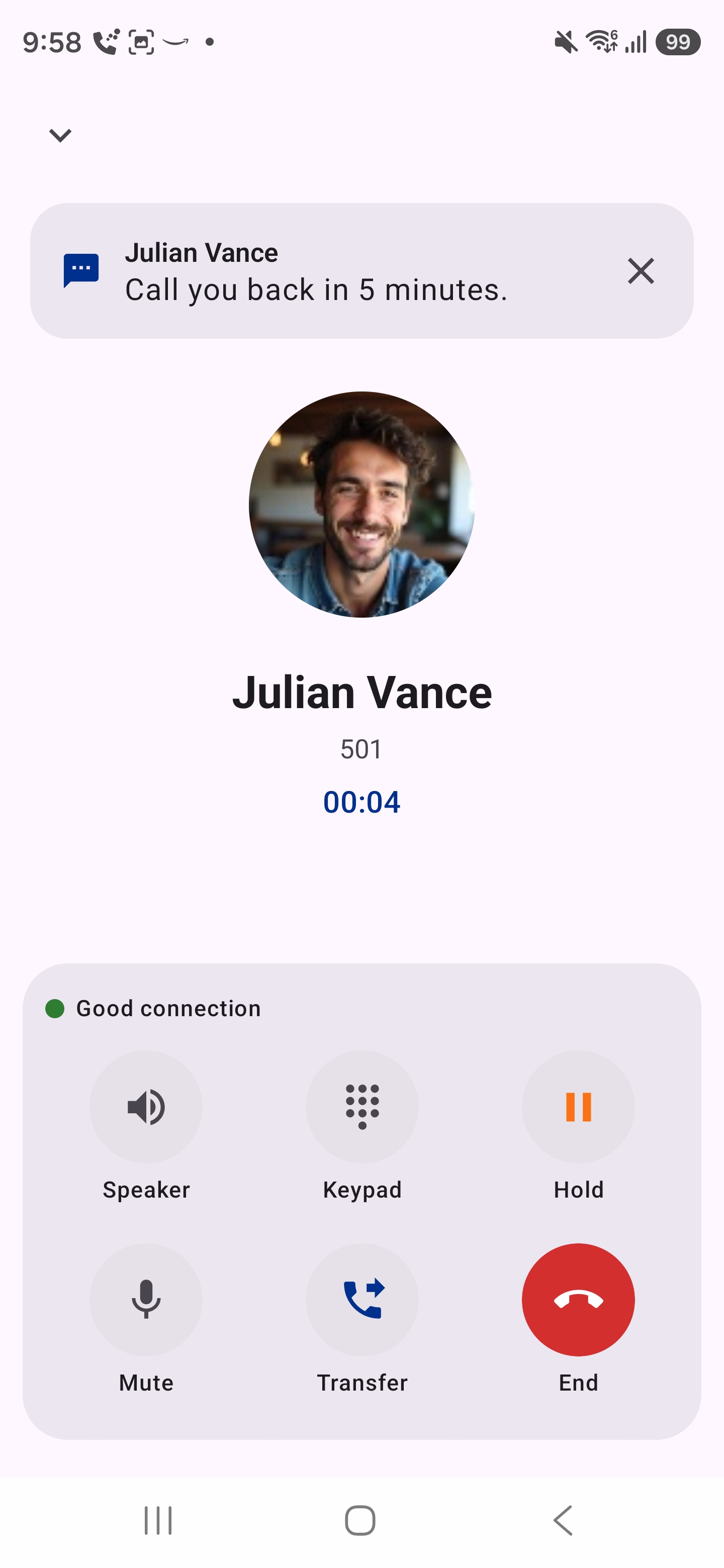
- At the top you see the caller's photo, name and number, with Connecting… or Ringing until the call is answered, then the call timer.
- If you call an extension that is on Do not disturb, a DND chip with the reason appears under the name, so you know why the call isn't answered.
- The call buttons are Speaker, Keypad, Hold, Mute, Transfer and End.
- When a Bluetooth or wired headset is connected, the Speaker button shows the device in use (Phone, Speaker, Headset or the Bluetooth device's name). Tap it to choose where the audio plays.
- Keypad sends tones, for example to navigate a menu.
- Hold and Transfer are described in Transfer/Hold/Conference.
- The quality indicator above the buttons shows how the call is doing. See Call Quality.
- The screen turns off when you hold the phone to your ear.
- Tap the down arrow at the top left to go back to the rest of the app during the call. To return to the call, tap the green Calls button at the top of the app.
While a call is in progress, an ongoing call notification shows the caller, the call timer and a Hang up button.
On the Lock Screen
When the phone is locked, the call screen shows over the lock screen. You can hold, transfer, conference or park the call without unlocking. The down arrow is hidden; unlock the phone to use the rest of the app during the call.
Receiving Calls
Incoming calls ring whether the app is open, in the background or closed: the PBX wakes the app with a push notification.
When the Phone Is Unlocked
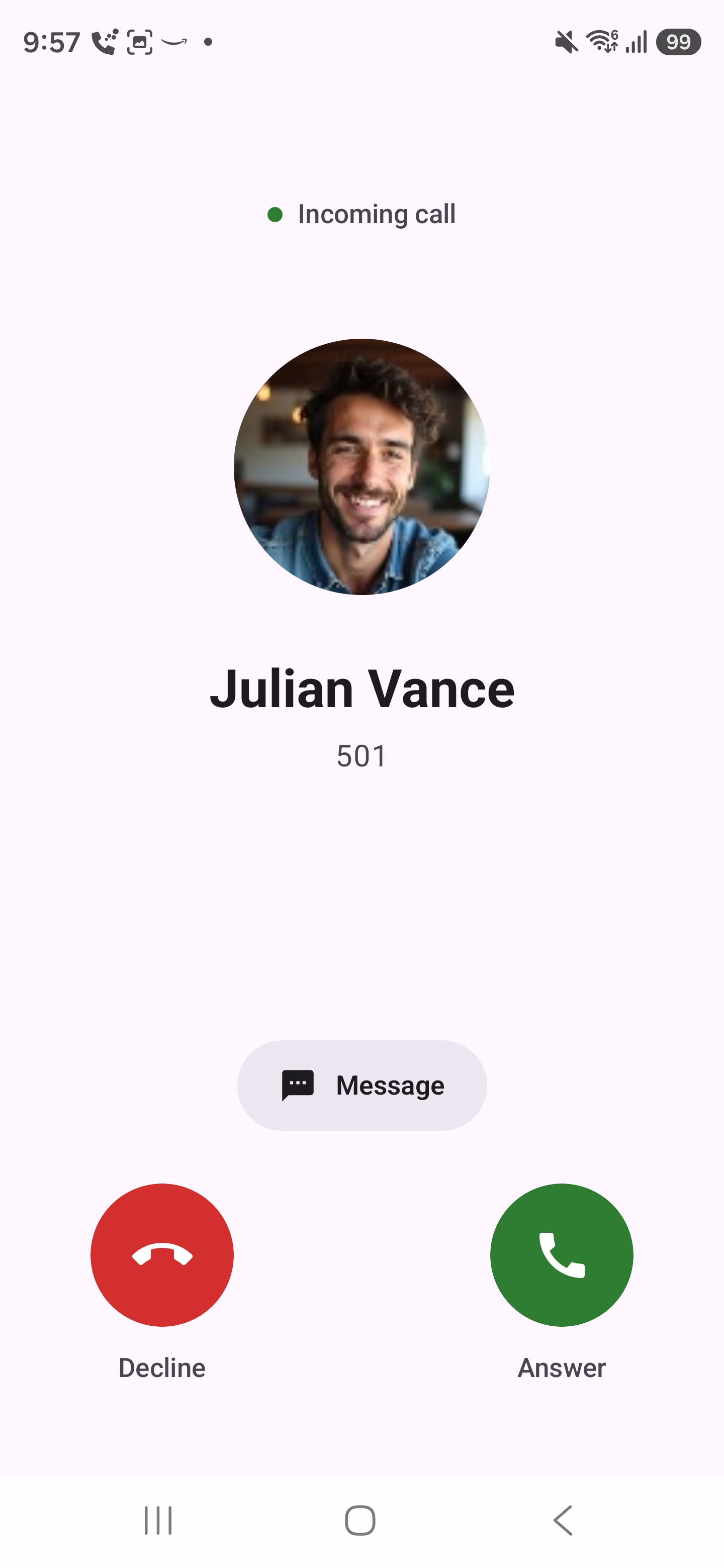
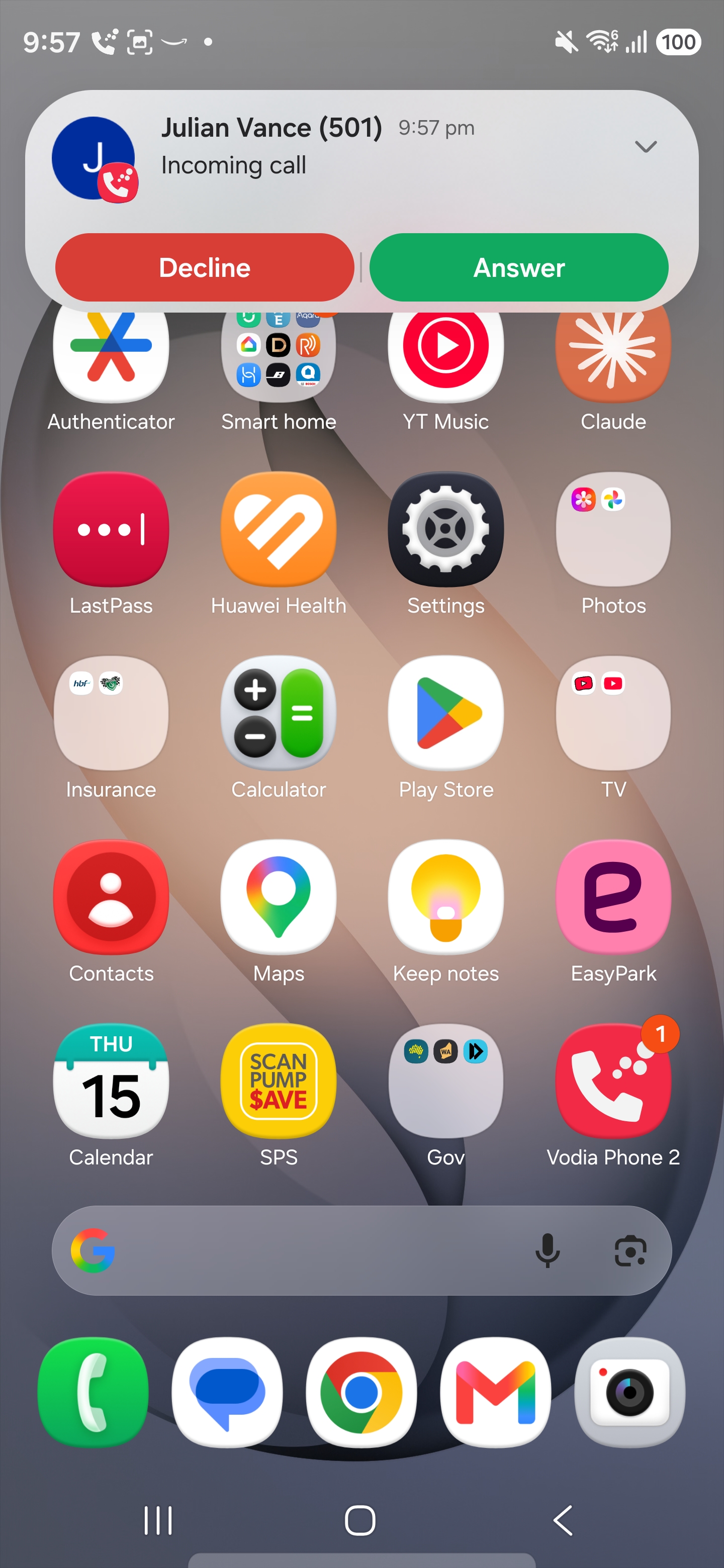
- App open — a full-screen incoming call screen appears with Decline and Answer buttons, and a Message button.
- Using another app — an incoming call notification appears at the top of the screen with Decline and Answer. Answering opens the call screen.
When the Phone Is Locked
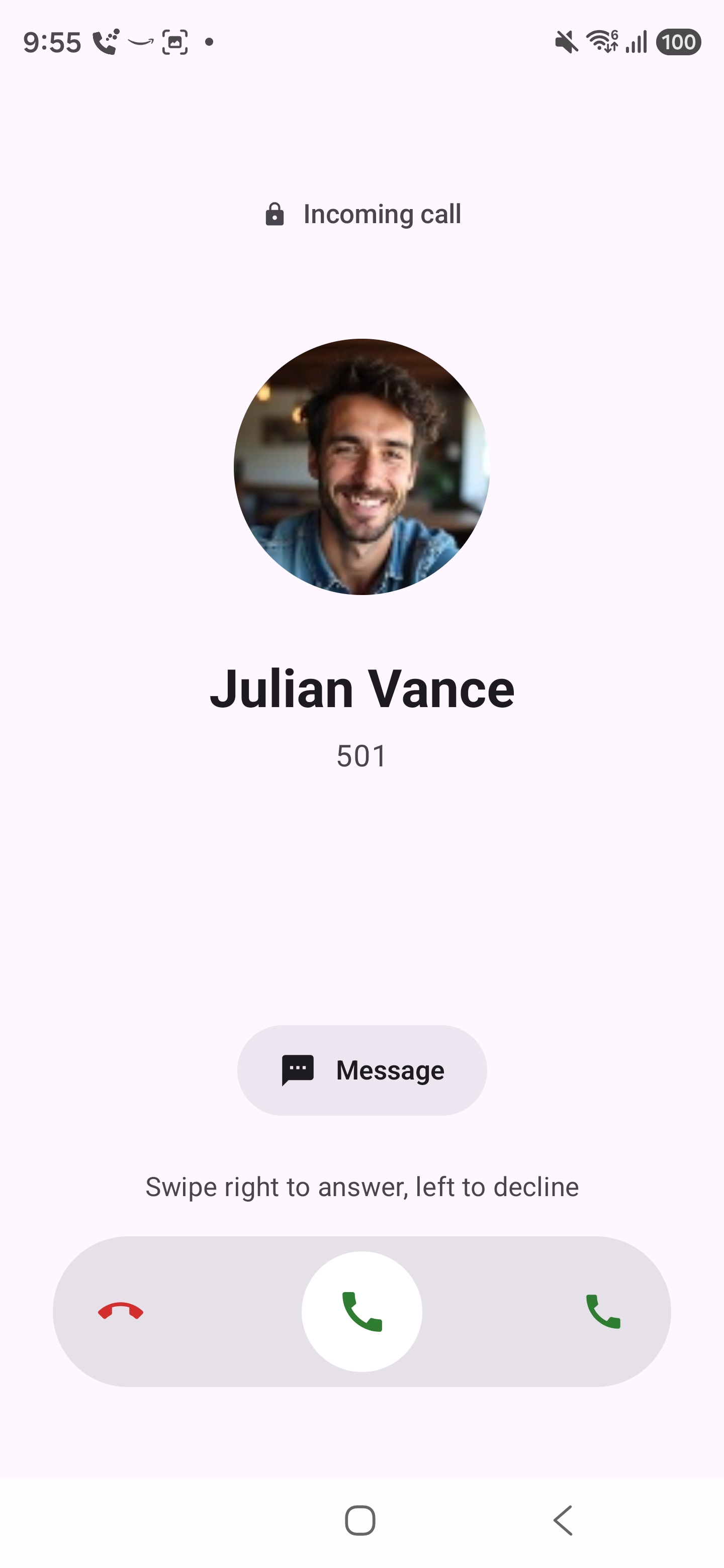
A full-screen incoming call screen opens over the lock screen. Swipe right to answer, left to decline. You can answer without unlocking the phone.
On Android 14 and later, this needs the Full-screen notifications permission. Without it, a locked phone only shows a notification and asks you to unlock before answering. See Permissions.
Press the power button while a call is ringing to silence it.
Reply with a Message
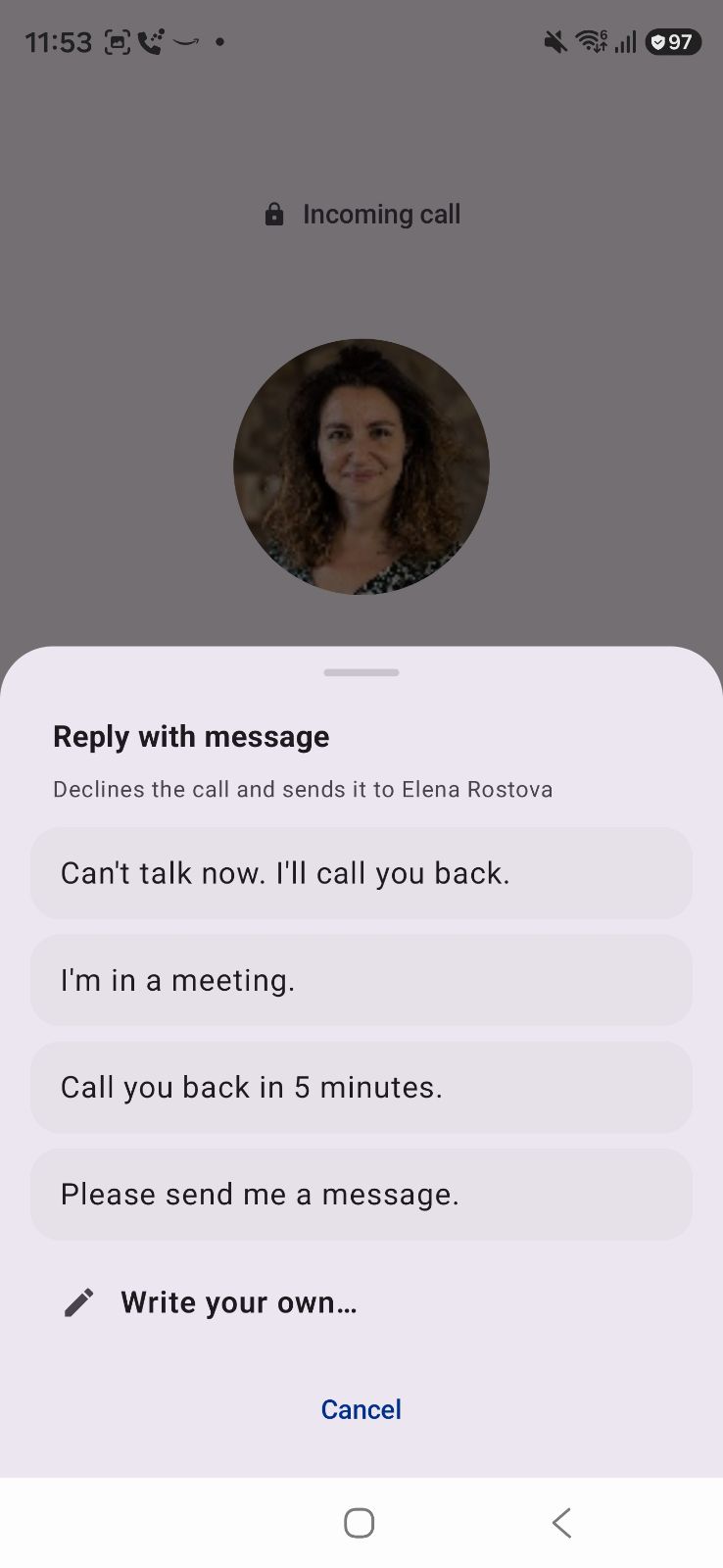
Can't talk? Tap Message on the incoming call screen (locked or unlocked) and pick one of the ready-made replies, or Write your own. The call is declined and your message is sent to the caller.
If the caller is using Vodia Phone 2, your reply also appears on their call screen.
Ringtone
Vodia calls use their own ringtone. To change it, open the account drawer and tap Ringtone. Choosing Default ringtone follows your phone's ringtone. The ringtone follows your phone's Do Not Disturb settings.
If a second call comes in while a call is already ringing, the second caller gets a busy signal.