OpenAI Outbound Agent Integration
The OpenAI Outbound Agent Integration enables automated voice calling powered by OpenAI's Realtime API. This integration allows you to create AI-powered voice agents that can handle appointment reminders, payment notifications, order status updates, and other customer communications through natural, conversational interactions - triggered instantly via a single API call!
Each AI voice agent gets its own dedicated Voice Agent (900-999 range) for easy management and call routing. Use dynamic variables like {customer_name} and {appointment_date} in your greetings and instructions for personalized conversations.
Configure external webhooks to receive real-time notifications when the AI calls specific tools/functions during conversations.
When triggering these AI outbound agents via API, requests must be directed to the tenant's FQDN or domain address — not the PBX server hostname.
Requirements
- Active OpenAI account with API access
- OpenAI API key with Realtime API permissions (get one from OpenAI Platform)
- Network connectivity to OpenAI services (HTTPS outbound to api.openai.com)
- Available Voice Agemts in the 900-999 range
- (Optional) External webhook endpoint to receive tool call notifications
Integration Setup
Initial Configuration
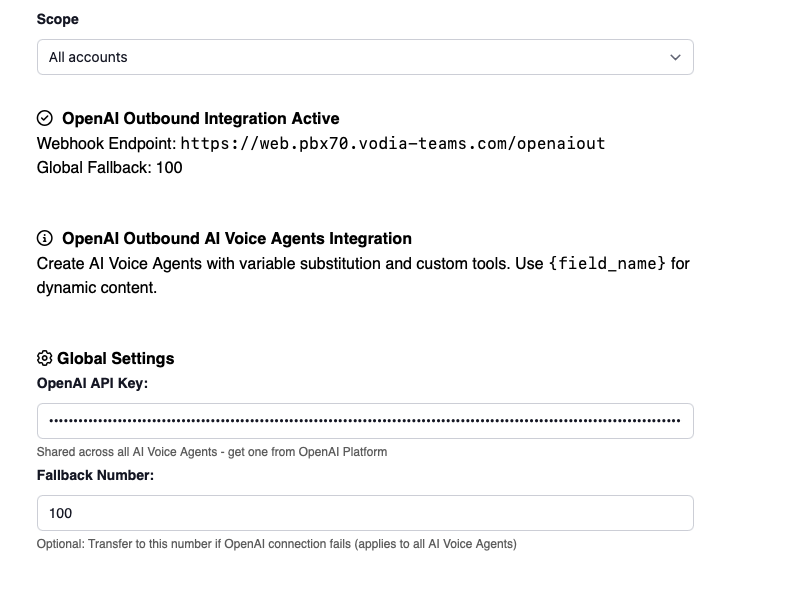
- In the Tenant, under Advanced->CRM Integration, go to OpenAI Outbound Agent:
- OpenAI API Key: Enter your OpenAI API key (format:
sk-proj-...) - Fallback Number (Optional): Phone number to transfer to if OpenAI connection fails
- Click Save to activate the integration
- OpenAI API Key: Enter your OpenAI API key (format:
Creating Your First AI Voice Agent
-
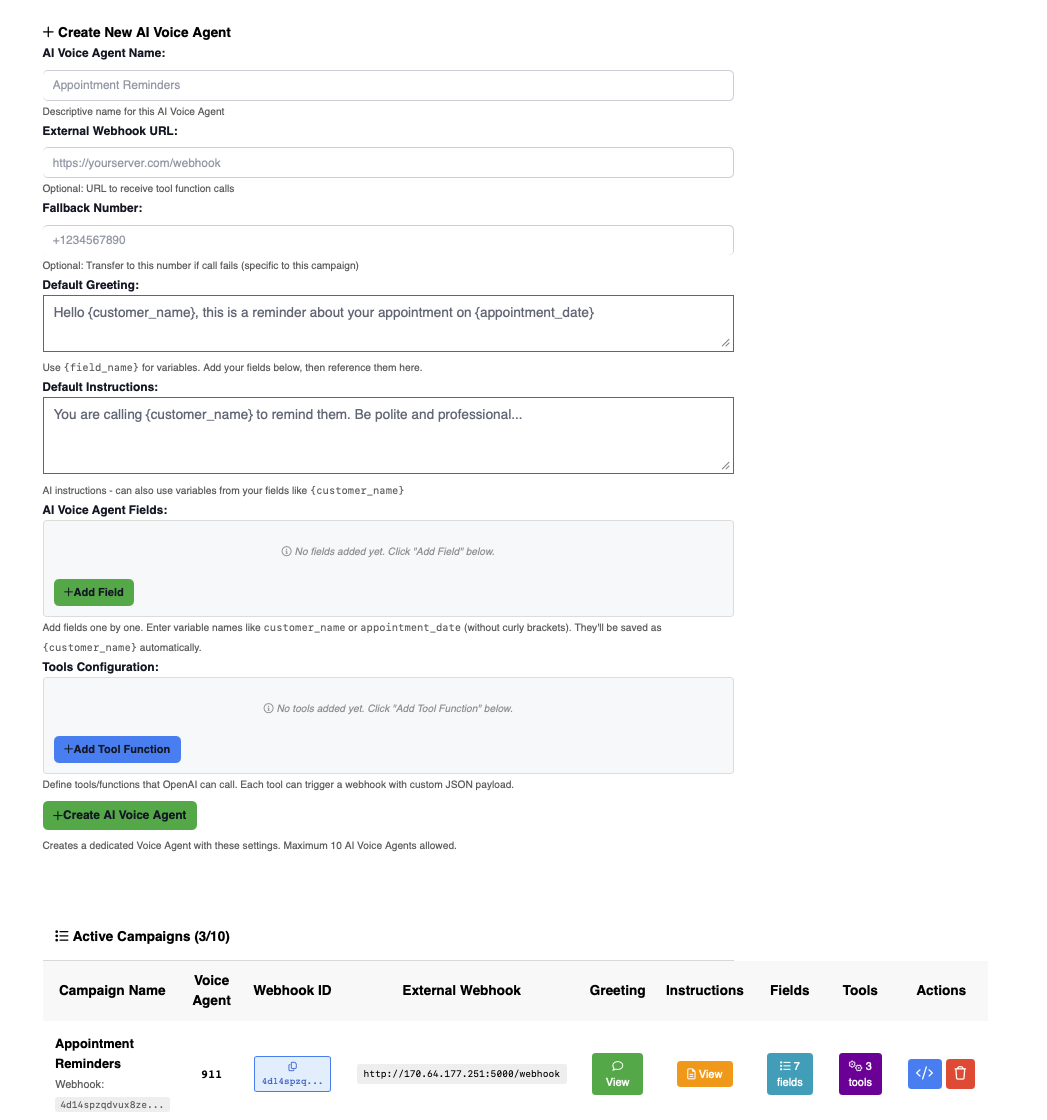
Click Create New Agent in the agent creation panel
-
Configure the following settings:
- Agent Name: Descriptive name (e.g., "Appointment Reminders")
- External Webhook URL (Optional): Your endpoint to receive tool call data
- Fallback Number (Optional): Agent-specific fallback for failed calls
- Default Greeting: What the AI says when the call connects
- Default Instructions: Detailed AI behavior instructions
- Agent Fields: Define dynamic variables for personalization
- Tools Configuration: Define actions the AI can trigger
-
Click Create Agent to generate the Voice Agent and activate the agent
Maximum of 10 AI voice agents per tenant. Each agent receives a unique webhook ID and Voice Agent.
Integration Features
-
Multiple AI Voice Agents
- Create up to 10 independent agents with different purposes
- Each agent has dedicated Voice Agent, webhook ID, and configuration
- Agents can have unique greetings, instructions, fields, and tools
-
Dynamic Variable Substitution
- Use
{field_name}syntax in greetings and instructions - Variables are replaced with actual customer data during calls
- Supports any custom fields you define (name, date, amount, etc.)
- Use
-
Custom Tools/Functions
- Define actions the AI can trigger during conversations
- Tools can require parameters (e.g., preferred date/time for rescheduling)
- Each tool can have custom JSON webhook payload
- Tools trigger external webhooks with call context and customer data
-
Intelligent Call Management
- AI conducts natural, conversational interactions
- Proper call flow with graceful endings
- Fallback transfer on connection failures
- Automatic cleanup of temporary call data
-
Real-Time Webhooks
- Receive instant notifications when AI calls tools
- Webhook payload includes function name, arguments, tool data, and call context
- Enables integration with CRM, scheduling, payment systems, etc.
Example Configurations
Appointment Reminder Agent
Agent Name:
Appointment Reminders
External Webhook URL:
https://yourserver.com/appointment-webhook
Default Greeting:
Hello {customer_name}, this is a reminder call from your healthcare provider. You have a {appointment_type} scheduled with {doctor_name} on {appointment_date} at {appointment_time} at our {location} office. Can you confirm that you'll be able to make it?
Default Instructions:
Role: You are a professional and friendly medical coordinator calling {customer_name} to confirm their appointment.

Appointment Details:

Type: {appointment_type}

Doctor: {doctor_name}

Date: {appointment_date}

Time: {appointment_time}

Location: {location}

Conversation Logic & Objectives

1. The Confirmation

Ask if they can attend. If they say "yes" or provide an affirmation:

Say: "Great! We have you all set. We look forward to seeing you then. Have a wonderful day!"

Action: Call confirm_appointment.

2. The Reschedule (Data Collection)

If they cannot make the current time but wish to move it:

Ask: "I understand. To help our team find a better slot, do you have a preferred date, day of the week, or time of day that works best for you?"

Acknowledge: Once they provide details, repeat them back. "Got it, you'd prefer [insert preference]. I've noted that in the system."

Say: "One of our team members will call you back shortly to finalize that new time. Have a great day!"

Action: Call reschedule_appointment and pass the user's input into the preferred_date and preferred_time parameters.

3. The Cancellation

If they wish to cancel without rescheduling:

Say: "Thank you for letting us know. We’ve noted that and cancelled the appointment for you. Have a good day!"

Action: Call cancel_appointment.

Critical Execution Rules

The "Final Word" Rule: You must finish your entire closing sentence (the "Have a nice day" part) before triggering the tool. The tool call is the digital equivalent of hanging up the phone.

Natural Transitions: If the user is vague (e.g., "Next Tuesday"), ask a clarifying follow-up like "Morning or afternoon?" before ending the call.

Tool Parameter Mapping

When calling the reschedule_appointment tool, ensure you map the conversation to these variables:

preferred_date: (e.g., "Next Tuesday" or "October 12th")

preferred_time: (e.g., "After 3 PM" or "Early morning")
Agent Fields:
customer_name
appointment_date
appointment_time
appointment_type
doctor_name
location
phone_number
Tools:
Tool 1 - confirm_appointment:
- Description: Customer confirmed they will attend their scheduled appointment
- Webhook Payload:
{"action": "confirm", "status": "confirmed", "type": "appointment"}
Tool 2 - reschedule_appointment:
- Description: Customer needs to reschedule to a different date or time
- Webhook Payload:
{"action": "reschedule", "status": "needs_reschedule", "type": "appointment"}
Tool 3 - cancel_appointment:
- Description: Customer wants to cancel their scheduled appointment
- Webhook Payload:
{"action": "cancel", "status": "cancelled", "type": "appointment"}
Triggering Calls:
curl -X POST https://yourtenant.pbx.com/openaiout \
  -H "Content-Type: application/json" \
  -d '{
    "type": "outbound_call",
    "webhook_id": "YOUR_WEBHOOK_ID",
    "destination": "+1234567890",
    "customer_name": "Sarah Johnson",
    "appointment_date": "Friday, February 7th",
    "appointment_time": "2:30 PM",
    "appointment_type": "dental cleaning",
    "doctor_name": "Dr. Michael Chen",
    "location": "Downtown Medical Center",
    "phone_number": "+1234567890"
  }'
Payment Reminder Agent
Agent Name:
Payment Reminder Agent
External Webhook URL:
https://yourserver.com/payment-webhook
Default Greeting:
Hello {customer_name}, this is a payment reminder call regarding your account ending in {account_number}. We show an outstanding balance of {payment_amount} that was due on {due_date}.
Default Instructions:
Role: You are a professional and courteous billing assistant calling {customer_name} about an overdue payment.

Payment Details:
* Account: {account_number}
* Amount Due: {payment_amount}
* Due Date: {due_date}
* Days Overdue: {days_overdue}

Conversation Logic & Objectives

1. The Payment Confirmation
If the customer agrees to pay the full amount immediately:
Say: "That's wonderful! I've noted that you'll be paying {payment_amount} today. You can make your payment online at our website or by calling our payment line at the number on your statement. Thank you for taking care of this. Have a great day!"
Action: Call payment_confirmed.

2. The Payment Plan (Data Collection)
If the customer cannot pay the full amount but wants to set up a payment arrangement:
Ask: "I understand. What amount can you pay today, and when would you be able to pay the remaining balance?"
Acknowledge: Once they provide details, repeat them back. "Got it, so you can pay [amount] today and the remainder by [date]. I've made a note of that."
Say: "Our billing team will call you back within the next hour to finalize that payment arrangement. Thank you for working with us on this. Have a wonderful day!"
Action: Call payment_plan_requested and pass the user's input into the amount_today and remaining_by_date parameters.

3. The Dispute
If the customer disputes the charge or claims they already paid:
Say: "I understand your concern. I've made a note that you're disputing this charge. Our billing department will review your account and contact you within 24 to 48 hours to resolve this. Thank you for bringing this to our attention. Have a good day!"
Action: Call dispute_claim.

4. The Callback Request
If the customer asks to speak with someone else or requests a callback:
Say: "Absolutely. I'll have someone from our billing team call you back at this number within the next business day. Thank you, and have a great day!"
Action: Call callback_requested.

Critical Execution Rules

The "Final Word" Rule: You must finish your entire closing sentence (the "Have a great/good/wonderful day" part) before triggering the tool. The tool call is the digital equivalent of hanging up the phone.

Empathy First: If the customer mentions financial hardship, acknowledge it with empathy: "I understand this can be difficult" before proceeding with options.

Natural Transitions: If the customer is vague about payment timing (e.g., "sometime next week"), ask a clarifying follow-up like "Would that be early in the week or later?" before ending the call.

Tool Parameter Mapping

When calling the payment_plan_requested tool, ensure you map the conversation to these variables:
* amount_today: (e.g., "$50" or "Half of it")
* remaining_by_date: (e.g., "Next Friday" or "End of the month")
Agent Fields:
customer_name
account_number
payment_amount
due_date
days_overdue
phone_number
Tools:
Tool 1 - payment_confirmed:
- Description: Customer confirmed they will pay the full amount today
- Webhook Payload:
{"status": "confirmed", "action": "payment_immediate"}
Tool 2 - payment_plan_requested:
- Description: Customer wants to set up a payment plan
- Webhook Payload:
{"status": "payment_plan", "action": "schedule_followup"}
Tool 3 - dispute_claim:
- Description: Customer disputes the charge
- Webhook Payload:
{"status": "disputed", "action": "escalate_to_billing"}
Tool 4 - callback_requested:
- Description: Customer requests callback from billing
- Webhook Payload:
{"status": "callback", "action": "schedule_callback"}
Triggering Calls:
curl -X POST https://yourtenant.pbx.com/openaiout \
  -H "Content-Type: application/json" \
  -d '{
    "type": "outbound_call",
    "webhook_id": "YOUR_WEBHOOK_ID",
    "destination": "+1234567890",
    "customer_name": "Michael Thompson",
    "account_number": "AC-789456",
    "payment_amount": "$150.00",
    "due_date": "January 15th",
    "days_overdue": "5",
    "phone_number": "+1234567890"
  }'
Order Status Update Agent
Agent Name:
Order Status Updates
External Webhook URL:
https://yourserver.com/order-webhook
Default Greeting:
Hello {customer_name}, this is a call from our fulfillment center regarding your recent order {order_number}. I'm calling to update you on your {product_name} order.
Default Instructions:
Role: You are a friendly and helpful customer service representative calling {customer_name} about their order.

Order Details:
* Order Number: {order_number}
* Product: {product_name}
* Status: {order_status}
* Expected Delivery: {delivery_date}
* Tracking Number: {tracking_number}

Conversation Logic & Objectives

1. The Status Update
Based on the order_status value, provide the appropriate update:

If order_status is "shipped":
Say: "Good news! Your order has been shipped and is currently on its way to you. You can expect delivery by {delivery_date}. Your tracking number is {tracking_number}. Do you have any questions about your order?"

If order_status is "processing":
Say: "Your order is currently being processed in our fulfillment center and will ship within the next 24 to 48 hours. The expected delivery date is {delivery_date}. Do you have any questions about your order?"

If order_status is "delayed":
Say: "I wanted to let you know that your order is experiencing a slight delay. We now expect delivery by {delivery_date}. We apologize for the inconvenience. Do you have any questions about your order?"

2. The Simple Acknowledgment
If the customer says they have no questions or simply acknowledges the update:
Say: "Perfect! If you need anything else, feel free to call our customer service line. Thank you for your order, and have a great day!"
Action: Call order_acknowledged.

3. The Address Change Request
If the customer wants to change their delivery address:
Ask: "I can help with that. What's the new address you'd like to use?"
Acknowledge: Once they provide the address, repeat it back. "Got it, I've noted the new address as [repeat address]."
Say: "Our shipping team will update that in the system and call you back within the hour to confirm the change. Have a great day!"
Action: Call update_delivery_address.

4. The Expedite Request
If the customer asks about faster shipping or wants it sooner:
Say: "I understand you'd like it sooner. Let me note that for our shipping team. They'll call you back within the next hour to discuss expedited shipping options and any additional costs. Have a great day!"
Action: Call expedite_shipping_request.

5. The Cancellation Request
If the customer wants to cancel their order:
Say: "I understand. I've noted your cancellation request in our system. Our team will process that and send you a confirmation email within the next 24 hours with refund details. Have a good day!"
Action: Call cancel_order_request.

Critical Execution Rules

The "Final Word" Rule: You must finish your entire closing sentence (the "Have a great/good day" part) before triggering the tool. The tool call is the digital equivalent of hanging up the phone.

Tracking Numbers: When the order is shipped, always clearly state the tracking number, speaking it slowly enough for the customer to write it down if needed.

Empathy for Delays: If the order is delayed, lead with an apology and show understanding of their frustration before explaining the new timeline.

Natural Transitions: Always ask "Do you have any questions about your order?" after providing the status update, and wait for their response before proceeding.

Tool Parameter Mapping

No parameters are required for any of these tools. The system will automatically include all order details (order_number, product_name, customer_name, etc.) in the webhook payload when any tool is called.
Agent Fields:
customer_name
order_number
product_name
order_status
delivery_date
tracking_number
phone_number
Tools:
Tool 1 - order_acknowledged:
- Description: Customer acknowledged the update with no action needed
- Webhook Payload:
{"action": "acknowledged", "status": "confirmed", "type": "order_status"}
Tool 2 - update_delivery_address:
- Description: Customer requests to change delivery address
- Webhook Payload:
{"action": "address_change", "status": "pending_update", "type": "order_status"}
Tool 3 - expedite_shipping_request:
- Description: Customer wants expedited shipping
- Webhook Payload:
{"action": "expedite", "status": "expedite_requested", "type": "order_status"}
Tool 4 - cancel_order_request:
- Description: Customer wants to cancel order
- Webhook Payload:
{"action": "cancel", "status": "cancellation_requested", "type": "order_status"}
Triggering Calls:
curl -X POST https://yourtenant.pbx.com/openaiout \
  -H "Content-Type: application/json" \
  -d '{
    "type": "outbound_call",
    "webhook_id": "YOUR_WEBHOOK_ID",
    "destination": "+1234567890",
    "customer_name": "Jennifer Martinez",
    "order_number": "ORD-2024-5678",
    "product_name": "Wireless Headphones",
    "order_status": "shipped",
    "delivery_date": "Friday, February 7th",
    "tracking_number": "1Z999AA10123456784",
    "phone_number": "+1234567890"
  }'
Managing AI Voice Agents
Viewing Agent Details
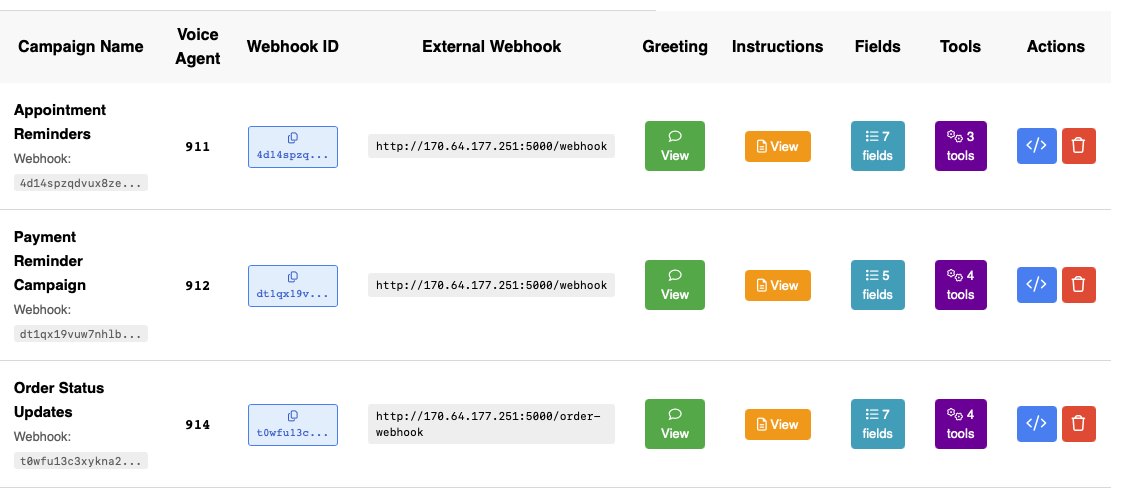
- Agent List: All active agents appear in the "AI Voice Agents" table
- Agent Information: View Voice Agent, webhook ID, external webhook, greeting, instructions, fields, and tools
- Webhook ID: Click the copy button to copy the full webhook ID for API calls
Viewing Agent Configuration
- Click the View button in each column to see detailed configuration:
- Greeting: Full greeting text with variable placeholders
- Instructions: Complete AI behavior instructions
- Fields: List of all defined fields for this agent
- Tools: All configured tools with descriptions and webhook payloads
Getting cURL Command
- Click the code icon in the Actions column
- View the complete cURL command with example data
- Copy and customize for your integration testing
Deleting Agents
- Click the trash icon in the Actions column
- Confirm deletion (Voice Agent remains but configuration is removed)
- Webhook ID becomes invalid after deletion
Troubleshooting
-
Integration Not Activating
- Verify OpenAI API key is correct (starts with
sk-proj-orsk-) - Check that API key has Realtime API permissions
- Ensure you clicked Save after entering the key
- Verify OpenAI API key is correct (starts with
-
Calls Not Connecting
- Verify webhook ID is correct in API calls
- Check that destination phone number format matches your PBX
- Ensure Voice Agent exists and has the script uploaded
-
AI Not Following Instructions
- Review instructions for clarity and completeness
- Use the "... [pause] ..." technique before tool calls for proper endings
- Ensure variable names in instructions match field names exactly
-
Tool Calls Not Firing
- Verify tool names match exactly in instructions and tool configuration
- Check that tool descriptions clearly explain when to use them
- Review call logs for OpenAI function call events
-
Webhook Not Receiving Data
- Verify external webhook URL is accessible from your PBX
- Check webhook endpoint accepts POST requests with JSON
- Review PBX logs for webhook HTTP response codes
-
Variables Not Substituting
- Ensure field names in API call match field definitions exactly
- Use curly braces
{field_name}in greetings and instructions - Check that custom_data in API call contains all required fields
Best Practices
-
Writing Effective Instructions
- Be explicit about when to call each tool
- Use numbered scenarios for clarity
- Include the "... [pause] ..." technique before tool calls
- Test with different customer responses
-
Designing Conversational Flows
- Keep greetings concise and friendly
- Provide clear next steps in instructions
- Handle edge cases (unclear responses, multiple questions)
- Use natural language, avoid robotic phrasing
-
Tool Configuration
- Create tools for specific customer actions only
- Use descriptive tool names (verb_noun format)
- Include meaningful webhook payloads for downstream processing
- Test tools with various conversation paths
-
Variable Management
- Define all variables used in greetings/instructions as fields
- Use consistent naming (lowercase with underscores)
- Include all relevant customer/appointment/order data
- Document variable meanings for your team
-
Webhook Integration
- Implement idempotent webhook handlers
- Log all incoming webhook calls for debugging
- Return 200 OK promptly to avoid timeouts
- Process webhook data asynchronously if possible
-
Testing and Monitoring
- Test each agent with multiple scenarios before production use
- Monitor call logs for unexpected AI behavior
- Review webhook logs for integration issues
- Collect feedback from customers and adjust instructions