Making & Receiving Calls
Making an Outbound Call
From the Dialpad
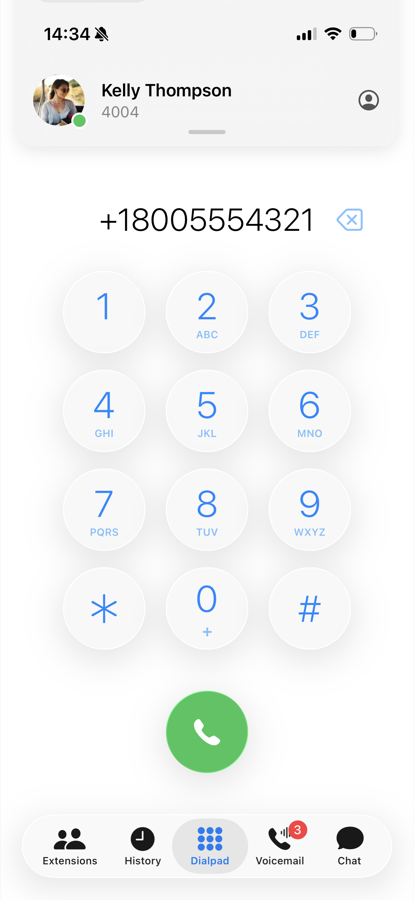
The Dialpad tab is the app's home base — it is selected by default when the app opens.
- Type the number and tap the green call button.
- To dial an international number, hold the 0 key for a moment to enter a leading +.
- If your clipboard contains a phone number, a Paste button appears next to the number field so you can insert it with one tap.
- Once you have typed digits, a backspace button appears in the same spot; you can also long-press the number itself to Copy, Cut or Clear it.
From Other Places in the App
You can start a call from almost anywhere:
- Extensions tab — tap a colleague and choose Call.
- History tab — tap an entry to call the number back.
- Voicemail tab — open a message and tap Call.
- Contacts — open a contact and call one of their numbers.
In each case the app asks you to confirm before it dials, so a stray tap never places a call.
Call Checks
Before a call is placed, the app verifies that everything needed for the call is actually working:
- Network connection — a working Wi-Fi or cellular path
- Microphone access — permission to record audio
- Signaling channel — a live connection to the PBX
- SIP registration — the PBX has acknowledged the app
Normally all four are already green and the call starts instantly. If something is not ready — for example right after the network changed — the app shows the checklist, repairs what it can automatically, and dials as soon as everything turns green. You can cancel the call at any point. The same screen appears as "Connection lost" if the connection to the PBX drops, while the app restores signaling and registration in the background.
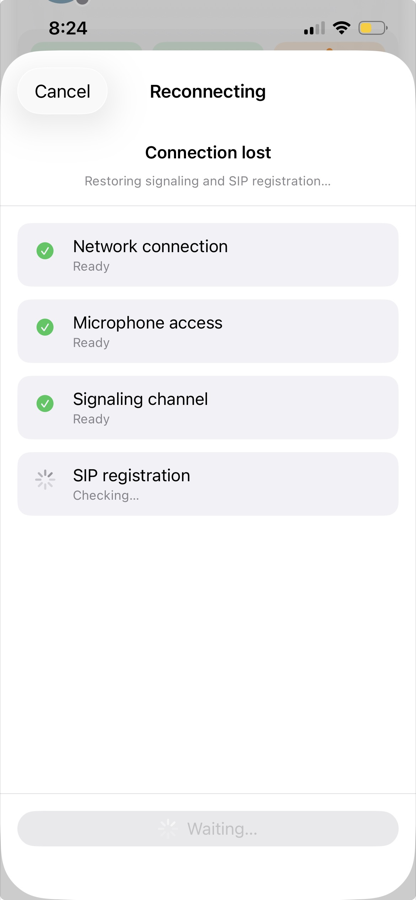
If one of the checks stays red, it tells you what is wrong — for example that microphone access was denied, or that the PBX cannot be reached. See Troubleshooting for fixes.
The Call Screen
Vodia Phone uses Apple's native calling framework (CallKit). Calls behave like regular phone calls on your iPhone: they appear on the lock screen, work with Bluetooth headsets and car kits, and can be answered with the standard iOS call controls. Once a call is connected, the app shows its own call screen with additional PBX features — see In-Call Actions.
Receiving Calls
When the App Is Open
Incoming calls ring immediately with the native iOS incoming-call screen. Accept or decline as you would any phone call.
When the App Is in the Background or the Phone Is Locked
The PBX wakes the app through Apple's push service, so incoming calls ring even when the app has not been opened for days. On the lock screen you get the full-screen native call UI; when the phone is unlocked you see the compact call banner at the top of the screen.
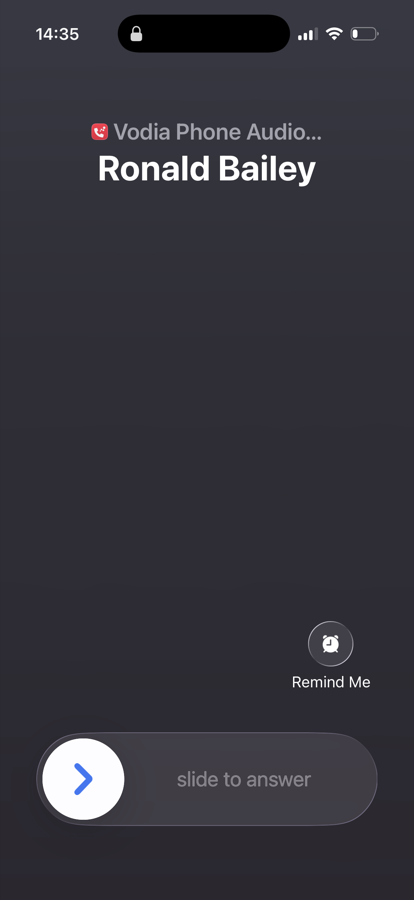
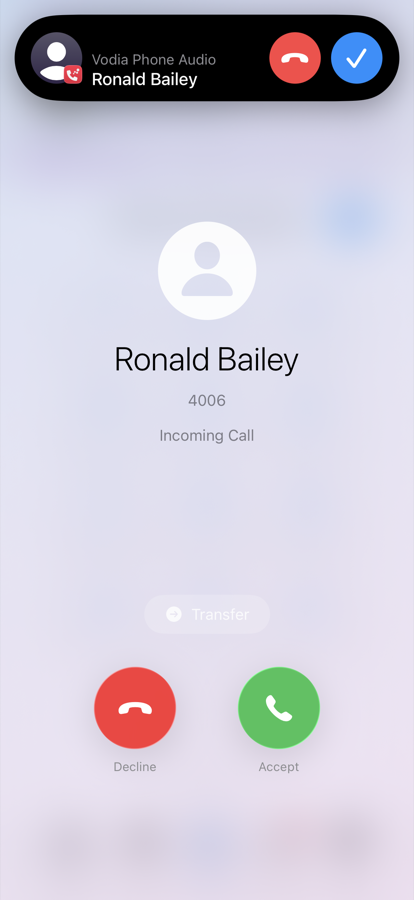
For this to work, notifications must be allowed and the PBX must be reachable from the internet. If calls do not ring while the app is closed, see Troubleshooting.
A Second Incoming Call
If another call comes in while you are already talking, iOS shows the standard second-call options:
- Hold & Accept — puts the current call on hold and answers the new one
- End & Accept — hangs up the current call and answers the new one
- Decline — rejects the new call
After accepting a second call, you can swap between the calls or transfer one to the other — see In-Call Actions.