Microsoft Teams Presence Integration
This feature is supported from version 69.5.13 onwards. The extension email address needs to match the principal username in Microsoft Teams/Office 365.
Vodia supports bidirectional presence synchronization with Microsoft Teams via the Graph API. This integration operates in two directions:
- Teams → Vodia: When a Teams user is on a call or sets their status, the matching Vodia extension is automatically set to DND. VoIP phones (using BLF) and the web portal will reflect this status in real time.
- Vodia → Teams: When a Vodia extension receives or makes a call, or changes their DND state, the corresponding Teams user's presence is updated automatically.
The Teams user principal name (UPN) or email address is used to match against the extension's email address configured in Vodia.
Teams → Vodia Presence (Tenant Setup)
This direction is always active once the domain-level OAuth token is obtained. It requires administrator credentials and is configured at the tenant level.
Setup
In the Tenant, under Advanced > CRM Integration, go to Microsoft Teams Presence:
- Set the scope to All Accounts.
- Click Admin Grant. You will need to be the Teams administrator to complete this step. A pop-up window will open — enter your credentials and close the window once done. (A "missing state" message may appear and can be ignored.)
- Click Get OAuth Token and authenticate again in the pop-up window. Close the window once complete.
- Click Save.
- Ensure each extension's email address matches their Teams username.

Once configured, making or receiving a call in the Teams client will automatically set the corresponding Vodia extension to DND.
Vodia → Teams Presence (Per-User Setup)
This feature is supported from version 70.1 onwards. The extension email address needs to match the principal username in Microsoft Teams/Office 365.
This direction syncs Vodia call activity and DND state back to Microsoft Teams. It must first be enabled at the domain level, and then each user needs to authorize their own Teams account individually.
Enabling at the Domain Level
In the Tenant, under Advanced > CRM Integration > Microsoft Teams Presence, enable the Vodia → Teams presence sync option and save. This must be turned on before users can set up their individual tokens.
Per-User Setup
Each user who wants their Vodia activity reflected in Teams must connect their Teams account from their own extension settings:
- Log in to the Vodia web portal as the extension user.
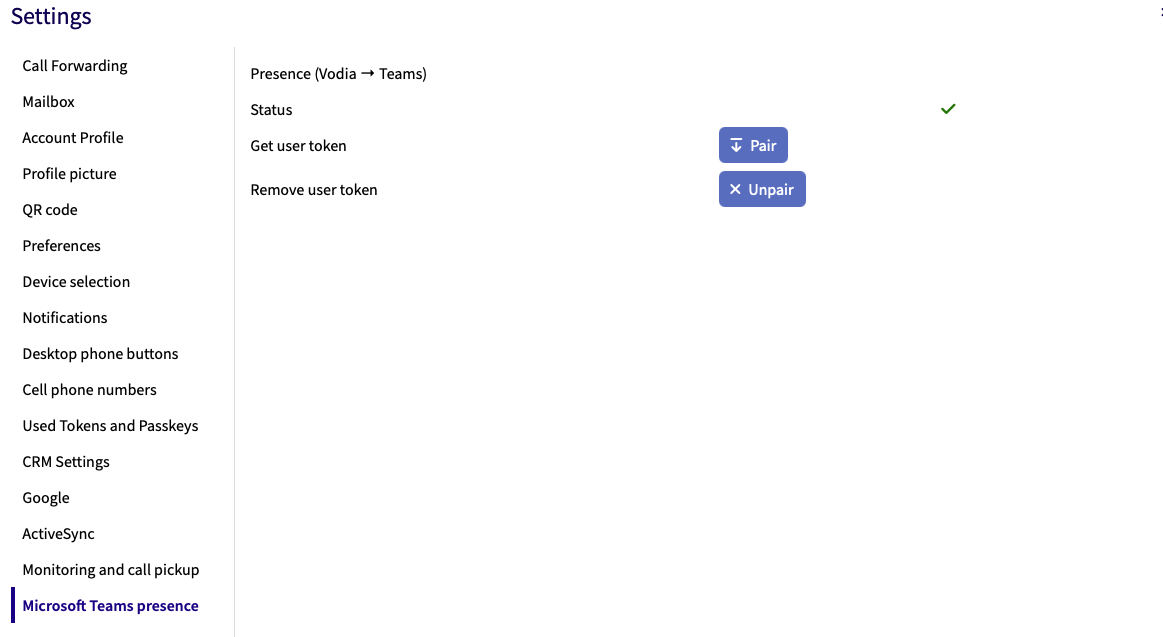
- Navigate to Settings > Microsoft Teams Presence.
- Click Pair (Get User Token). A Microsoft login pop-up will appear — sign in with the Teams account that matches the extension's email address.
- Close the pop-up once authentication is complete.
The status indicator will turn green once the token has been obtained successfully.
To disconnect, click Unpair (Remove User Token).
Behavior
Once a user has connected their Teams account:
- When the Vodia extension receives or makes an external call (ringing or connected), the Teams presence is set to Busy / In a Call. It is cleared automatically when the call ends.
- When the Vodia extension's DND is enabled, the Teams presence is set to Do Not Disturb. It is cleared when DND is turned off.
Internal calls and star codes are excluded from presence sync — only external calls trigger a Teams presence update.